


News & Updates
The latest releases, awards, announcements, and other updates from ASAP Utilities.
April 30, 2026
Pre-release: ASAP Utilities 9.3 - Switch Back to Previous Sheet
Quickly return to the sheet you used last and go back and forth with ease
We're happy to share a well-tested pre-release of the next version of ASAP Utilities, now available to download and try. It includes a small but very useful new feature: Switch Back to Previous Sheet. This feature was added based on how many of you work with multiple sheets.Quickly switch between two sheets
This tool lets you quickly switch between your current sheet and the one you used last.Use it again to return, so you can easily go back and forth between two sheets.
Work faster without moving through tabs
This is especially helpful when working with many sheets or when comparing data across sheets. Instead of moving through tabs one by one using Ctrl+Page Up or Ctrl+Page Down, you can instantly return to where you were, even if the sheets are not next to each other or are in different workbooks. It works like Alt+Tab, but for sheets.Works across sheets workbooks
You can use it on worksheets and chart sheets, even when they are in different workbooks.Start it with a shortcut or from the menu
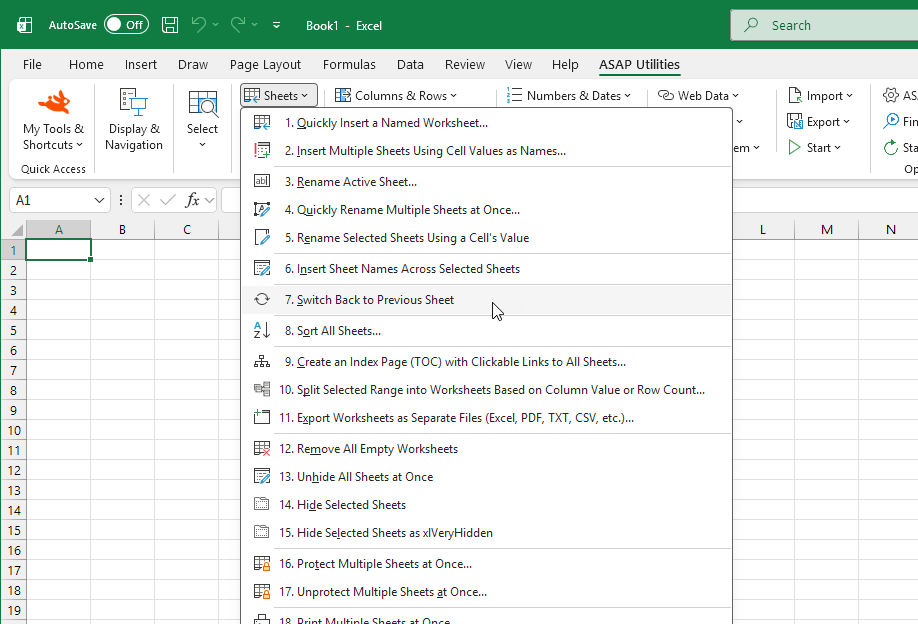
You can launch it using the newControl+Alt+L shortcut, or find it in the menu as shown below:Sheets > Switch Back to Previous Sheet
Download and try the pre-release
Download the pre-release and try the new Switch Back to Previous Sheet feature today.We'd love to hear your feedback.
Download the pre-release and read more details
March 16, 2026
ASAP Utilities Named Finalist for Best Microsoft Excel Add‑in at the Global Excel Awards 2026
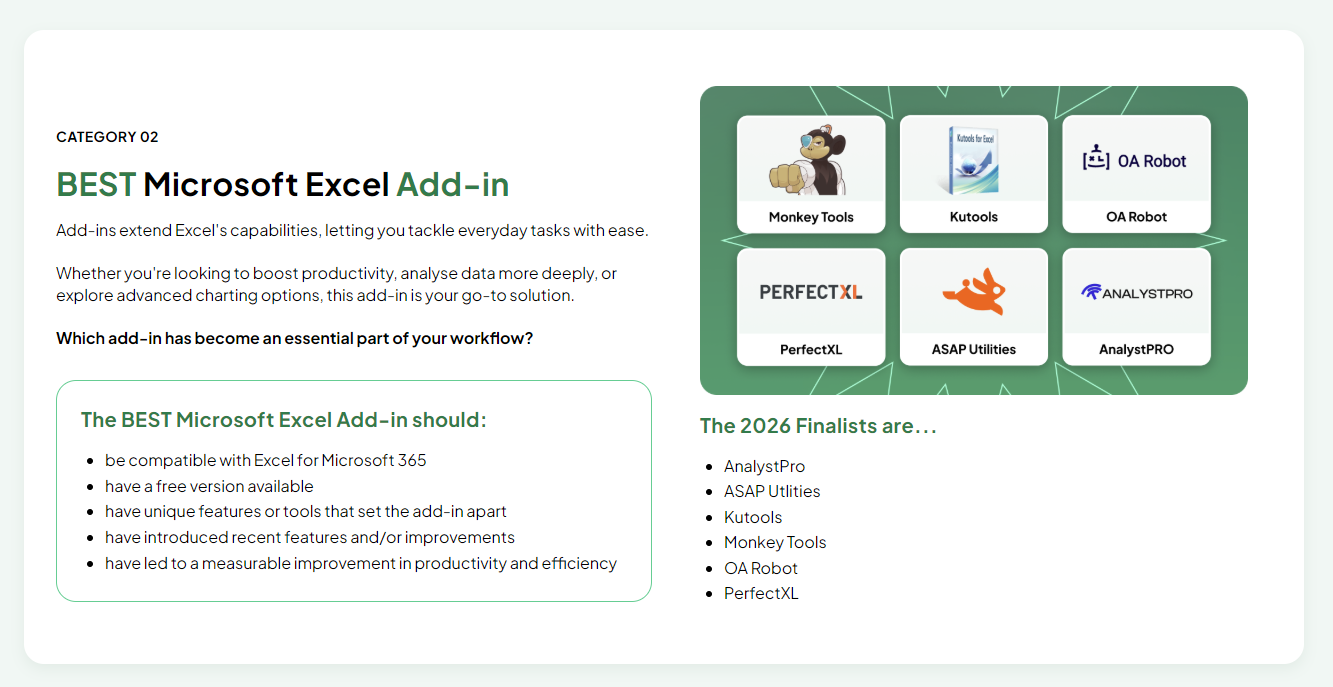 We are proud and grateful that ASAP Utilities has been selected as a finalist again in the Global Excel Awards in the category Best Microsoft Excel Add-in. These awards are based on nominations from Excel users around the world, and we are honored that ASAP Utilities is among this year's finalists.
The awards are part of the 2026 Global Excel Summit, an international event that celebrates innovation, tools, and professionals in the Excel community.
Since 1999, ASAP Utilities has been continuously developed to help people save time and perform tasks that Excel alone cannot. Today, almost a million Excel users worldwide use our Excel add-in.
One thing that has always been important to us is that the free Home & Charity edition includes the same functionality as the paid version, so students and charitable organizations never miss out.
We are proud and grateful that ASAP Utilities has been selected as a finalist again in the Global Excel Awards in the category Best Microsoft Excel Add-in. These awards are based on nominations from Excel users around the world, and we are honored that ASAP Utilities is among this year's finalists.
The awards are part of the 2026 Global Excel Summit, an international event that celebrates innovation, tools, and professionals in the Excel community.
Since 1999, ASAP Utilities has been continuously developed to help people save time and perform tasks that Excel alone cannot. Today, almost a million Excel users worldwide use our Excel add-in.
One thing that has always been important to us is that the free Home & Charity edition includes the same functionality as the paid version, so students and charitable organizations never miss out.
Support ASAP Utilities in the final voting round
If ASAP Utilities is part of your Excel toolkit, your support in the final voting would be greatly appreciated. 🔗 Vote here (it only takes about 30 seconds):https://globalexcelsummit.typeform.com/to/thGGWX91 "Best Microsoft Excel Add-in" is the second category in the voting form. If you're unsure about another category, you can simply skip it and move on to the next one.
Explore the Other Nominees
The Global Excel Awards highlight many talented people, innovative solutions, and useful tools throughout the Excel community. If you are not familiar with the other nominees, we encourage you to explore them as well. The Excel community is full of knowledgeable and enthusiastic people building tools, sharing ideas, and teaching others how to work better with Excel.New to ASAP Utilities?
If you haven't tried ASAP Utilities yet, you can download the latest version here. ASAP Utilities adds hundreds of powerful tools to Excel that help you clean data, automate repetitive tasks, manage worksheets, and perform operations that would otherwise take much longer or are not possible with Excel alone. Thank you to everyone who uses ASAP Utilities and recommends it to others. Your support and feedback over the past 27 years have helped make the tool what it is today.February 11, 2026
ASAP Utilities 9.2 Is Now Available
We're happy to announce that version 9.2 is available for download! You can now write amounts in four additional languages, clean up unwanted line breaks more easily, and view a more consistent estimate of your saved time. This release also includes various small improvements and fixes for an even smoother experience. ASAP Utilities has helped nearly a million Excel users since 1999. Version 9.2 builds on that solid foundation while staying familiar and easy to use. We invite you to upgrade to version 9.2.
Many of the refinements in this release are inspired by user feedback. Thank you for being part of that process.
With great enthusiasm,
We invite you to upgrade to version 9.2.
Many of the refinements in this release are inspired by user feedback. Thank you for being part of that process.
With great enthusiasm,The ASAP Utilities Team
February 6, 2026
Global Excel Awards 2026 Nominations Are Now Open

The nominations for the Global Excel Awards 2026 are now open. These awards recognize individuals, tools, and organizations that make a positive and meaningful contribution to the Excel community worldwide. Last year, ASAP Utilities won the award for "Best Excel Add-In", something we are very grateful for. We love being able to help so many Excel users around the world. The kind feedback we receive from users continues to motivate us to improve. Add-ins are an important part of what makes Excel so flexible. They allow people to tailor it to their own way of working and save time on everyday tasks. The Global Excel Awards are organized by Global Excel Summit. This international event brings together Excel users and experts from around the world. You can find more information about the Global Excel Awards 2026 and the nomination process on the Global Excel Summit website:
https://globalexcelsummit.com/global-excel-awards Nominations are open until 13 February 2026. By submitting a nomination, you help celebrate the outstanding achievements and contributions made in the Excel industry. Thank you to everyone who uses ASAP Utilities, shares feedback, and relies on it in their daily work. Your trust and support mean a lot to us. With great enthusiasm,
Bastien Mensink
Founder, ASAP Utilities
November 14, 2025
No Stress, No Pressure: Honest Pricing Every Day of the Year
At ASAP Utilities, we strive to keep things friendly and straightforward for you. Around this time, you see Singles Day, Black Friday, and Cyber Monday deals everywhere. That can feel busy and overwhelming. We keep one low price all year around so you always know what to expect.
Our price has remained low and unchanged since 2007. No increases. No surprises. Just one transparent and fair price you can trust. We maintain this price because we want ASAP Utilities to stay accessible to everyone. We continue to invest in new tools, improvements, and support and thanks to our large user base, we can keep the price low while maintaining high quality.
You never have to worry about timing things right or missing a deal. Our price stays the same all year, so you can choose the moment that works for you. You can always count on ASAP Utilities for long lasting value and a fair and affordable price.
Take your time. Buy it when you need it. No stress. No pressure.
Warm regards,The ASAP Utilities Team
Stay informed about new releases
Subscribe to our newsletter (in English) and we'll notify you when a new version or important update is released.