
Debug information for support
In certain situation we might ask you to turn on the "debug" mode in ASAP Utilities. This writes down certain actions in a log file and it will most likely help us to find the cause of the problem and find or create a solution quicker.Methode 1: If you can start ASAP Utilities
Step 1: Turn the "debugger" on
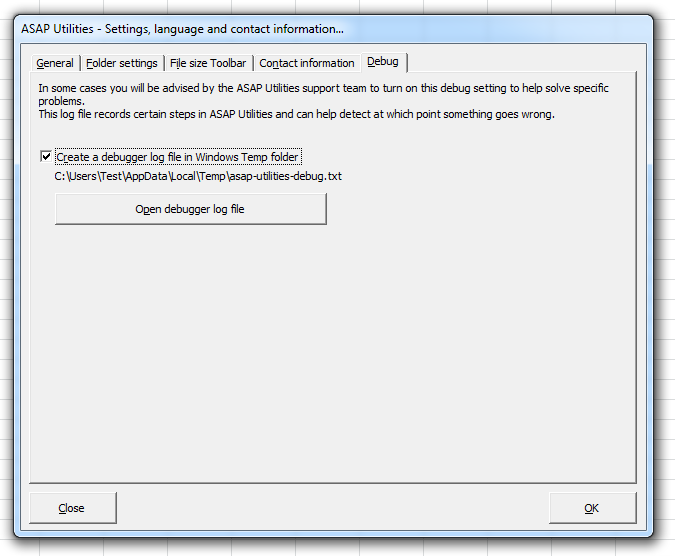
If you can start ASAP Utilities, then you can do it from within the program itself.In the Excel menu choose ASAP Utilities » ASAP Utilities Options » Settings, language and contact information...
Then choose the tab "debug" and turn on the option "Create a debugger log file in Windows Temp folder":
Step 2: Restart Excel
Now close Excel and start it again.Step 3: Do the action
Now perform the steps where the problem appears.Step 4: Send us the information
If you can run ASAP Utilies then you can open the debug log file from within ASAP Utilities.- In the Excel menu choose ASAP Utilities » ASAP Utilities Options » Settings, language and contact information...
- Choose the tab "debug" and click on the button "Open debugger log file".
- Copy the information from the debug file and paste it in an email to us (or send the file as attachment).
If it is the first time that you contact us about a certain problem, then please send a detailed description of the problem too. If the problem is related to certain workbooks only, then please send us an example workbook too which we can use to reproduce the problem.
Method 2: If you can not start ASAP Utilities
Step 1: Turn the "debugger" on
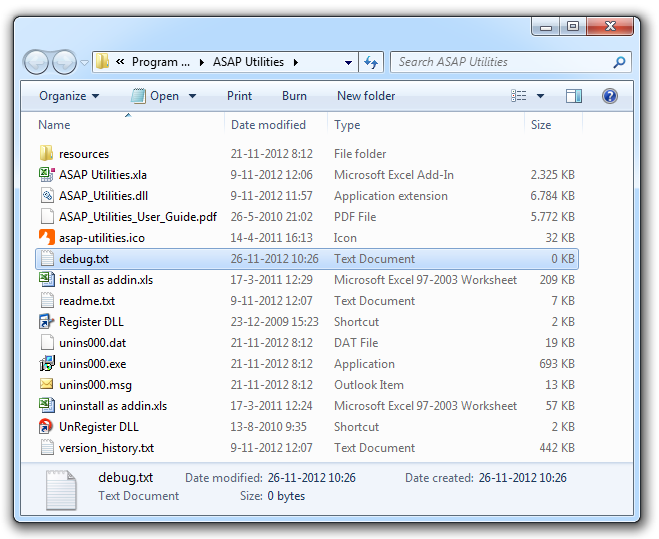
Create a file named "debug.txt" in the folder where ASAP Utilities is installed.By default this folder is "C:\Program Files\ASAP Utilities\" or "C:\Program Files (x86)\ASAP Utilities\".
You can also download a debug.txt file here (right-click and then choose "save target/link as").
Step 2: Restart Excel
Now close Excel and start it again.Step 3: Do the action
Now (try to) start ASAP Utilities. All the steps that are important during the startup will now be documented.Step 4: Send us the debug log file
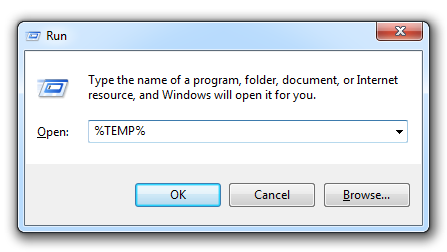
By default the debug log file is created in your Windows Temp folder.You can quickly browse to this folder by choosing in Windows: Start > Run
(or hold down the Windows key on your keyboard and press r)
and then enter "%TEMP%" (without the quotes) and pressing enter:
This will take you to the Windows Temp folder where the ASAP Utilities "asap-utilities-debug.txt" is stored:
(You might have to scroll a bit because your Temp folder usually contains many files from other programs and Windows itself)
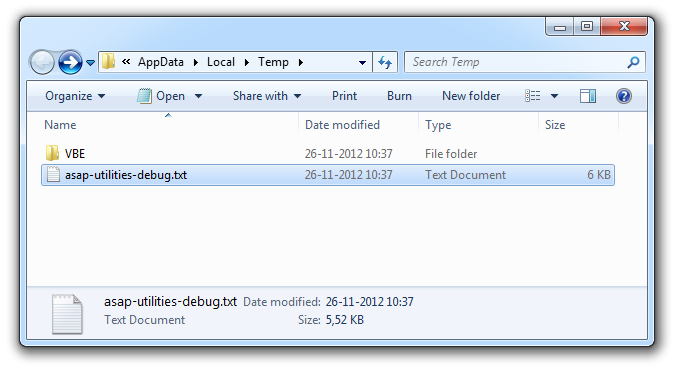
Please send us the file "asap-utilities-debug.txt" as an attachement in an email (support@asap-utilities.com).
If it is the first time that you contact us about a certain problem, then please send a detailed description of the problem too. If the problem is related to certain workbooks only, then please send us an example workbook too which we can use to reproduce the problem.
©1999-2024 ∙ ASAP Utilities ∙ A Must in Every Office BV ∙ The Netherlands
Empowering Excel Users Worldwide for 25 Years
Empowering Excel Users Worldwide for 25 Years