
Changes in version 4.5.0 - April 9, 2009
Published: April 9, 2009 (latest revision April 24, 2009)reference id: QA0202
Finished
On April 9, 2009 the new version 4.5.0 is released. Download
New and improved utilities
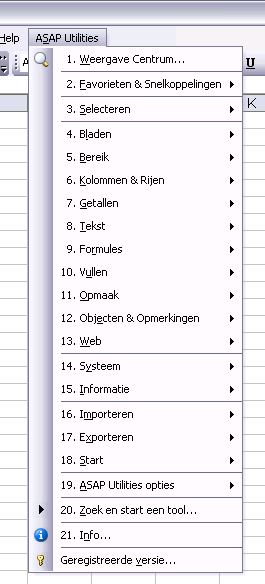
Listed below are some of the most important updates- All the tools are also available in the Dutch language (Nederlands)
now.
If you have the Dutch language of Excel, ASAP Utilities will now start in Dutch, otherwise it will start in English.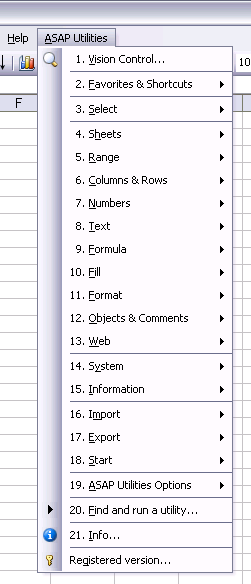
In Excel 2007, English: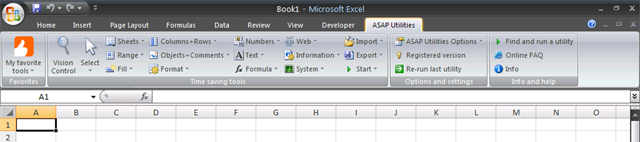
In Excel 2007, Dutch/Nederlands: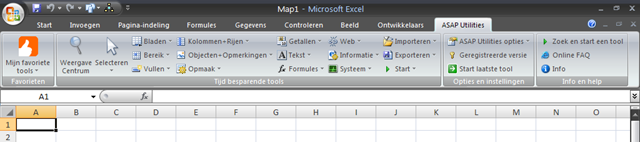
You can change the language used in menus and dialogs in the options dialogue:
ASAP Utilities » ASAP Utilities Options » ASAP Utilities options and settings...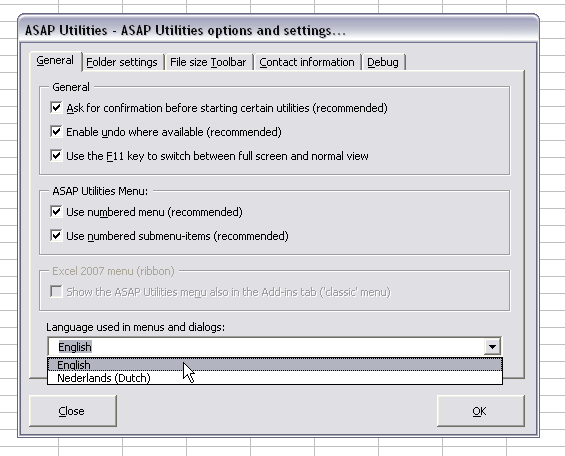
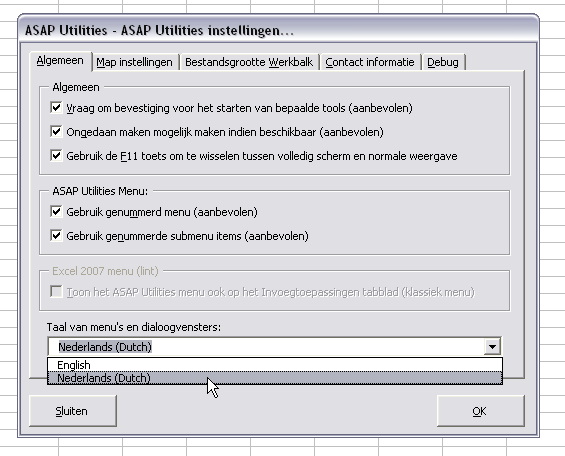
Note: Only ASAP Utilities itself is translated at this moment. The setup is still in English and so is our website.
- ASAP
Utilities Options » Find your utility (search help)...
The layout is improved and you can now quickly start the utility from the list of results, or click on the ?-button to view more details on the utility on our website: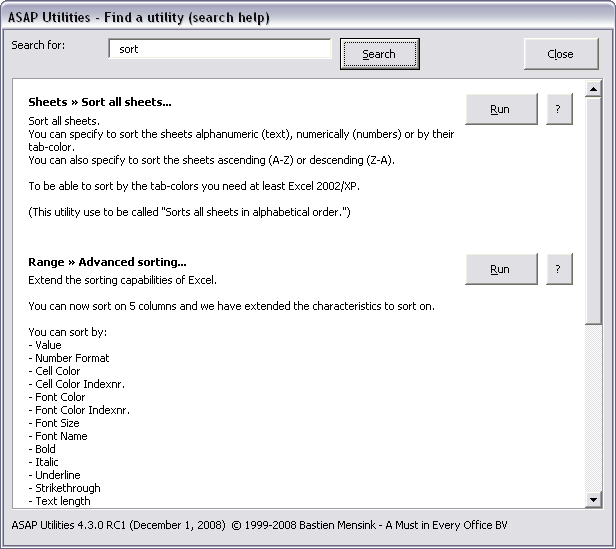
- Vision
Control...
The form has been redesigned to show better if the settings are for the worksheet, entire workbook, or the application: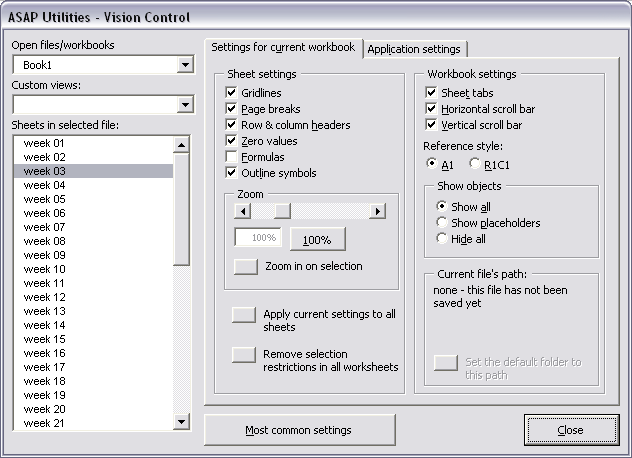
The option "Commandbars" has been renamed to "Toolbars". Disabling the toolbars now no longer disable the right-click toolbars. Furthermore you will be asked a question upfront which provides some useful information on what this option actually does:
“Do you want to disable all the toolbars?
This can be a useful alternative for Excel's "full screen" option. You free up up screen space and in contrary to the "full screen" option the formula- and statusbar are still being showed.
You can later re-enable the toolbars by enabling this option in ASAP Utilities (this is important to remember).� - Select
» Conditional select cells...
has been renamed to:
Select » Select cells based on content, formatting and more...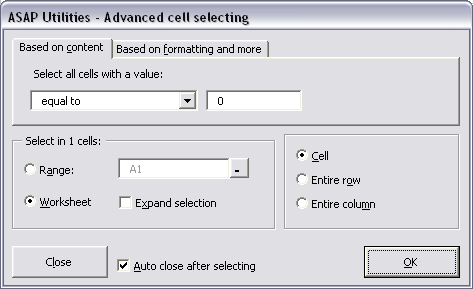
- Select
» Conditional row and column select, hide or delete...
The form has been redesigned to reflect the options better: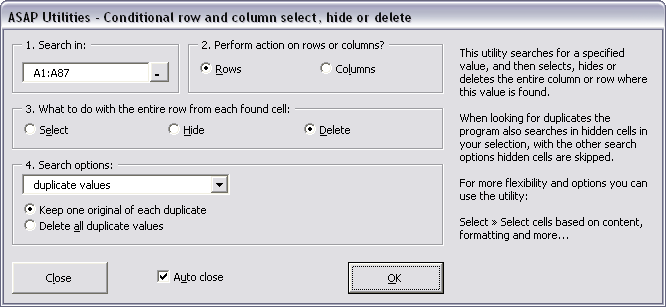
- Columns
& Rows » Put together rows or columns from several sheets...
The form has been redesigned to reflect the options better: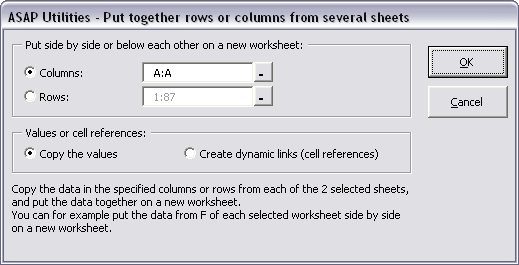
- Range
» Find / Replace in all sheets...
The form has been redesigned to reflect the options better: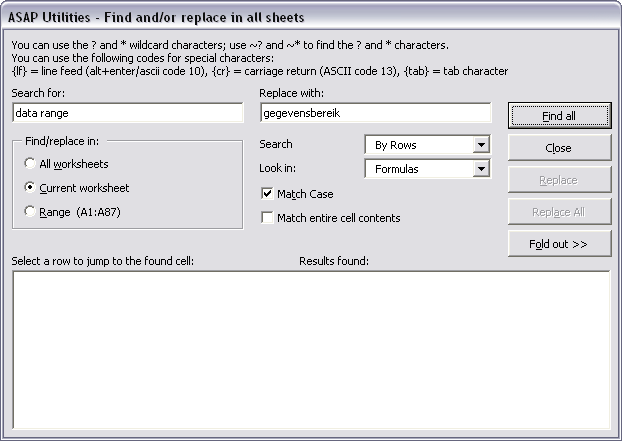
- Columns
& Rows » Color each n'th row or column in selection...
The form has been redesigned to reflect the options better: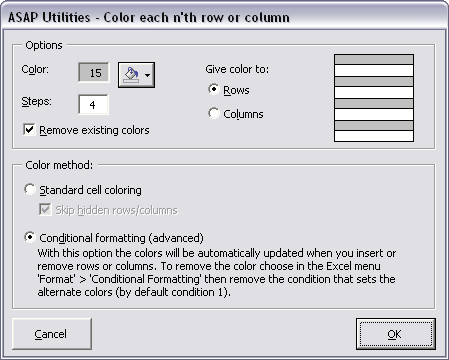
- Columns
& Rows » Advanced Transposer...
has been renamed to:
Columns & Rows » Transpose column in multiple steps...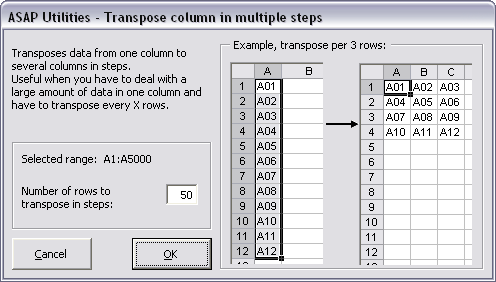
- Numbers
» Convert "textnumbers" to numbers
has been renamed to:
Numbers » Change not recognized numbers (text?) to numbers - Text
» Convert dates...
Has been redesigned, expanded and renamed to:
Text » Convert/recognize dates...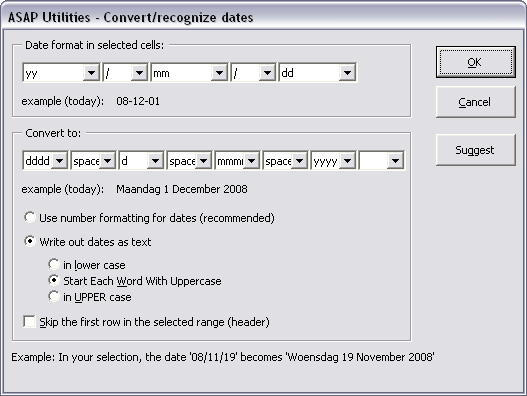
- Text
» Advanced character removal/replace...
The form has been slightly redesigned: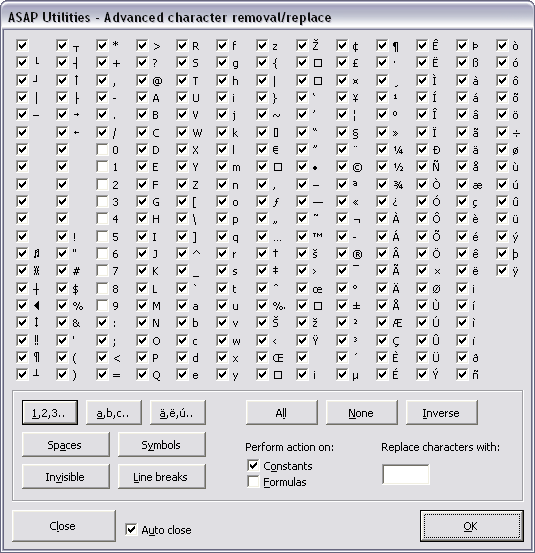
- Text
» Replace accented characters (á, ë, ñ etc.)...
The form has been slightly redesigned: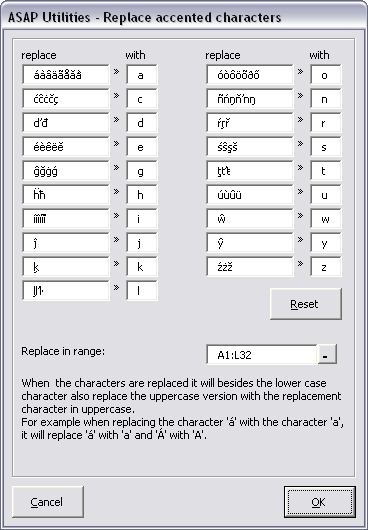
- Fill
» Quick numbering of cells...
Has been redesigned and now also contains the option to restart the count after a certain number.
The utility will now also count better when cells are merged (the merged area will now be counted as 1).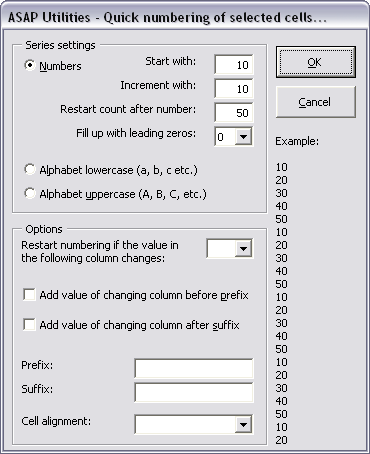
- Fill
» List filenames in folder...
Has been renamed to:
Fill » Create a list of filenames and properties in a folder... - Format
» Copy a sheet's page and print settings...
The form has been slightly redesigned.
Information is added that your printer-driver might affect the speed of the tool.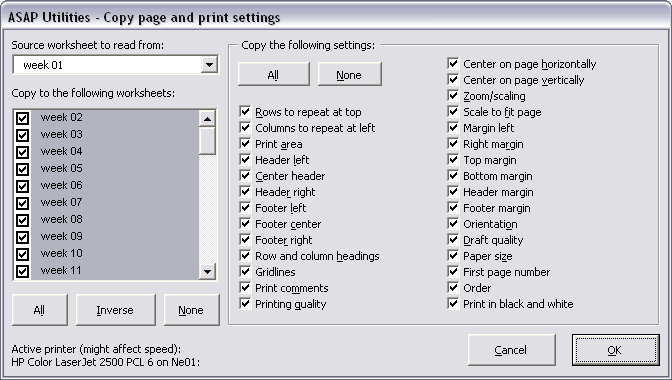
- Format
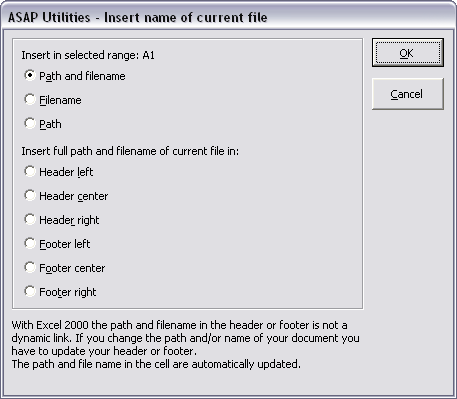
» Insert workbook's path and name in header, footer or cell...
The form has been redesigned. If you hover your mouse over one of the options you will see the value that will be inserted: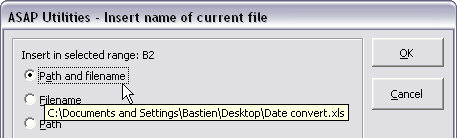
- Format
» Detect and visualize adjacent data/group changes
The form has been redesigned: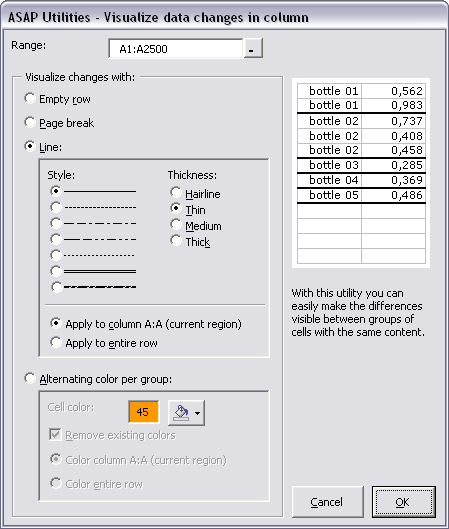
- Format
» Copy and apply cell's formatting settings...
The form has been redesigned: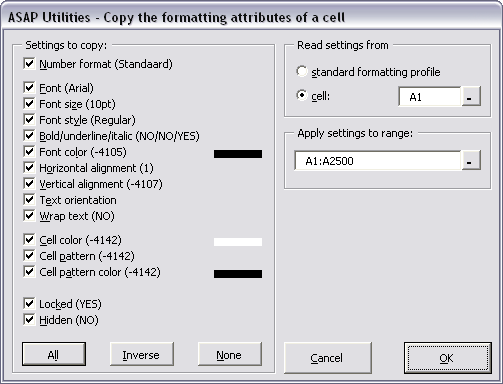
- Objects
& Comments » Comment tools...
The form has been redesigned: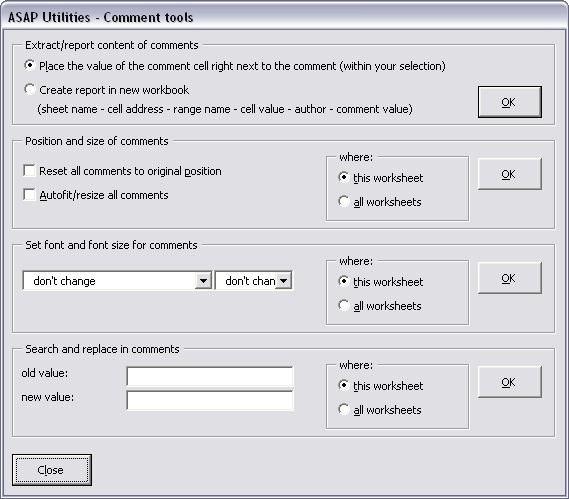
- Web
» Export selection as HTML table to clipboard...
The form has been redesigned: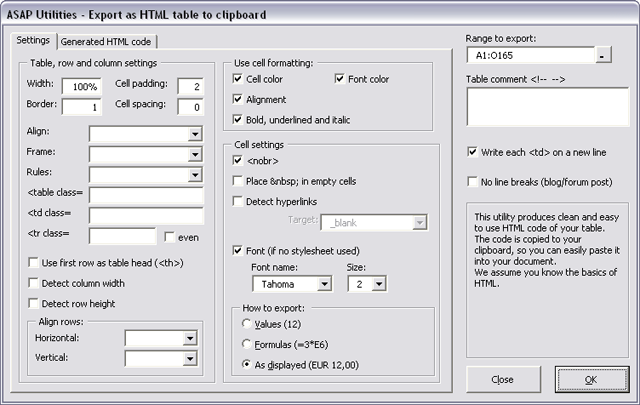
- Import
» Merge files together in a new file...
The form has been redesigned and has been renamed to:
Import » Merge and/or import multiple files...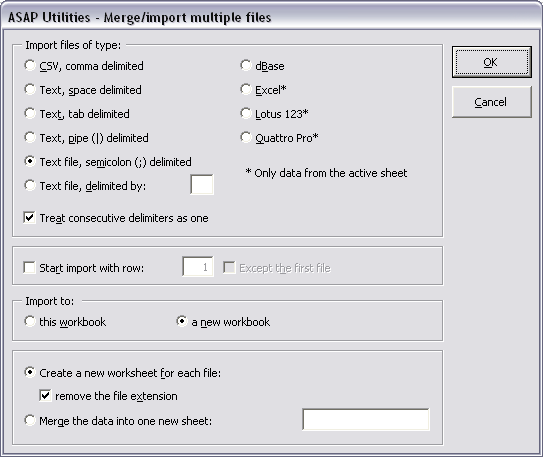
- Export
» Export selection or active sheet as new file...
The form has been redesigned: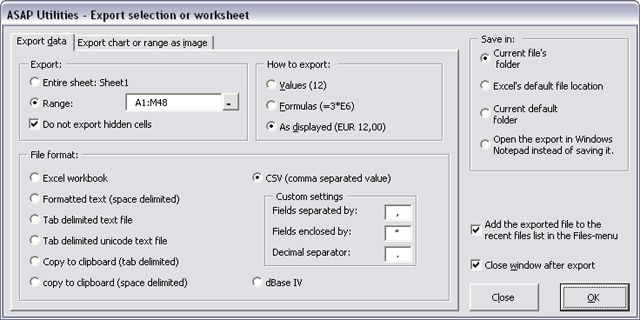
- Columns
& Rows » Insert in-between empty rows or columns...
The form has been redesigned and the utility has been renamed to:
Columns & Rows » Insert between empty rows or columns...
Furthermore you can now specify the amount of rows or columns to insert between: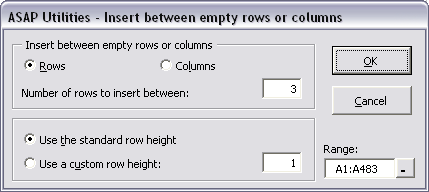
- The "Launch"
submenu has been renamed to "Start".
We have done this because in Windows, "Start" is the name of the place where you start your programs too.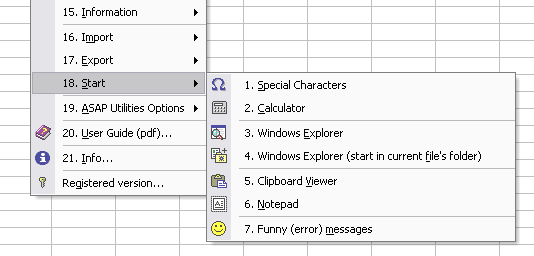
- Information
» List all range names
If you have Excel 2007 this utility will now also report the name comments. - Formula
» Copy formulas without changing their cell references...
Improved speed. - Select
» Conditional select cells...
This utility was case sensitive, meaning that for example "Excel" and "EXCEL" were different values. You can now specify if you want the comparison when looking for duplicated values to be case sensitive or not. By default the utility is now no longer case sensitive.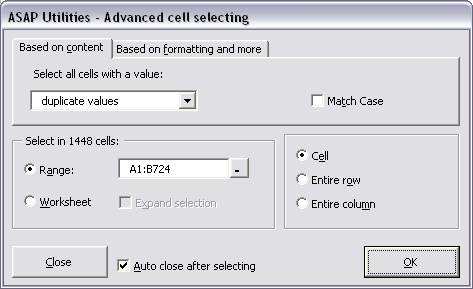
- Range
» Empty duplicates in selection...
This utility has been renamed to:
Range » Clear duplicated values in selection (leave one original)
When searching for duplicate or unique values, this utility was case sensitive, meaning that for example "Excel" and "EXCEL" were different values. You can now specify if you want the comparison when looking for duplicated values to be case sensitive or not. By default the utility is now no longer case sensitive.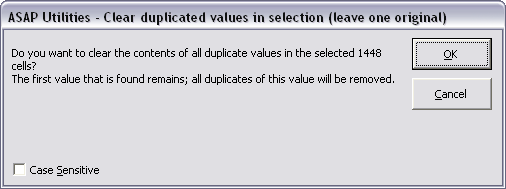
- Columns
& Rows » Conditional row and column select, hide or
delete...
When searching for duplicate or unique values, this utility was case sensitive, meaning that for example "Excel" and "EXCEL" were different values. By default the utility is now no longer case sensitive. When searching for text, you can now specify too if the comparison should be case sensitive.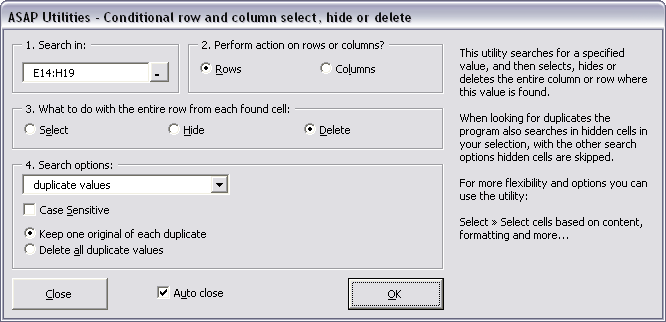
- Formula » Insert Function from the ASAP Utilities library...
This utility has been added to help you insert a formula from the ASAP Utilities functions library.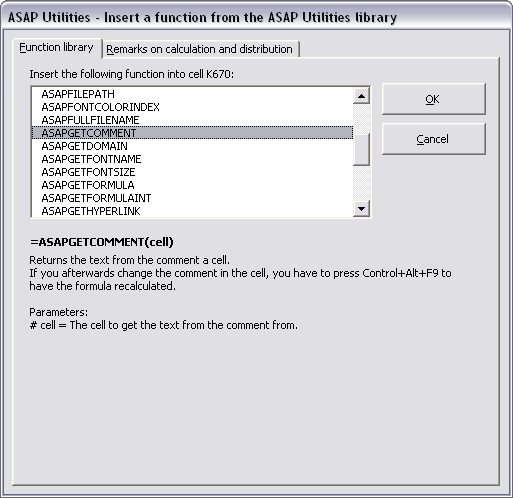
- General
In case of problems you can now activate the debug mode by creating an (empty) file in the ASAP Utilities program folder and name it 'debug.txt' (without the quotes). In your windows temp folder you will then see a file called 'asap-utilities-debug.txt' which contains information that might help us in solving certain issues. You can quickly open the temp folder in Windows explorer by choosing "Run" in the Windows Start menu and then entering '%TEMP%' (without the quotes).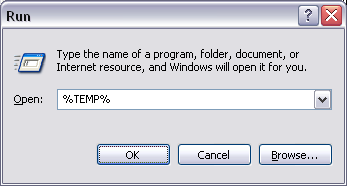
- Columns
& Rows » Conditional row and column select, hide or
delete...
Improved speed when hiding or removing the results. - ASAP
Utilities Options » Find your utility (search help)...
Has been renamed to "Find and run a utility..." - Main menu: "User
Guide (pdf)" has been replaced with "Find
and run a utility..."
The link to the manual is now located at:
ASAP Utilities Options » Open the ASAP Utilities User Guide (English, PDF)...
The "Find and run a tool..." is more powerful and therefore located in the main menu now. With this utility you can search for a tool, view the description and immediately press the "run" button.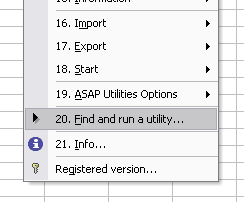
- Range
category
The order in which the tools are displayed is changed so that the range sorting tools are showed together. Furthermore the "Count and/or color duplicates in selection..." utility from the "Information" submenu is now in the "Range" submenu too, right below the utility "Clear duplicated values in selection (leave one original)". - Text
» Convert to UPPERcase
has been renamed to:
Text » Change to UPPERcase - Text
» Convert to lowercase
has been renamed to:
Text » Change to lowercase - Formula
» Convert formulas to their values
has been renamed to:
Formula » Change formulas to their calculated values - Web
» Convert hyperlinks to =HYPERLINK() formulas
has been renamed to:
Web » Change hyperlinks to =HYPERLINK() formulas - Numbers
» Convert negative numbers to positive and vice versa...
has been renamed to:
Numbers » Change negative numbers to positive and vice versa... - Range
» Convert cells value to its formatted look
Has been renamed to:
Range » Fill cells with their formatted value - Numbers
» Convert numbers to text (adding ' in front)
has been renamed to:
Numbers » Change values to text values (adding ' in front) - Information
» Count unique values in selection
has been renamed to:
Information » Count the different unique values in selection
You now have to option to only count the unique values within the visible cells in your selection. This can be useful for example if you are working with filtered lists.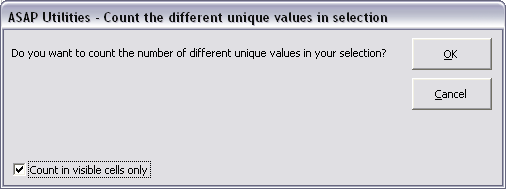
- Select
» Expand selection to last used row
Has been renamed to:
Select » Extend selection to the last used row - Select
» Expand selection to last used column
Has been renamed to:
Select » Extend selection to the last used column - Select
» Select cell with smallest number
has been renamed to:
Select » Select cells with the smallest number
Instead of only selecting the first found cell with the smallest number this tool will now select all cells with the minimum value within your range or on your worksheet. - Select
» Select cell with largest number
has been renamed to:
Select » Select cells with the largest number
Instead of only selecting the first found cell with the largest number this tool will now select all cells with the maximum value within your range or on your worksheet. - Text
» Replace accented characters (á, ë, ñ etc.)...
The following characters have been added: ý, ů, ě, ā, ē, ī, ū, ę, ą, ÿ, and ű.
If you have used this utility before you have to press the 'reset' button to have these new characters added. - Web
» Decode all URL-encoded data
The utility has been renamed to:
Decode all URL and HTML encoded text
This utility will no also decode named html entities such as €.
Furthermore it will decode entities such as %c3%84 and %c3%a7 and it will decode unicode characters such as © and “. - Export
» Export selection as HTML table to clipboard...
New option: Cell character encoding, Characters such as < > & and Unicode characters will be converted to their html entities so that they are properly displayed in a browser.
The < NOBR>option has been replaced by nowrap because < NOBR>is not approved by the World Wide Web Consortium (W3C). Instead of encoding the cell's value with < NOBR></ NOBR>the utility now adds 'style="white-space: nowrap"' within the < TD>tag. - Columns
& Rows » View and manage hidden rows and columns...
The utility will now show between brackets the total amount of rows and columns that are hidden: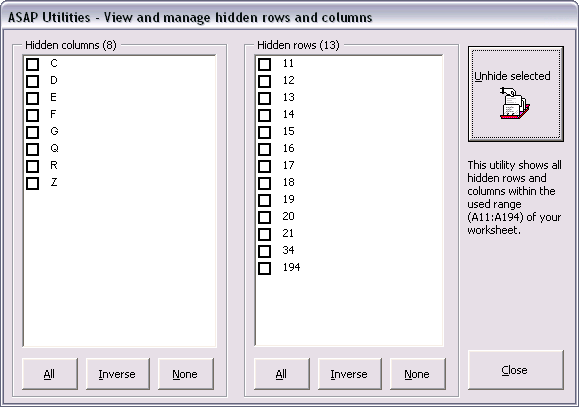
- Text
» Delete all after n'th character...
The utility has been renamed to:
Delete all after a given amount of characters... - Sheets
» Delete all pagebreaks in active sheet
Has been renamed to:
Sheets » Remove all page breaks on the selected worksheets
Instead of working only on a single worksheet this utility now removes all manually set pages breaks from your selected worksheets.
In Excel you can only remove all page breaks one sheet at a time by first selecting all cells and then choosing "Reset All Page Breaks" in the "Insert" menu. With this utility you can now easily remove the page breaks on multiple sheets at once and you don't need to select all cells upfront. - Web
» Extract hyperlinks...
The utility now also extract the subaddresses in the link (the part after the #) and the utility also extracts the link from cells with the =HYPERLINK() function. - ASAPGETHYPERLINK()
This function now also extracts the link from cells with the =HYPERLINK() function. - Web
» Clean information that is copied from websites...
has been renamed to:
Web » Clean information that is copied from websites... - Export
» Save selected range as bitmap-image on the clipboard (as on
screen)
has been renamed to:
Export » Put selected range as bitmap-image on the clipboard (as on screen) - Export
» Save selected range as image on the clipboard (as on screen)
has been renamed to:
Export » Put selected range as image on the clipboard (as on screen) Export » Save selected range as image on the clipboard (as on printer)
has been renamed to:
Export » Put selected range as image on the clipboard (as on printer) - Format
» Copy and apply cell's formatting settings...
has been renamed to:
Format » Copy the formatting attributes of a cell... - General
Improved progress indicator and refreshing the screen when you switched to other applications during lengthy operations. - Several minor improvements.
Bug fixes
- Objects
& Comments » Select all objects on current worksheet
This tool previously also removed the drop-down arrows in cell validation lists. This is now fixed. - Import
» Merge files together in a new file...
When you import Excel files the column width is now preserved. - Fill
» List filenames in folder...
The file types option was case sensitive. This now no longer is. So it doesn't matter if you search for *.xls or *.XLS for example. - Import
» Merge files together in a new file...
If you imported a file with the extension CSV, your custom settings were ignored, and the file was always split by your Windows list separator. This is now fixed. - Text
» Insert before current value...
Text » Insert before after value...
When the option "skip empty cells" was set this was ignored by the program. This is now fixed. - ASAP
Utilities » Import » Insert Textfile (with options)...
Fixed the error Method '~' of object '~' failed. This could happen if you started Excel and then immediately imported a file without any editing of the blank workbook Excel started with. Excel then just opened the file and closed the blank workbook which caused the error in ASAP Utilities. - If the Excel menu bar was protected (a very rare situation) you could get an
error stating that the ASAP Utilities menu could not be created: "Sorry, I can't
create the menu due to an error... Method '~' of object '~' failed."
This is now fixed. We have created a workaround for this by temporarily removing the protection, creating the menu and then applying the original protection settings again.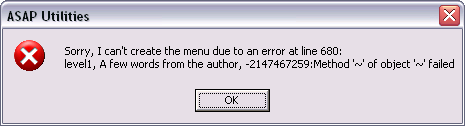
An example of a setting that can be used to protect the menu and resulted in the error in ASAP Utilities: Application.CommandBars(1).Protection = msoBarNoCustomize - Columns
& Rows » View and manage hidden rows and columns...
Fixed the error when you used the utility in Excel 2007 on a workbook that was opened in compatibility mode and it had only 255 columns instead of 16384. - Text
» Delete number of leading characters...
If you used the utility on a range that contained a cell with a date you got an error. This is now fixed by skipping all cells with a date. - Text
» Delete number of ending characters...
If you used the utility on a range that contained a cell with a date you got an error. This is now fixed by skipping all cells with a date. - Text
» Delete all after n'th character...
If you used the utility on a range that contained a cell with a date you got an error. This is now fixed by skipping all cells with a date. - Sheets
» Sort all sheets...
The utility produced an error if you workbook contained a hidden sheet that had the visible property set to xlVeryHidden: "Move method of Worksheet class failed". This is because a xlVeryHidden sheet can not be moved. Therefore this utility now skips the sheets that are hidden like that. - Select
» Select all sheets
Didn't work and gave an error when one or more sheets in your workbook were hidden. This is now fixed. - Text
» Make first character Uppercase, the rest lowercase
Gave an error if the formatting of the cells was protected. This is now fixed.
The utility also gave an error on cells with very long text, this is fixed too. - Text
» Convert to UPPERcase
The utility didn't work and gave an error on cells with very long text values. This is now fixed. - Text
» Convert to lowercase
The utility didn't work and gave an error on cells with very long text values. This is now fixed. - Text
» Start first word with Uppercase
The utility didn't work and gave an error on cells with very long text values. This is now fixed. - Text
» Start Each Word With Uppercase
The utility didn't work and gave an error on cells with very long text values. This is now fixed. - Web
» Activate hyperlinks (create from cell values)
The =HYPERLINK() option does not work if the length of the address exceeds 255 characters. This would result in an error. ASAP Utilities will now warn you upfront if any of the cells is too long to use the formula option. - Web
» Convert hyperlinks to =HYPERLINK() formulas
The =HYPERLINK() option does not work if the length of the address exceeds 255 characters. This would result in an error. ASAP Utilities will now skip cells that are too long and inform you at the end how many cells were skipped because the address was too long. - Fill
» Fill up with leading zeros...
Once you filled up the numbers with leading zeros the utility didn't always work when you ran the utility on the same data again and wanted less leading zeros. This is now fixed. - Undo
Improved, especially on cells with very long values (more than 1024 characters). - Several improvements and small bugs fixed.
Other
- Format » Quick table (autoformat)
This utility has been removed from the menu. The tool hasn't been updated for years and we don't think that anybody will miss it, also because newer Excel versions have built in schemes for quickly formatting a table.
You can use the following tool partially as a replacement for this one:
Columns & Rows » Color each n'th row or column in selection...
« back
©1999-2024 ∙ ASAP Utilities ∙ A Must in Every Office BV ∙ The Netherlands
Empowering Excel Users Worldwide for 25 Years
Empowering Excel Users Worldwide for 25 Years