
“The right tools increase efficiency!”
How to uninstall ASAP Utilities
Note for installations with multiple users
If other users on the same computer used ASAP Utilities too, you will have to manually remove ASAP Utilities from their list of Excel add-ins. This is something that can only be automated for the user that runs the uninstall due to the design/restrictions of MS Windows. In such a case the user has to follow step 4 till 7 of the manual uninstall.Automatic uninstall #2
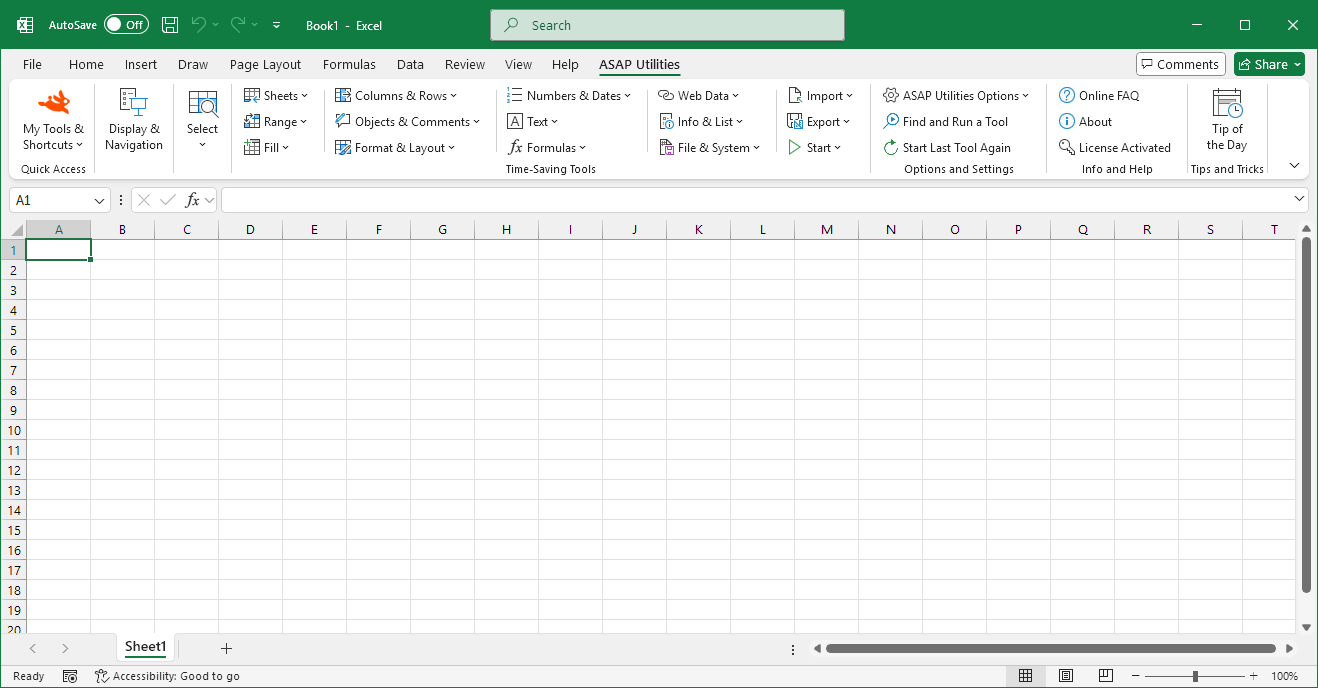
As an alternative you can also use the following method to uninstall ASAP Utilities.- In the Excel menu go to "Tools", "Add-ins" and then uncheck the check box next to ASAP Utilities. This will remove ASAP Utilities from the menu.
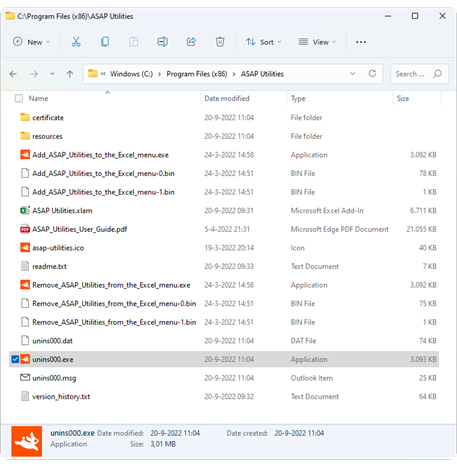
- If you have chosen the automatic install you can go to the software option in your control panel to uninstall ASAP Utilities. You can also run "unins000.exe" from the ASAP Utilities installation folder. The uninstaller removes all ASAP Utilities installation files and removes all ASAP Utilities entries from the registry.
If you have specified an alternative location to store your favorites menu settings you have to manually remove the file asap_custom_menu.ini from that location.
Manual uninstall
Another way is to manually remove ASAP Utilities 8 but we recommend the automatic uninstall.- Close Excel, if it is opened.
- Delete the folder where the ASAP Utilities program was installed. Usually this is [C:\Program Files (x86)\ASAP Utilities].
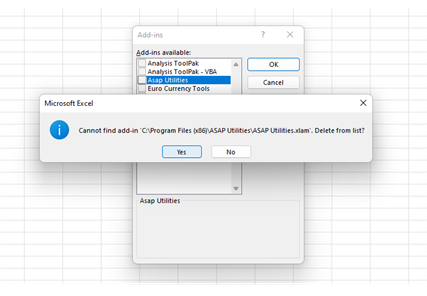
- Start Excel, you will now receive an error, indicating that ASAP Utilities could not be found and click OK.

- In the Excel menu choose
File > Options > Add-ins - In the Manage drop-down at the bottom select Excel Add-ins and press the Go... button

- Then uncheck the check box next to Asap Utilities.
Excel will now ask you if you want to remove ASAP Utilities from the list. Answer with yes:
- Now close the form, and ASAP Utilities is successfully uninstalled.
ASAP Utilities is removed from your computer and Excel.
Temporarily deactivating ASAP Utilities
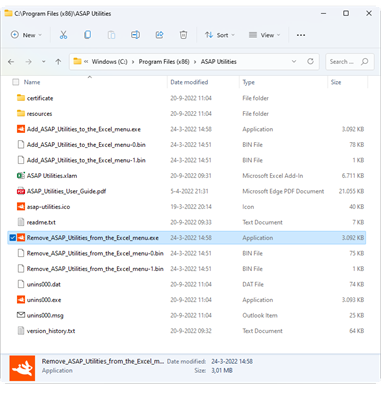
If you temporarily want ASAP Utilities not to start up at the same time as Excel, you can disable that and load ASAP Utilities manually if necessary.You can either uncheck ASAP Utilities manually from the add-ins list in Excel, or you can simply run the program "Remove_ASAP_Utilities_from_the_Excel_menu.exe" which is located in the ASAP Utilities program files folder.
This tiny program will automatically remove ASAP Utilities from the Excel menu/deactivate it as add-in in Excel, for the Windows user accounts that runs this program and does not require admin-rights to run.
©1999-2026 ∙ ASAP Utilities ∙ A Must in Every Office BV ∙ The Netherlands
🏆 Winner of the "Best Microsoft Excel Add-in" Award at the Global Excel Summit 2025 in London!
For over 26 years, ASAP Utilities has helped users worldwide save time and do what Excel alone cannot.
🏆 Winner of the "Best Microsoft Excel Add-in" Award at the Global Excel Summit 2025 in London!
For over 26 years, ASAP Utilities has helped users worldwide save time and do what Excel alone cannot.