


How to solve the startup error: "Sorry, ASAP Utilities can not start correctly."
Question
When I start up Excel I get a warning that ASAP Utilities can not start correctly: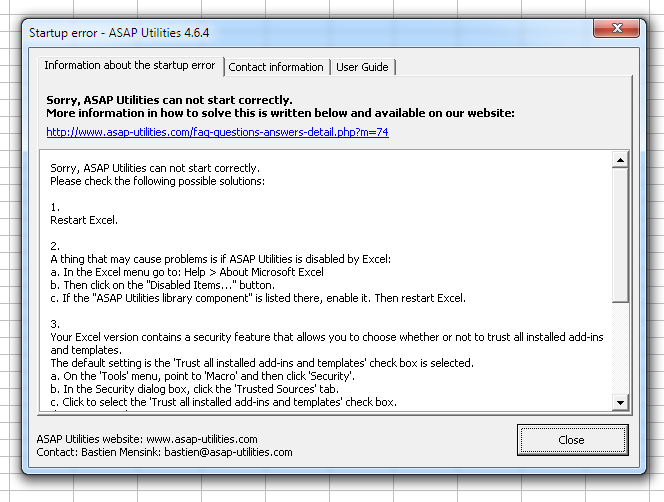
Additionally, the solutions below will help you if you get a message from Excel that a file from ASAP Utilities has been blocked, such as for example one of the following files: "ASAP Utilities.xla", "ASAP_Utilities_ribbon.xlam" or "ASAP_Utilities.dll".
Answer
Option 1. Using the latest version of ASAP Utilities? Just restart Excel
In case you use ASAP Utilities 5.6 or later, then just restart Excel, and it should be automatically corrected.
If you are still using the old version 4, then please install version 5.6, that is a free upgrade for all clients that purchased version 4.x
Option 2. Using Excel 2010 and ASAP Utilities 4?
If you installed an older version of ASAP Utilities in combination with Excel 2010, then it might be that this is due to a bug in Excel 2010. We have created a fix for that in ASAP Utilities (4.6.1), already in August 2010, so if you are using in older version of ASAP Utilities, please upgrade to the latest version.
Option 3. Reinstall
Please reinstall ASAP Utilities if you have successfully used ASAP Utilities before.
Option 4. If you only allow Application Add-ins signed by a Trusted Publisher
There is a setting in Excel 2016/2013/2010/2007 that only allows Application Add-ins (such as ASAP Utilities) to run when they are signed by a Trusted Publisher.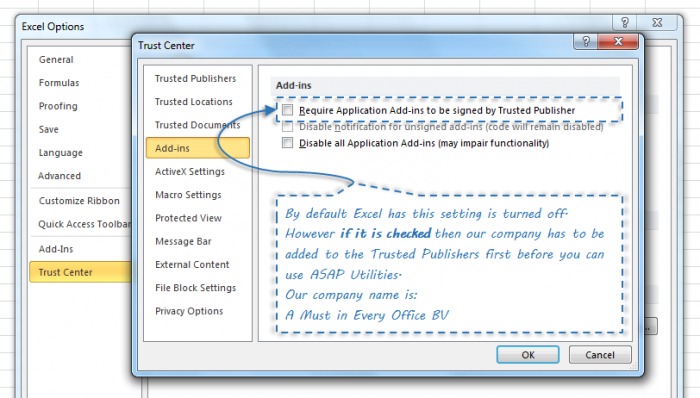
If the option "Require Application Add-ins to be signed by Trusted Publisher" is activated:
If the option "Require Application Add-ins to be signed by Trusted Publisher" is checked then you need to add our company to Trusted Publishers.
Our company name is A Must in Every Office and once you add our company name to the list of Trusted Publishers, then you can use ASAP Utilities with these settings.
A digital signature/certificate ensures software came from software publisher and protects software from alteration after publication.
When you open the ASAP Utilities.xla file you could get to see a "Microsoft Excel Security Notice".
By clicking on "Show signature details", you can view the digital signature and verify that it shows our company name, A Must in Every Office BV.
By clicking on the button "Trust all from publisher", you will add our company to the Trusted Publishers. This needs to be done only once.
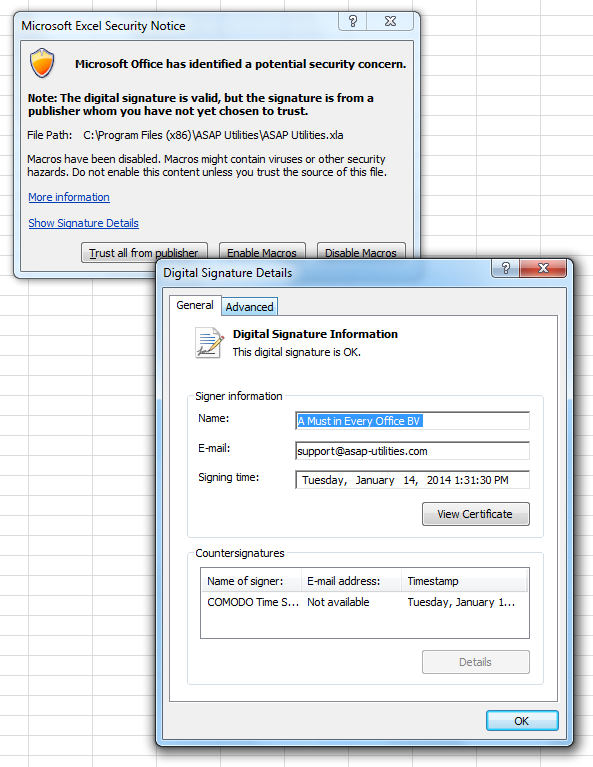
Both the ASAP Utilities program files and the setup are digitally signed. Unfortunately we have seen a few times that Excel doesn't always ask you to add our company to be added the list of trusted publishers on startup.
Therefore we have made that an option during the setup, starting from version 5.1: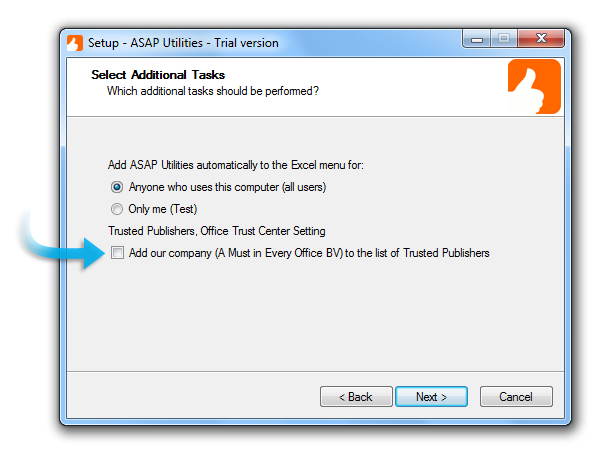
Option 5. For Excel 2010 and later with ASAP Utilities 7
In case you use Excel 2010 or later and the above options don't work, then another solution is to run the setup of ASAP Utilities 7 and choose to install the "32-bit + 64-bit edition" during the setup.
Option 6. Other things to check
In 99,9% of the times the above solutions solve the problem.
If they don't, then there are a few other things that can cause the same error, which are all non-standard settings.
If the above solutions don't work, then please check the following possible causes. You might want to do that together with someone from the IT Department:
- If you haven't already, then try installing it to the default Program Files folder on your computer.
- Check if the ASAP_Utilities.dll file is blocked by your virusscanner/firewall
- We don't have a logical explanation for this but registering the DLL manually fixed it once. We mention it here just in case it can help you too.
Try the following command (same as the setup does) from the command prompt as administrator:
Regsvr32.exe "\asap_utilities.dll"
for example: Regsvr32.exe "C:\Program Files\ASAP Utilities\asap_utilities.dll"- Check if certain parts of the registry are blocked and can't be read by ASAP Utilities and/or Excel
- Check for the rights in the ASAP Utilities folder (default/readonly should do it)
- In a few cases the problem was solved in Excel 2007+ by adding ASAP Utilities and its subfolders to the Trusted Locations.
You can add ASAP Utilities to the Trusted locations via:
Excel menu > File (or Office button in Excel 2007) > Excel Options > Trust Center > Trust Center Settings... > Add new location
By default the ASAP Utilities programs folder is: "C:\Program Files (x86)\ASAP Utilities\" or "C:\Program Files\ASAP Utilities\"- If you also get an error when you run the setup of ASAP Utilities, then repairing your Office installation will most likely solve the problems.
If it still doesn't work
If you still can't get ASAP Utilities to work, then please contact us.
Additional information
(from Microsoft) If Excel terminates unexpectedly, add-ins may become disabled and will no longer be visible.
Search Commands FAQ for Excel 2007:
http://www.officelabs.com/projects/searchcommands/Pages/FAQ.aspx#HelpFix
Chart Adviser FAQ for Excel 2007:
http://www.officelabs.com/projects/chartadvisor/Pages/FAQ.aspx#q15
1 Managing Excel Add-Ins, By David H. Ringstrom, CPA
http://www.accountingweb.com/item/107306