


Diese Seite ist derzeit nur auf Englisch verfügbar.
ASAP Utilities released its new version (4.8.0) today!
October 26, 2011
We're proud to officially announce the new version of ASAP Utilities!
New exiting tools have been added and several improvements have been made.
- Do you often work with Excel's Filters or AutoFilters?
- Do you need to export your worksheets as separate workbooks?
- Did you ever wanted to change your conditional formatting to static formatting (like "copy > paste values" for formulas)?
- Would you like a way to automatically have a cell's value or formula added as a comment?
- Do you need to change the JD Edwards (AS/400) Julian dates to dates that Excel can handle?
... the new version that will do all this and more.
Many thanks to everyone who has contributed their feedback and tested the pre-release!
New features and improvements
- Filters and AutoFilters: Mimic Excel's behavior
Excel skips certain operations on hidden cells (cells in hidden rows or columns) if your worksheet contains filtered data (a Filter or AutoFilter). For example if you select range A1:A10 and rows 2 till 9 are hidden and you apply a color, then the color is only applied to the visible cells (A1 and A10).
However, Excel only skips these cells if your worksheet has and autofilter, otherwise the color is applied to both the visible and the hidden cells.
ASAP Utilities now mimics that behavior. If your worksheet contains a Filter or AutoFilter and your selection contains hidden cells, then these hidden cells are skipped by the following tools: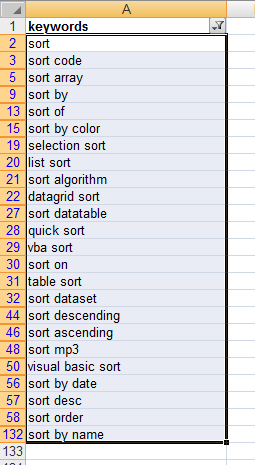 . Activate hyperlinks (create from cell values)...
. Advanced character remove or replace...
. Apply standard format to selected cells
. Change formula reference style (e.g. A1 to $A1 etc.)...
. Change negative numbers to positive and vice versa...
. Change not recognized numbers (text?) to numbers
. Change to lowercase
. Change to UPPERcase
. Change values to text values (adding ' in front)
. Convert percentages to numbers (e.g. 5% to 5)
. Convert/recognize dates...
. Copy values to empty cells below filled cells in selection
. Decode all URL and HTML encoded text
. Delete all after a given number of characters...
. Delete all numbers in selection
. Delete all text characters (a-z) in selected cells
. Delete leading and trailing spaces
. Delete leading, trailing and excessive spaces
. Delete number of ending characters...
. Delete number of leading characters...
. Extract hyperlinks...
. Fill cells with their formatted value
. Fill empty cells in selection...
. Fill up with leading zeros...
. Make first character Uppercase, the rest lowercase
. Make last character subscript
. Make last character superscript
. Move minus sign from back to front (e.g. 65- to -65)
. Overwrite filled cells in selection...
. Quick numbering of selected cells...
. Rebuild array formulas
. Remove all hyperlinks in selected cells
. Remove ending carriage return (alt+enter character)
. Replace accented characters (á, ë, ñ etc.)...
. Reverse text in selected cells
. Round numbers (not formatting, but changing)...
. Spell/write out numbers or amounts (EN, DE, NL)...
. Start Each Word With Uppercase
. Start first word with Uppercase
. Unwrap text
. Use a significant number of decimals...
. Wrap text
. New: Add cell's value or formula to comment
. New: Change text case (with options)
. New: Change julian dates to normal dates in selected cells
. New: Subscript the numbers in chemical equations
. New: Change conditional formatting to static formatting
For your information, in previous versions of ASAP Utilities, you had to first use Excel to selected only the visible cells in your selection as a workaround (Excel, F5 > Special... > Visible cells only) if you only wanted the tools to affect the visible cells in your selected range. - ASAP Utilities Options » New tools in development (English only)
The following tools are added by request:
. Change conditional formatting to static formatting
This tool will change the conditional formatting in selected cells to static formatting.
It verifies the formatting that has been applied via conditional formatting (font, color and borders) and then apply that as standard formatting.
Settings of font, color and borders will be applied. Data Bars and Icon Sets cannot be made static with this tool.
This tool only works with Excel 2000, 2000/XP, 2003 and 2010 (Excel 2007 is not supported).
Don't hesitate to experiment with this tool, it has and undo.
A practical example on when this can be useful:
'We work a lot with conditional formatting (in Excel 2003), but our client wants us to “freeze” the format (Yes, that means no more “conditional”...) in order to have a classical Excel format (mainly cell and font colours).
The idea is to do the same thing as we do with formulas or calculations "copy/paste in value" but for conditional formatting.'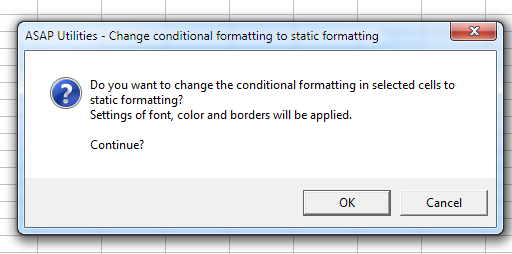
- ASAP Utilities Options » New tools in development (English only)
The following tools are added by request:
. Add cell's value or formula to comment
Add the value formula as comment. You can choose replace existing comments or add the value at the beginning of the end of an existing comment.
You can also specify to read the value of a cell to the left or right and use that value or formula as comment.
Don't hesitate to experiment with this tool, it has and undo.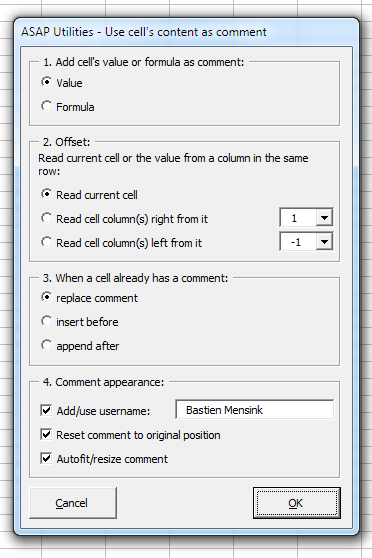
. Insert an apostrophe (') in front of each formula in your selection - ASAP Utilities Options » New tools in development (English only)
. Change julian dates to normal dates in selected cells
This tool has been updated so that besides the yyddd and yyyyddd now the JD Edwards (AS/400) cyyddd format is also supported. Their system adds a 0 or 1 in front of the year representing the century (0 = 1900, 1 = 2000, Jan 15, 1910 is 010015, Jan 15, 2010 is 110015). - Export » Copy selection as values to clipboard
Skipped the confirmation at the end "The data has been copied to the clipboard". This was removed by request from users who used this utility a lot. - Import » Merge and/or import multiple files...
New, when you merge the data you can now choose to have the filename listed in column A.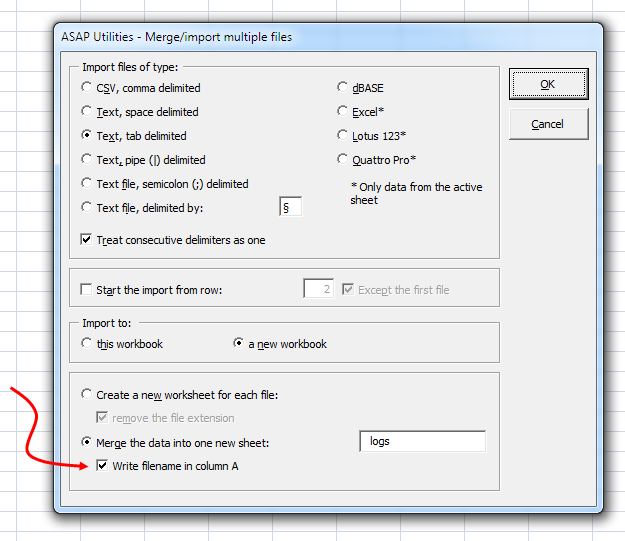
- Columns & Rows » Delete all hidden rows and columns
This utility used to delete all hidden rows and columns together.
You can now choose to either delete all hidden rows, all hidden columns or both.
Between brackets the tool shows how many rows and columns are hidden on your worksheet: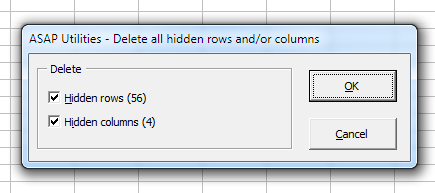
- Export » Export worksheets as separate files...
Has a new option to choose; "Do not export hidden cells", just like the utility
"Export selection or active sheet as new file..."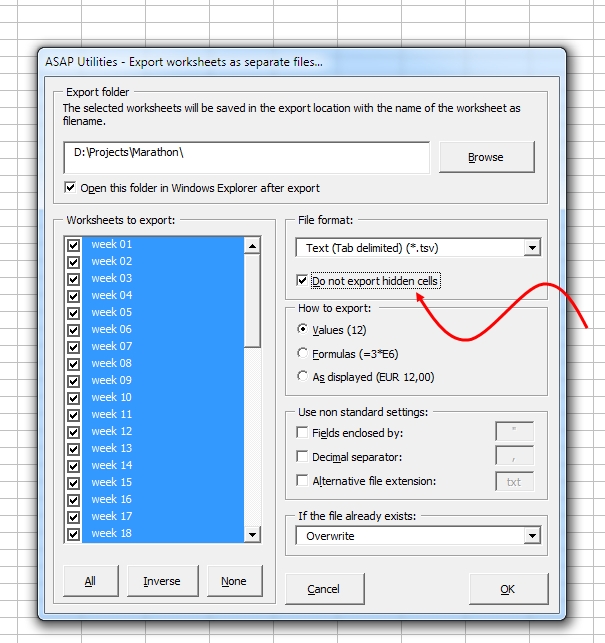
We also added the Excel Binary7 Workbook-format (xlsb) if you have Excel 2007 or newer: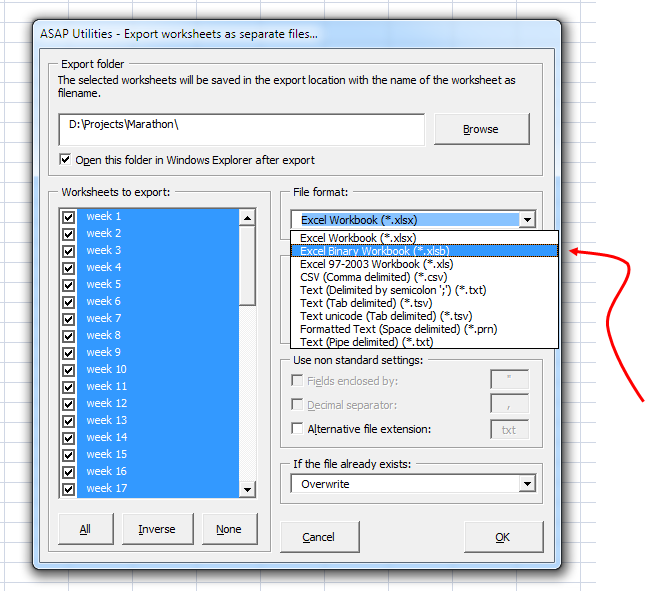
Stay informed about new releases and important updates
Subscribe to our newsletter (in English)