


開発中の新しいツール (英語のみ)
New tools that are currently in development.These tools are available in English because they are still in development.
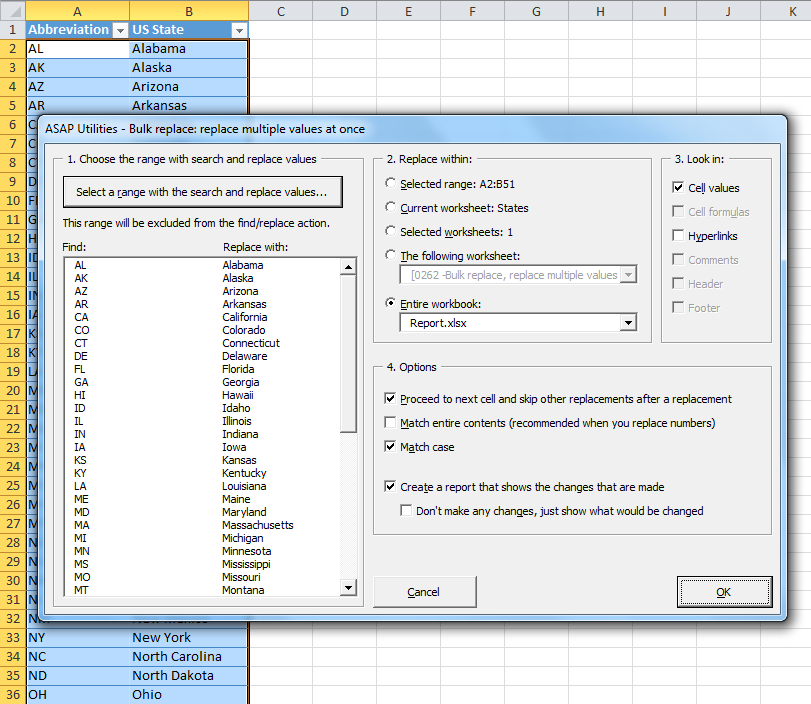
Bulk replace: replace multiple values at once
This tool allows you to do multiple replacements at once.
You can specify a range with 2 columns with search and replace values, which allows you to do many replacements automatically after each other. The target can be a certain range, your current worksheet, all selected worksheets, the entire workbook or any other workbook that is opened.
The search/replace is done in both cell values and hyperlinks.
The range with these search and replace values are always excluded from the target range.
Your last used settings are remembered.
Change cells to MAC Address formatting...
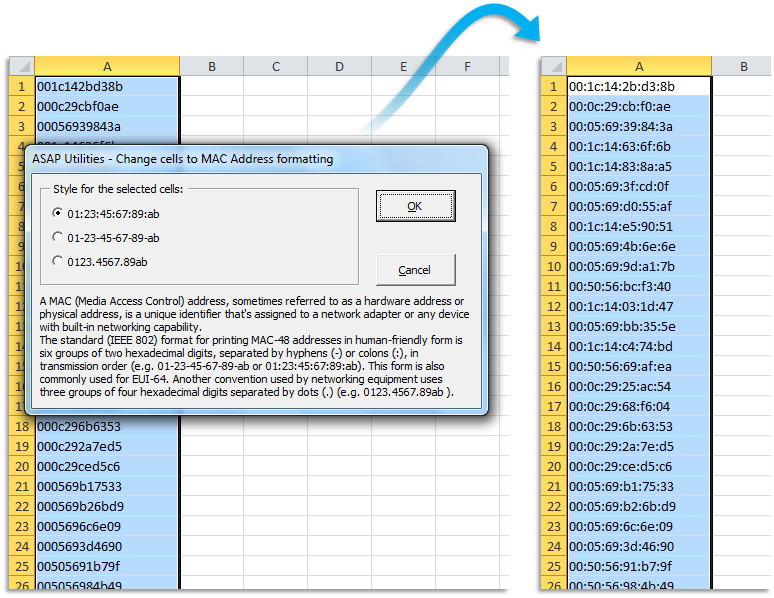
This tool changes the MAC addresses (such as 0123456789ab) in your selected cells into a more readable and standardized format.
You can choose between the following styles:
- 01-23-45-67-89-ab
- 01:23:45:67:89:ab
-
0123.4567.89ab
If required this tool will automatically remove any spaces, hyphens (-), colons (:) or points(.) first, so that you can also easily convert it from one format to another.
Clear Pivot Tables cache and refresh
Clears the cache from the pivot tables on the current worksheet or in the entire workbook.
Convert long HEX values to ASCII text in selected cells...
This tool converts (long) HEX values in the selected cells to ASCII text.
For example, it converts "446f6e277420796f75207468696e6b207468617420457863656c2069732067726561743f" to "Don't you think that Excel is great?".
It converts values like the following:
- 446f6e277420796f75207468696e6b207468617420457863656c2069732067726561743f
- 44-6f-6e-27-74-20-79-6f-75-20-74-68-69-6e-6b-20-74-68-61-74-20-45-78-63-65-6c-20-69-73-20-67-72-65-61-74-3f
- 44~6f~6e~27~74~20~79~6f~75~20~74~68~69~6e~6b~20~74~68~61~74~20~45~78~63~65~6c~20~69~73~20~67~72~65~61~74~3f
- 44 6f 6e 27 74 20 79 6f 75 20 74 68 69 6e 6b 20 74 68 61 74 20 45 78 63 65 6c 20 69 73 20 67 72 65 61 74 3f
- 44:6f:6e:27:74:20:79:6f:75:20:74:68:69:6e:6b:20:74:68:61:74:20:45:78:63:65:6c:20:69:73:20:67:72:65:61:74:3f
Delete all empty columns, including the columns that have a field name in row 1, but no data
This will remove all completely empty columns on your worksheet, including the columns that have a field name in row 1, but no data.
Detect adjacent row/column data and merge cells...
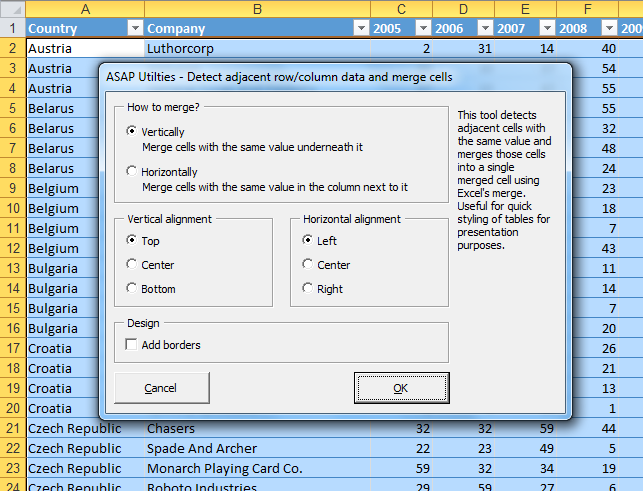
This tool detects adjacent cells with the same value and merges those cells into a single merged cell using Excel's merge.
You can choose to:
- merge cells vertically, per column, merge cells with the same value below it
- merge cells horizontally, per row, merge cells with the same value next to it
- set the alignment
-
add borders
Useful for quick styling of tables for presentation purposes.
Import data from copied Word Table without splitting cells at line breaks
When you copy a table from Word to Excel, Excel splits cells with line breaks into separate cells.
This tool helps you transfer your table to Excel while maintaining its original structure.
Insert a space before Capital Letters (e.g. 'BigBearLake' > 'Big Bear Lake')
This tool puts a space in front of Captital letters in the text in your selected cells.
For example "NewYork" becomes "New York".
This tool is smart enough to detect when a space should be inserted and when not.
A space is only inserted before uppercase characters when it is not already preceded by a space and also when it is not preceded by any of the following characters: - " ' ( | = ` [ { < " ‘
Keep or delete certain Rich Text formatted characters...
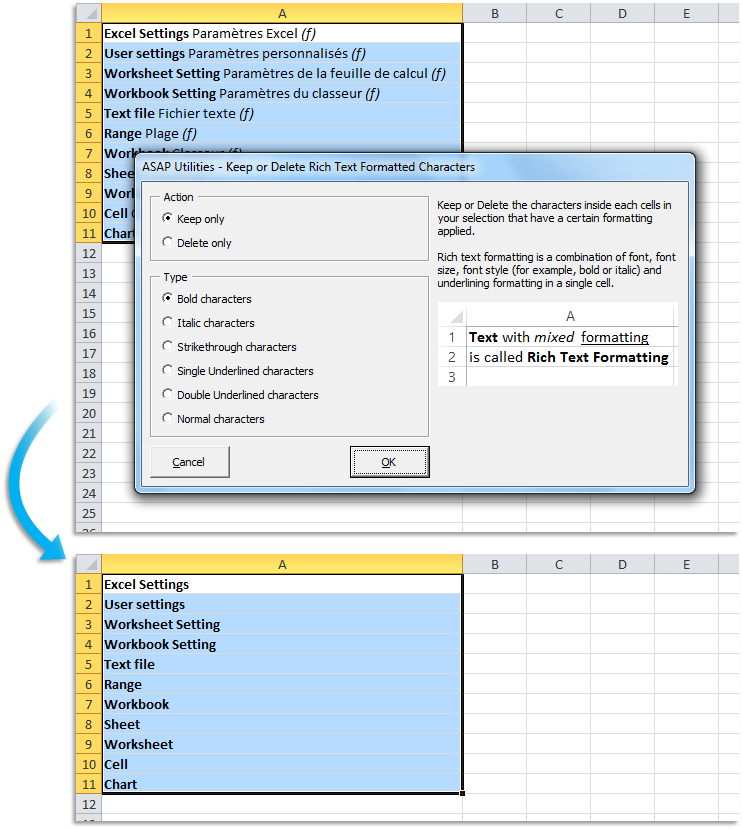
This tool allows you to keep or delete the characters inside the cells in your selection that have a certain formatting applied (* Rich text formatting).
You can choose to either keep or delete bold charters, italic characters, strikethrough characters, single underline characters, double underlined characters or normal characters within each cell in your selection.
(* Rich text formatting is a combination of font, font size, font style (for example, bold or italic) and underlining formatting in a single cell.)
List all possible combinations from two or more lists/columns
This will create a list of all possible combinations from the data in two or more columns
Macro/VBA information...
This tool shows you information on the macro's that are in a workbook.
You can quickly see the references the vba-project has, view the modules and you can export the code or remove the comment lines in your code.
This tool is in English because the Visual Basic Editor and the vba macro code is also in English.
Manage duplicated records
With this tool you can easily remove the duplicated records from your sheet.
You can also have it remove records from your sheet that already exist on another sheet, which can for example be useful if you are working with mailing lists.
Put all data from the worksheet into one single column
This tool takes the data in each of the columns on your worksheet and puts this data below each other in column A.
Refresh all external data ranges and PivotTable reports
This tool refreshes all pivot tables and external data ranges in your entire workbook.
Remove duplicated values per row in your selection
This will remove the duplicated values per row in your selection.
Report pivot table(s) information
This tool creates a report in a new workbook with information about the pivot tables in your workbook.
The report shows the following information: Sheet, Data Source, Name, DataBodyRange, DataLabelRange, RowRange, ColumnRange, TableRange1, TableRange2, Date last refreshed, Refreshed by, RefreshOnFileOpen, Fields in source, Record in source, Fields shown, SourceType, SourceDataFile, Connection, CommandText.
Select all shapes within the selected range
Selects all shapes that are inside or touch the selected range. Both visible and hiddens shapes will be selected.
Show indented structure of formula in current cell
This tool shows the indented structure of your formula.
This is useful when you have a nested formula. That way you can more easily see if the brackets are placed properly. You can also edit the formula.
Show or hide formatting marks in selected cells
With this tool you can make spaces, tabs and linebreaks visible. This can be useful because sometimes characters such as these mess up your lookup formulas.
The following characters are used to show these characters:
• = space
¬ = tab
¶ = line breaks
This tool changes your data when you choose "Show" but you can quickly switch back to the original when you choose "Hide". Basically the method is quite simple. It replaces spaces, tabs and line-breaks with a unique character. Then the "Hide" option changes these special characters back to spaces, tabs or linebreaks again.
Unfortunately it is not possible to make it work without changing the values like the hide/show formatting marks in MS Word. However we think that this tool is a useful alternative.
Sort each column in selection individually ascending (top to bottom)
This tool sorts each column in your selection individually from top to bottom.
Sort each row in selection individually ascending (left to right)
This tool sorts each row in your selection individually from left to right.
Text to Columns based on in-cell formatting changes (split by bold, italic, color etc.)
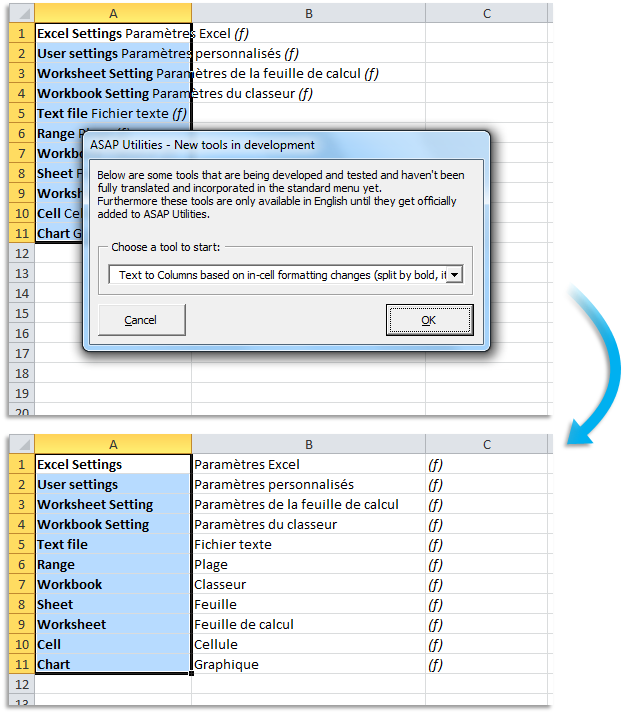
This tool allows you to split the values inside the cells into separate columns, based on a change in the applied formatting (* Rich text formatting).
It is a similar to Excel's Data > Text to Columns, however in this case the splitting is done based on changes in the applied formatting.
For example, cell with the value "Drum [in bold] Tambour [normal] (f) [italic]" is then split into three columns; Bold, Tambour, (f)
(* Rich text formatting is a combination of font, font size, font style (for example, bold or italic) and underlining formatting in a single cell.)
Transform table into 3 column matrix (reverse pivot table)
This tool transforms a table into a 3 column table that you can easily use as a source for for example a pivot table.
Ungroup all grouped columns in the selected worksheets
This tool ungroups all the grouped columns in the selected worksheets.
Ungroup all grouped rows in the selected worksheets
This tool ungroups all the grouped rows in the selected worksheets.
このユーティリティを起動中
ショートカット キーの指定: ASAP Utilities › お気に入りとショートカットキー › お気に入りツールとショートカットキーを編集...
スクリーンショット例: 02 Bulk replace. Multiple find and replace actions at once (英語版はこちらです。)
スクリーンショット例: 03 Change cells to MAC Address formatting (英語版はこちらです。)
スクリーンショット例: 04 Detect adjacent row column data and merge cells (英語版はこちらです。)
スクリーンショット例: 06 Keep or delete certain Rich Text formatted characters (英語版はこちらです。)
スクリーンショット例: 08 Text to Columns based on in cell formatting changes split by bold italic color etc (英語版はこちらです。)
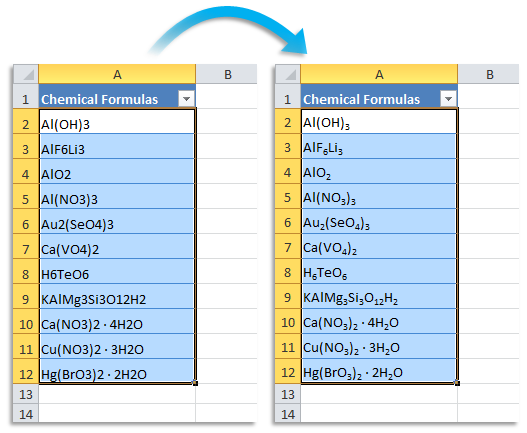
スクリーンショット例: 14 Subscript the numbers in chemical equations (英語版はこちらです。)
このツールを見つけやすくする追加キーワード:
数式パーサー、フォーマッタ、ビジュアル、好ましくない、美化、監査
Tip:Alt+P for the previous tool.
ヒント: Alt+N で次のツールを開きます。

Excel の作業をもっと速く、もっと簡単に。
ASAP Utilities は、時間を節約し、Excel だけではできないことを可能にします。
すぐに使い始められます。トレーニングは必要ありません。
多くのユーザーは、まずいくつかのツールから使い始めます。 多くのユーザーが、やがて ASAP Utilities を毎日使うようになります。
世界中の 28,500 以上の組織で利用されています。