


Questa pagina è attualmente disponibile solo in inglese.
Version 7.9.1 - June 15, 2021
May 31, 2021
Finished
On June 15, 2021 the new version 7.9.1 has been released. Download
Supported Excel versions
ASAP Utilities 7.9 works with:
- Excel 365 (both 32- and 64-bit version)
- Excel 2021 (both 32- and 64-bit version)
- Excel 2019 (both 32- and 64-bit version)
- Excel 2016 (both 32- and 64-bit version)
- Excel 2013 (both 32- and 64-bit version)
- Excel 2010 (both 32- and 64-bit version)
- Excel 2007
- Excel 2003
- Excel 2002/XP
- Excel 2000
On any Windows system that matches the Excel system requirements.
Free upgrade if you purchased version 7.x or 5.x
If you purchased a license for version 7.x or 5.x, then you get version 7.7 free of charge. You can use the same license details.
If you purchased a license in 2012 or earlier, then please contact us for a 50% discount to upgrade to version 7.
To upgrade, just install the new version "on top" of the existing version on your computer.
ASAP Utilities will then automatically recognize your settings and license information if you have already entered that previously.
New/improved in 7.9.1
General
- In the universal 32+64-bits edition of version 7.9, the Japanese menu was accidentally in the wrong language (Chinese). This is now fixed.
- A few small improvements
New/improved in 7.9
You can now use regular expressions in Excel via ASAP Utilities.
Regular expressions are a clever way to find & replace text (similar to 'wildcards')
Regular expressions are very common in some areas of computing, and are often known as regex or regexp. Not all regex are the same - so reading the below link from Microsoft Docs is recommended.
You can use the regular expression syntax in ASAP Utilities according to the following documentation from Microsoft:
Regular Expression Syntax (Scripting) | Microsoft Docs
https://docs.microsoft.com/en-us/previous-versions//1400241x(v=vs.85)
ASAPREGEXMATCH
Returns TRUE if the value matches the regular expression and FALSE if it does not.
=ASAPREGEXMATCH(read_value, regular_expression, optional ignorecase)
- read_value The text to be tested against the regular expression.
- regular_expression The regular expression to test the text against.
- ignorecase Optional. Specifies case-insensitive matching. If omitted it is assumed to be FALSE.
examples:
| value | expression | result | formula |
|---|---|---|---|
Emmawijk 1 |
[0-9]+ |
TRUE |
=ASAPREGEXMATCH(A2, B2) |
Today's offer is $99.00 |
[0-9]*\.[0-9]+[0-9]+ |
TRUE |
=ASAPREGEXMATCH(A3, B3) |
The appointment is at 15:00 |
\d{2}\:\d{2} |
TRUE |
=ASAPREGEXMATCH(A4, B4) |
ASAPREGEXEXTRACT
Returns the text that matches the regular expression.
=ASAPREGEXEXTRACT(read_value, regular_expression, optional ignorecase)
- read_value The text to be tested against the regular expression.
- regular_expression The regular expression to test the text against.
- ignorecase Optional. Specifies case-insensitive matching. If omitted it is assumed to be FALSE.
examples:
| value | expression | result | formula |
|---|---|---|---|
Emmawijk 1 |
[0-9]+ |
1 |
=ASAPREGEXEXTRACT(A2, B2) |
Today's offer is $99.00 |
[0-9]*\.[0-9]+[0-9]+ |
99.00 |
=ASAPREGEXEXTRACT(A3, B3) |
The appointment is at 15:00 |
\d{2}\:\d{2} |
15:00 |
=ASAPREGEXEXTRACT(A4, B4) |
ASAPREGEXREPLACE
Returns a modified version of the text string based on a regular expression.
=ASAPREGEXREPLACE(read_value, regular_expression, replacement_value, optional replace_all, optional ignorecase)
- read_value The text to be tested against the regular expression.
- regular_expression The regular expression to test the text against.
- replacement_value The text to replace the matched groups with.
- replace_all Optional. Specifies to replace all matches. If omitted it is assumed to be TRUE.
- ignorecase Optional. Specifies case-insensitive matching. If omitted it is assumed to be FALSE.
examples:
| value | expression | replacement | result | formula |
|---|---|---|---|---|
Emmawijk 1 |
[0-9]+ |
200 |
Emmawijk 200 |
=ASAPREGEXREPLACE(A2,B2,C2) |
Today's offer is $99.00 |
[0-9]*\.[0-9]+[0-9]+ |
49.99 |
Today's offer is $49.99 |
=ASAPREGEXREPLACE(A3,B3,C3) |
The appointment is at 15:00 |
\d{2}\:\d{2} |
10:30 |
The appointment is at 10:30 |
=ASAPREGEXREPLACE(A4,B4,C4) |
The color is (green) |
\(([A-Za-z]+)\) |
red |
The color is red |
=ASAPREGEXREPLACE(A4,B4,C4) |
New example workbook that demonstrates the ASAP Utilities functions
We have updated the example workbook that demonstrates the extra functions you get in Excel with ASAP Utilities.
You download the example workbook via:
https://www.asap-utilities.com/tools-detail.php?tip=259&category=97&lang=en_us#example-workbook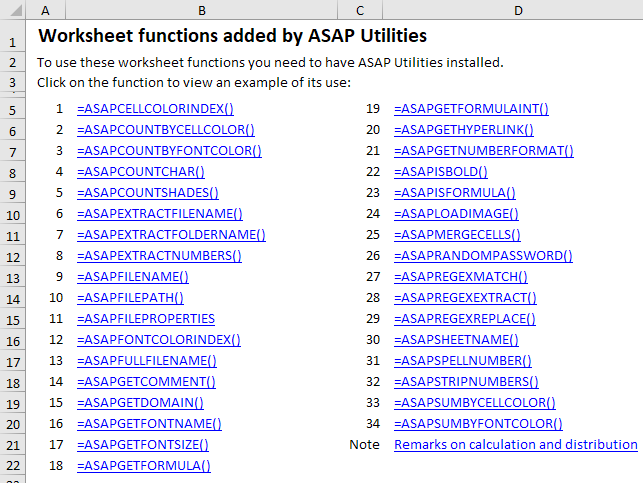
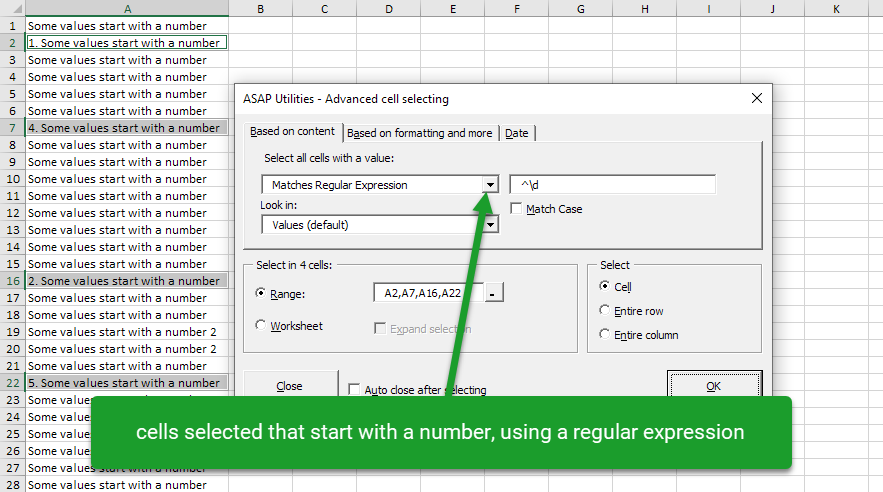
Select » Select cells based on content, formatting and more...
You can now select cells that match a regular expression, similar to the above ASAPREGEXMATCH function.
A few examples:
| pattern | result |
|---|---|
^\d |
select values that start with a digit character |
\d$ |
select values that end with a digit character |
[^\d]$ |
select values that do not end with a digit character |
red|green|blue |
select values that contain either red, green or blue |
etc etc. |
https://docs.microsoft.com/en-us/previous-versions//1400241x(v=vs.85) |
Export » Copy selection as values to clipboard
Now supports unicode characters in Windows 10.
Export » Export selection or active sheet as new file...
The options "Copy to clipboard (tab delimited)" and Copy to clipboard (space delimited)", now support unicode characters in Windows 10.
General
Several small improvements and a few small bug fixes.
In the universal 32+64-bits edition for Excel 2010-2019/365 only:
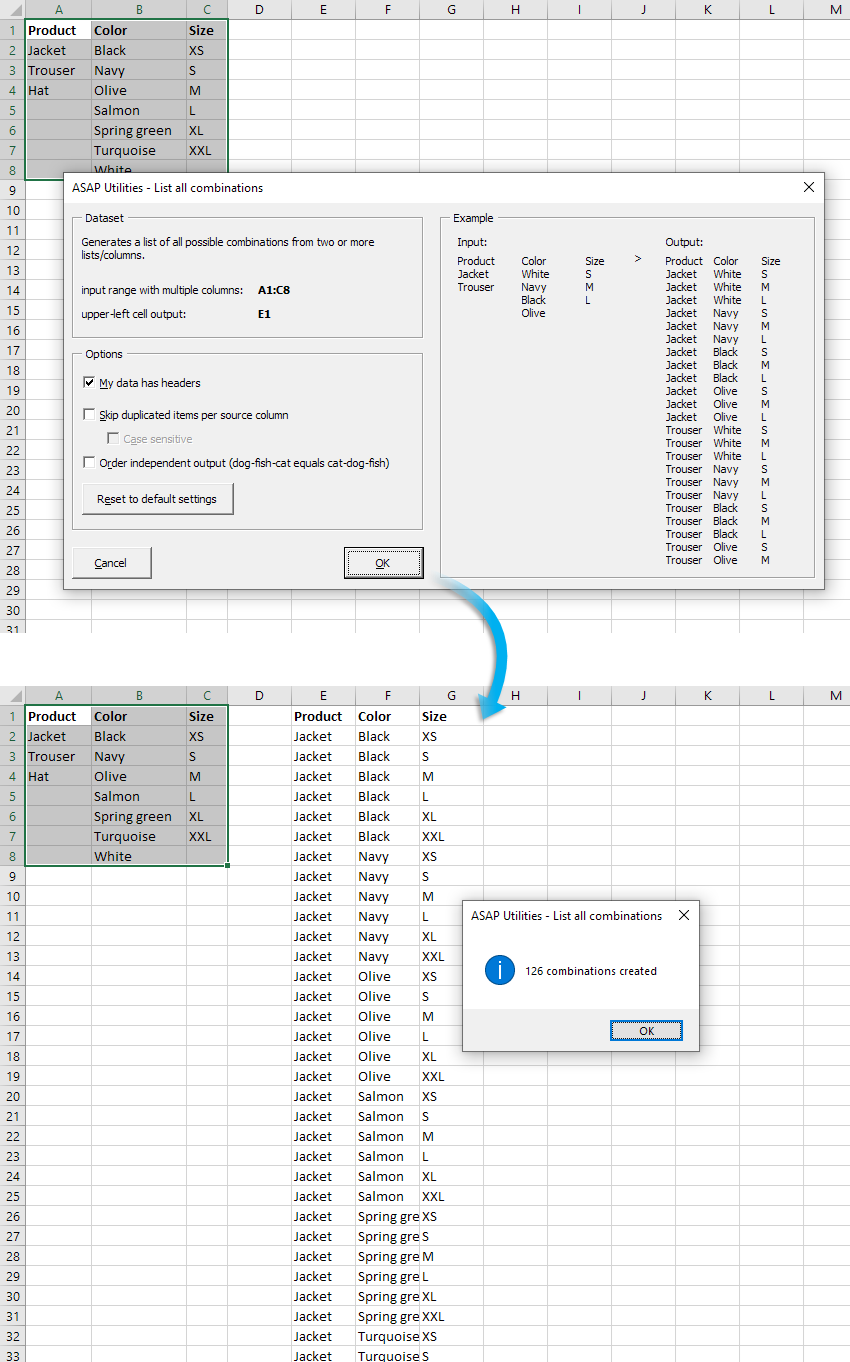
New: List all possible combinations from two or more lists/columns
via ASAP Utilities Options » New tools in development (English only)
This will create a list of all possible combinations from the data in two or more columns
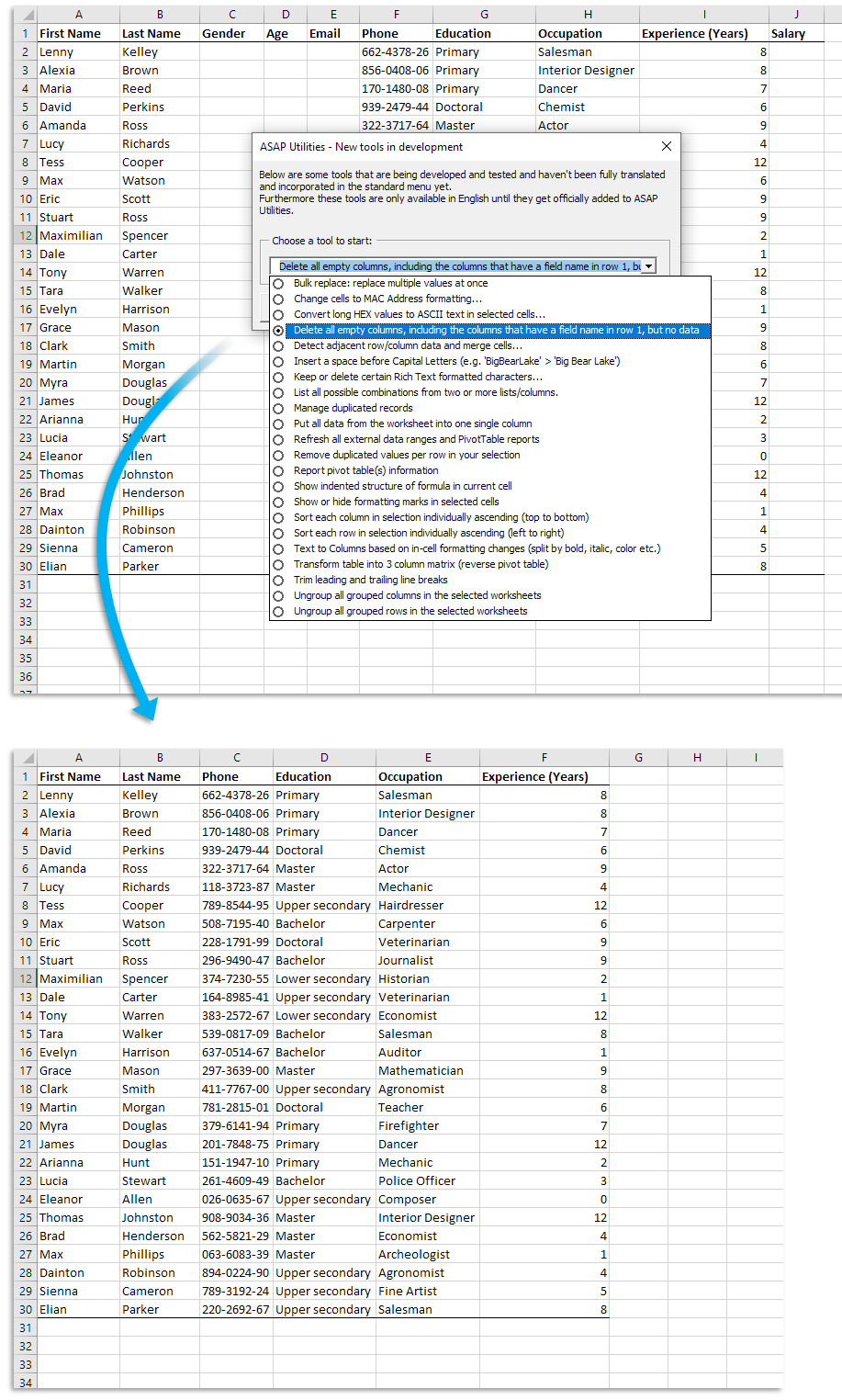
New: Delete all empty columns, including the columns that have a field name in row 1, but no data
via ASAP Utilities Options » New tools in development (English only)
This will remove all completely empty columns on your worksheet, including the columns that have a field name in row 1, but no data.
Inizia con ASAP Utilities 9
Inizia subito a risparmiare tempo in Excel con strumenti pratici che puoi usare fin da subito.
-
Nessuna registrazione richiesta.
-
-
Prova gratuita di 90 giorni