


Эта страница в настоящее время доступна только на английском языке.
How to create a debug log file for troubleshooting
If there is a problem with ASAP Utilities, our support team may ask you to create a debug log file to help identify the cause.
A debug log file contains technical information that can help us investigate and resolve the problem.
There are two ways to enable debugging, depending on whether ASAP Utilities starts normally.
Method 1: If ASAP Utilities starts normally
Step 1: Enable debugging
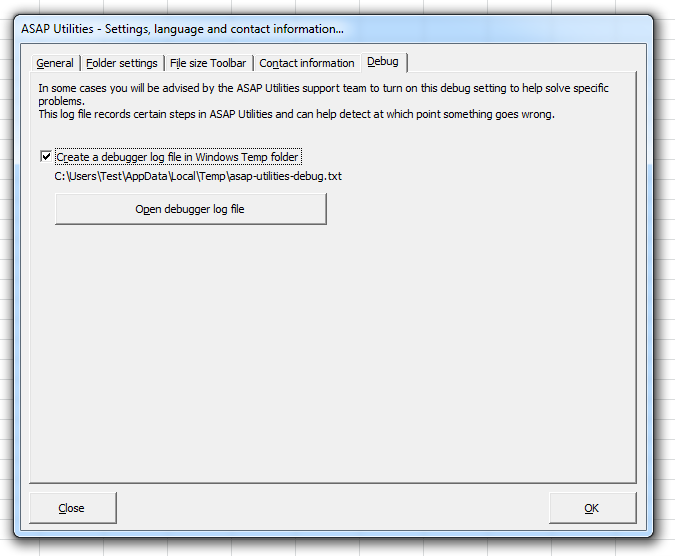
1. In Excel, go to ASAP Utilities » ASAP Utilities Options » Settings, language and contact information...
2. Open the Debug tab.
3. Select Create a debugger log file in Windows Temp folder.
Step 2: Close and restart Excel
Close Excel completely and start it again.
Step 3: Repeat the steps that caused the problem
Repeat the steps that caused the problem. ASAP Utilities will record information in the debug log file.
Step 4: Send us the debug log file
1. Open the Debug tab again.
2. Click Open debugger log file.
3. Attach the debug log file to an email and send it to support@asap-utilities.com.
Please include a short description of the problem and the steps needed to reproduce it.
If the problem only occurs with certain workbooks, please also include an example workbook, if possible. Before sending it, remove or replace any confidential or sensitive information, and make sure the problem can still be reproduced with the example workbook.
Method 2: If ASAP Utilities does not start
If ASAP Utilities does not start, you can enable debugging manually.
Step 1: Enable debugging manually
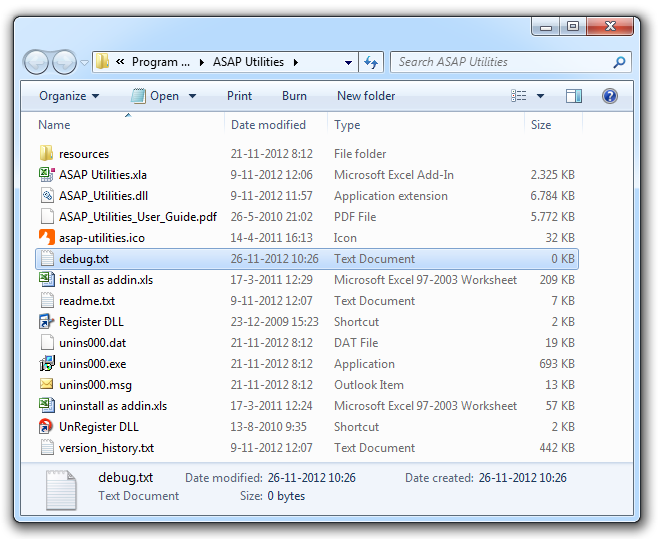
Create an empty text file named debug.txt in the folder where ASAP Utilities is installed.
The default installation folder is usually:
C:\Program Files\ASAP Utilities\
orC:\Program Files (x86)\ASAP Utilities\
You may need administrator permissions to create a file in this folder.
Step 2: Close and restart Excel
Close Excel completely and start it again.
Step 3: Try to start ASAP Utilities again
Try to start ASAP Utilities again.
ASAP Utilities will create a debug log file with information that may help us identify the problem.
Step 4: Find the debug log file
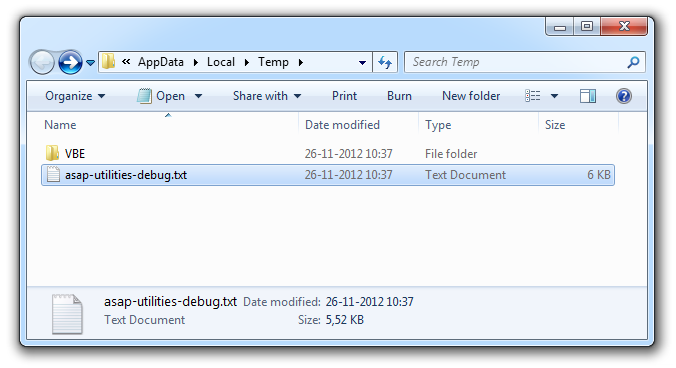
1. Press Windows + R.
2. Type %TEMP% and press Enter.
3. Find the file named asap-utilities-debug.txt.
Step 5: Send us the debug log file
Attach the file to an email and send it to support@asap-utilities.com.
Please include a short description of the problem and the steps that caused it.
After troubleshooting
Once you have finished collecting the debug information, you can disable debugging again.
- Method 1: Open the Debug tab in ASAP Utilities and turn off the debugging option.
- Method 2: Delete the debug.txt file from the ASAP Utilities installation folder.
Close Excel completely and start it again.