Many people have asked me the past years if ASAP Utilities has an option to split a table into several sheets. Either per so many rows, or by value. Until recently that wasn't possible, but now it is!. In cooperation with several users we have created a new utility.
In the new version of ASAP Utilities you will be able to quickly export your data in parts to new worksheets.
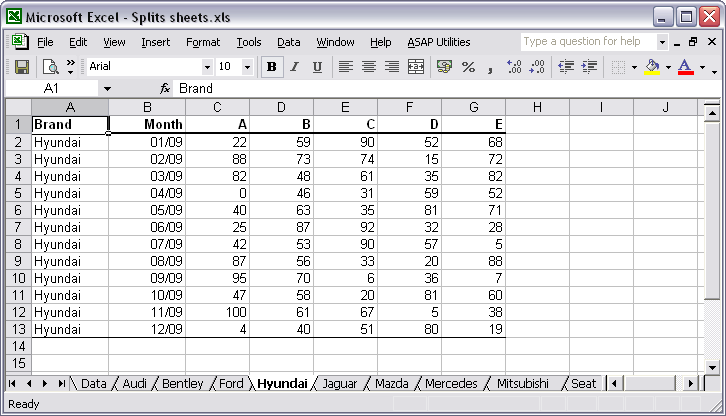
You can for example export the information of each car brand to a new worksheet. Whenever the tool encounters a new brand in column A, a new sheet is created and the information of that brand will be copied there:
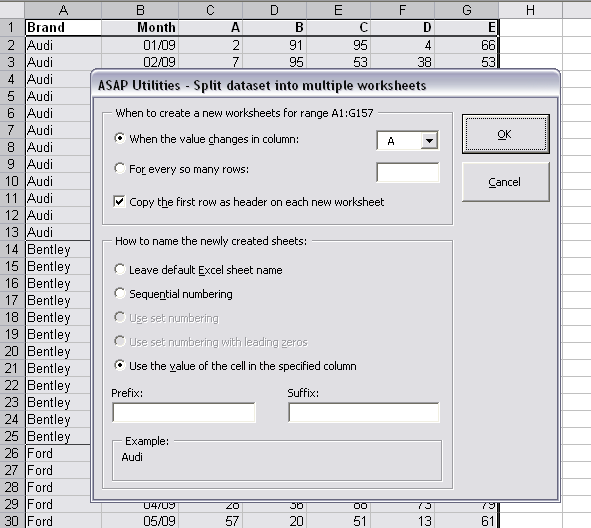
With this tool you can quickly split your data into multiple parts on different sheets. You can do this either by value, for example to create a new sheet for each company, or you can specify the number of rows to create per sheet.
We have also received the request for this tool from people that used workbooks with over 500 000 rows (Excel 2007) and then needed to open the information in Excel 2003 or earlier. By default when you save the file in Excel 2007 in Excel 2003 format, you will then get a warning such as the following and you will lose data:
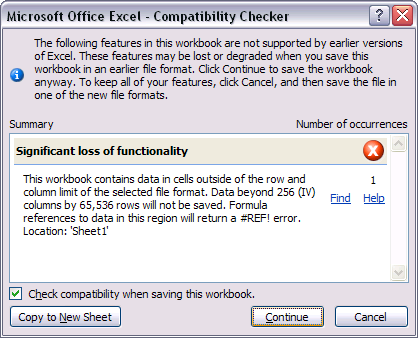
In order to save the file with 500 000 rows you had to split the information into several sheets with a maximum of 65536 rows because that is the maximum amount of rows that a sheet in Excel 2003 can contain.
Now, with this tool you can do that much faster.
Download and use
Update November 4, 2010: this tools is now officially available in version 4.6.4:
ASAP Utilities » Sheets » Split the selected range into multiple worksheets...
You can read more information and download the pre-release of the new version from:
//www.asap-utilities.com/faq-questions-answers-detail.php?m=220
You can start this new (experimental and only in English) tool via:
ASAP Utilities Options » New tools in development (experimental, English only)
and then click on the button "Split data table into multiple worksheets".
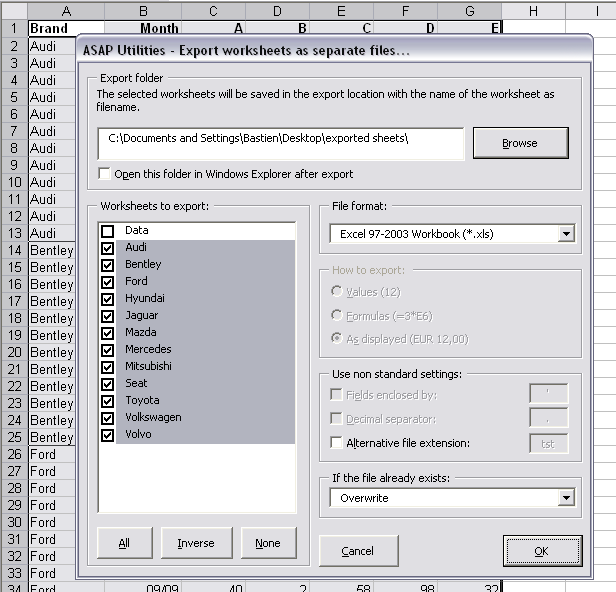
Export the sheets as separate workbooks.
If you need to save each worksheet as an individual file, then you can use the following tool to do this:
ASAP Utilities » Export » Export worksheets as separate files...
Combined with the new tool mentioned above this is a powerful and time-saving combination.