


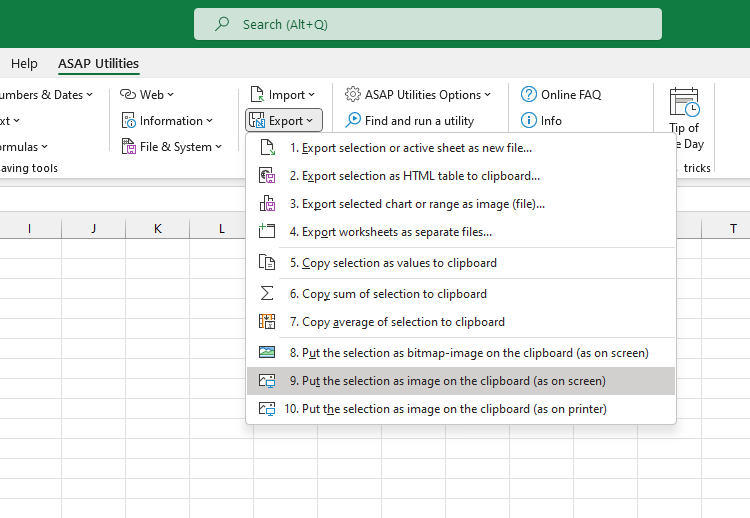
Copy Selection as Picture (As Shown on Screen)
This tool copies your current selection as a picture to the clipboard, preserving how it appears on screen.
Use this when you want to:
- Share a visual representation of your data
- Paste the image into Word, PowerPoint, or graphic design software
- Preserve formatting without sharing the actual Excel file or underlying values
The image is created in metafile format (vector-based), which is scalable and maintains high quality when resized. It works especially well in Microsoft Office applications.
It saves a few clicks compared to Excel's built-in method (Home > Copy > Copy as Picture > As shown on screen > Picture), and you can assign your own shortcut for even faster access.
Note:
Not all programs support metafile images. If you need maximum compatibility (e.g., when pasting into web apps or chat tools), use the "Copy Selection as Bitmap Picture (As Shown on Screen)" tool instead.
Tips:
- To hide gridlines from your picture, go to View > Show, and uncheck Gridlines.
- If you use this frequently, add it to your 'My Tools & Shortcuts' menu and assign a shortcut for faster access.
Starting this tool
Specify a Keyboard Shortcut: ASAP Utilities › My Tools & Shortcuts › Manage My Tools & Shortcuts...
Additional search terms to help you find this tool:
copy as picture, excel to image, copy range as picture, copy cells as image, copy chart as picture, vector image Excel, metafile export, paste Excel into Word, high-quality Excel screenshot, copy table to PowerPoint, scalable Excel graphic, copy for documentation
Tip:Alt+P for the previous tool.
Tip: Alt+N for the next tool.

Save Time in Excel. The Easy Way.
ASAP Utilities helps you save time and do what Excel alone can't.
You can get started right away. No training needed.
Most users start with a few tools. Many end up using ASAP Utilities daily.
Used by teams in 28,500+ organizations.
Get Started with ASAP Utilities 9
Start saving time in Excel with practical tools you can use right away.
-
No sign-up required.
-
-
Free 90-day trial