


Deze pagina is momenteel alleen beschikbaar in het Engels.
What to do if I don't see ASAP Utilities in the Excel menu?
Questions
If you have one of the following questions then we have a quick solution for you on this page.
- ASAP Utilities doesn't show up in the menu after the installation.
- You've just upgraded you Excel version (for example from Excel 2016 to Excel 365) and now you don't see ASAP Utilities anymore in the menu of the new Excel version.
- Suddenly ASAP Utilities has disappeared from Excel. You don't see it in the menu (or ribbon) anymore.
Possible Solutions
- 1 - Automatic
- 2 - In case Excel has disabled ASAP Utilities
- 3 - Manually add it to the Add-ins list
- 4 - When all Application Add-ins are disabled
- 5 - When Excel is started programmatically add-ins are not loaded
- 6 - Blocked by Group Policy object (GPO), no customizations to the Ribbon allowed
Solution 1 - Automatic
The easiest way to fix this, is to run the 'Add_ASAP_Utilities_to_the_Excel_menu.exe' program which only adds ASAP Utilities to the Excel menu for the user that runs it.
This file does NOT require special/administrator rights, so any user can run it.
Windows Start > Add ASAP Utilities to the Excel menu
Or in older Windows versions:
Windows Start » All Programs » ASAP Utilities » Add ASAP Utilities to the Excel menu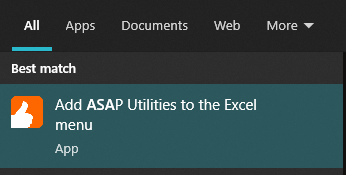
Note: this option is only available if you've chosen to create start menu shortcuts during the installation of ASAP Utilities.
If you don't see this entry in the Windows Start menu, then you can start it by running the 'Add_ASAP_Utilities_to_the_Excel_menu.exe'.
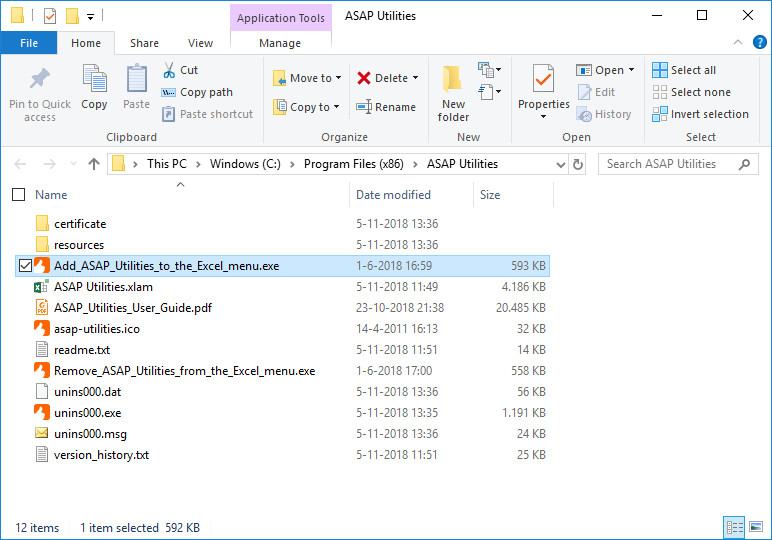
Of you have an older version of ASAP Utilities, then you can download the file from:
https://server1.asap-utilities.com/support/Add_ASAP_Utilities_to_the_Excel_menu.exe (557 KB)
Solution 2 - In case Excel has disabled ASAP Utilities
If you've used ASAP Utilities before, then please verify that ASAP Utilities is not disabled by Excel.
Sometimes when Excel crashes, it (randomly) disables add-ins or asks you to do so.
In case the file is disabled by Excel, then follow these steps:
1. In Excel, click File, click Options, and then click Add-Ins.
2. In the Manage list, click Disabled Items, and then click Go.
3. In the Disabled Items dialog box, select the ASAP Utilities file and then click Enable.
4. Restart Excel.
Solution 3 - Manually add it to the Add-ins list
You can let Excel know (again) that you want ASAP Utilities to be loaded every time you start Excel.
This can be done with a few simple steps:
1. In the Excel menu choose File > Options > Add-ins
2. In the Manage drop-down at the bottom select Excel Add-ins and press the Go... button.
3. Click on the Browse... button in the Add-Ins dialog to locate the ASAP Utilities.xlam file (by default this is located in the folder "C:\Program Files (x86)\ASAP Utilities").
Should Excel ask you to copy the file to the library folder, answer "no". (this is important).
5. Check the "ASAP Utilities" check box and press the OK-button.
If this doesn't work then please check the other possible solutions.
Solution 4 - When all Application Add-ins are disabled
If you use Excel 2007/2010/2013/2016/2019/2021/365 or later then there is an option to disable all add-ins.
Please make sure that option is not checked:
- Select the Office button in Excel (left-top) or choose File
- Choose "Excel Options"
- Choose "Trust Center"
- Click on the "Trust center settings" button
- Then in the left choose "Add-ins"
- Make sure the option "Disable all Application Add-ins (may impair functionality)" is not set because it will disable ASAP Utilities too.
If that option is checked then please uncheck it and restart Excel.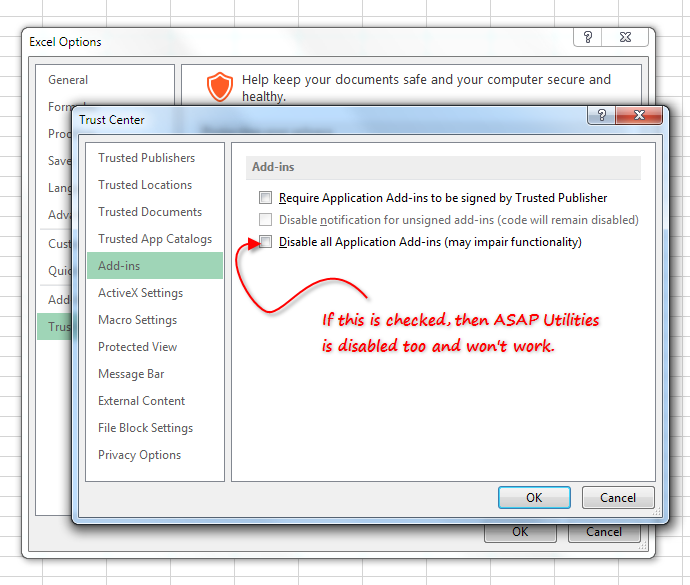
Solution 5 - When Excel is started programmatically add-ins are not loaded
Add-ins are not loaded when Excel is started programmatically.
In combination with Windows Explorer we've seen that once before where a user had installed some sort of plug-in/program that added functionality to Windows Explorer, that caused Excel to start programmatically when the user double-clicked on an Excel file in Windows Explorer.
Add-ins are not loaded when Excel is started programmatically.
A workaround to load ASAP Utilities if Excel is started like that, can be to turn it off and on in the add-in manager.
Or perhaps you can click on the "ASAP Utilities" button in the start-menu.
References:
https://support2.microsoft.com/
http://www.mrexcel.com/forum/
http://stackoverflow.com/questions/
http://stackoverflow.com/questions/
In addition, we also found the following where an (invisible) instance of Excel caused this.
In that case restarting your computer should fix it.
https://answers.microsoft.com/
A repair of the office installation might also correct it. That is also what worked for someone with a similar issue as discussed in the following topic:
http://www.mrexcel.com/forum/
Solution 6 - Blocked by Group Policy object (GPO), no customizations to the Ribbon allowed
You can verify if this is the case by enabling the Office wide setting "Show add-in user interface errors".
In Excel choose File > Options > Advanced, then scroll down and then check "Show add-in user interface errors".
When you then restart Excel, you will see a message similar to "The custom UI associated with this document has been disabled by policy":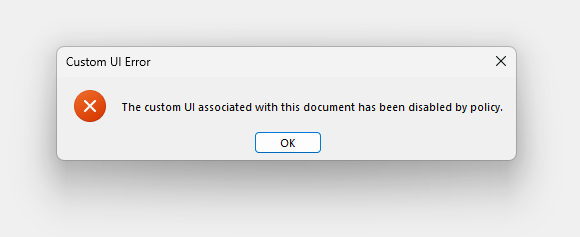
To solve this, you need the help from your IT department.
There is a Group Policy object (GPO) in Excel called "Disable UI extending from documents and templates".
This policy setting controls whether Office (2007+) applications (such as Excel) load any custom user interface (UI) code included with a document or template (or add-in such as ASAP Utilities).
- If you enable this policy setting, Office applications cannot load any UI customization code included with documents and templates.
That also means that you don't see the ASAP Utilities tab in the Excel ribbon. - If you disable or do not configure this policy setting, Office applications load any UI customization code included with a document or template when you open it.
This is the standard setting from Microsoft and the recommended setting if you want to use ASAP Utilities.
You (or your IT department) can find and change it via:
- Office 2016 and later Group Policy Path:
User Configuration > Administrative Templates > Microsoft Office 2016 > Global Options > Customize >
in case "Disable UI extending from documents and templates" is "Enabled"
set "Disallow in Excel" to "Disabled" so that the ASAP Utilities tab can be shown in the Excel Ribbon. - Office 2010-2013 Group Policy Path:
User Configuration > Administrative Templates > Microsoft Office > Global Options > Customize >
in case "Disable UI extending from documents and templates" is "Enabled"
set "Disallow in Excel" to "Disabled" so that the ASAP Utilities tab can be shown in the Excel Ribbon.
This setting is stored (if set) in the registry in the DWORD value NoExtensibilityCustomizationFromDocument in
for Excel 2016-2024/365:
HKCU\Software\Policies\Microsoft\Office\16.0\common\toolbars\excel
for Excel 2013:
HKCU\Software\Policies\Microsoft\Office\15.0\common\toolbars\excel
for Excel 2010:
HKCU\Software\Policies\Microsoft\Office\14.0\common\toolbars\excel
for Excel 2007:
HKCU\Software\Policies\Microsoft\Office\12.0\common\toolbars\excel
If the value of NoExtensibilityCustomizationFromDocument is 0 then customizations are allowed. If the value is 1, then ASAP Utilities cannot display its menu in Excel.
References:
- https://msdn.microsoft.com/(...)DeployCustomRibbon_
UsingAdministrativePoliciesRestrictUICustomizations - https://learn.microsoft.com/(...)office-settings?pivots=v2306#microsoft-office-2016
- https://admx.help/?(...)NoExtensibilityCustomizationFromDocumentPolicy
If your company/IT department can not or does not want to disable the "Disable UI extending from documents and templates" setting, try version 9.2.
menu bar, not showing, missing, disappeared, disappears, disappearing, add in not displaying on menu, not visible, Excel, Office, how do i get asap to show up on my menu bar, menu item ASAP Utilities missing after installing, installed asap but not on menu bar, dropdown, drop down, toolbar, How to add ASAP Utilities to Excel menu?, add-ins enabled, but will not display, open, cannot see, can't find, adding to