


Version 4.6.4 - November 3, 2010
November 3, 2010
Finished
On November 4, 2010 the new version 4.6.4 is released. Download
New features and improvements
- Find and run a utility...
You can quickly add the tool from within the result window to your Favorites-menu by pressing the + button: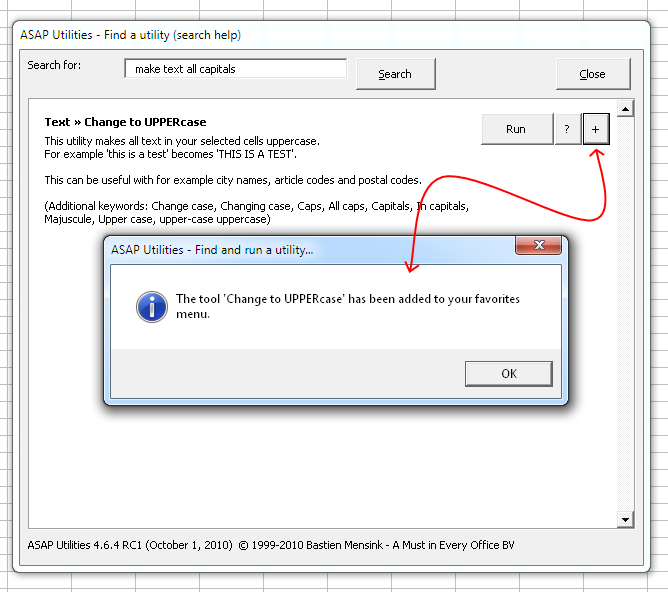
- NEW: Sheets » Split the selected range into multiple worksheets...
With this tool you can quickly split your data into multiple sheets.
You can do this either by value, for example to create a new sheet for each company, or you can specify the number of rows to create per sheet.
We have also received the request for this tool from people that used workbooks with over 500 000 rows (Excel 2007/2010) and then needed to open the information in Excel 2003. In order to do that they had to split the information into pieces of a max of 65536 rows because that is the maximum amount of rows that a sheet in Excel 2003 can contain. Now, with this tool you can do that much faster.
Note:
Your original worksheet remains unaltered.
If you want to save the new created worksheets as separate files, then you can do this with the utility "Export » Export worksheets as separate files...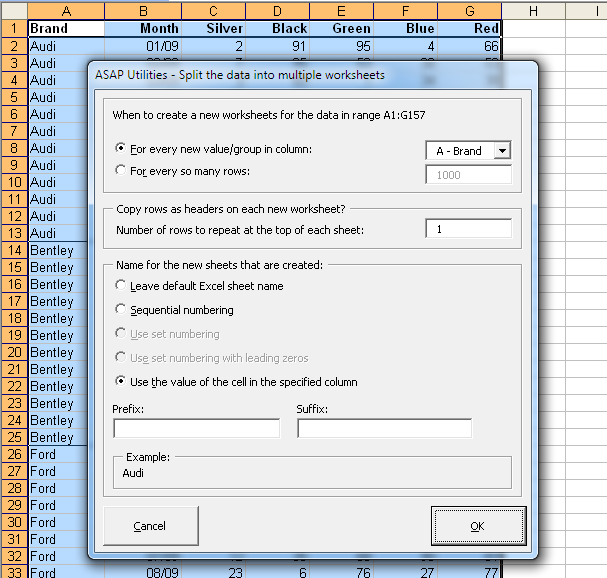
Example of the "For every new value/group in column" option. A new sheet is when the brand name in column A changes and that data is copied to the new worksheet: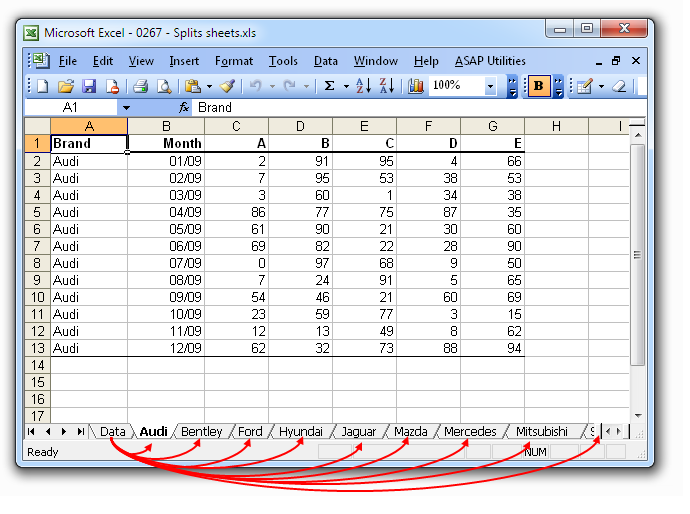
- NEW: Formulas » Replace the range names used in formulas with their cell reference (on selected sheets)
This utility replaces the range names used in the formulas on the selected sheets with their cell references.
For example if you have a value in cell C10 with the range name 'quantity' and you used a formula such as '=A1*quantity', then this utility will replace that formula with '=A1*C10'.
Select the sheets and start the utility: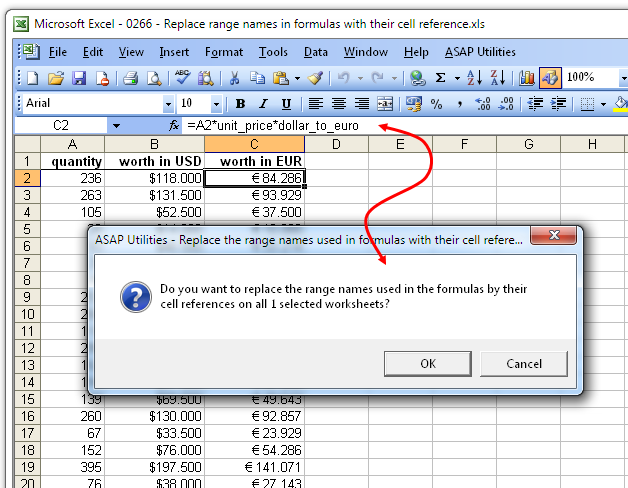
The range names have been replaced with their cell references.
As you can see, if needed the utility adds the sheetname for the cell reference too if needed: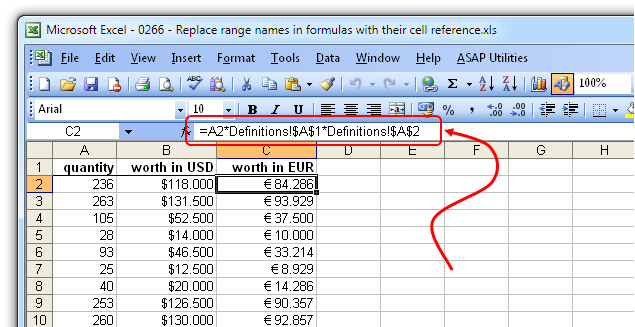
At the end a report with the changes that were made is presented: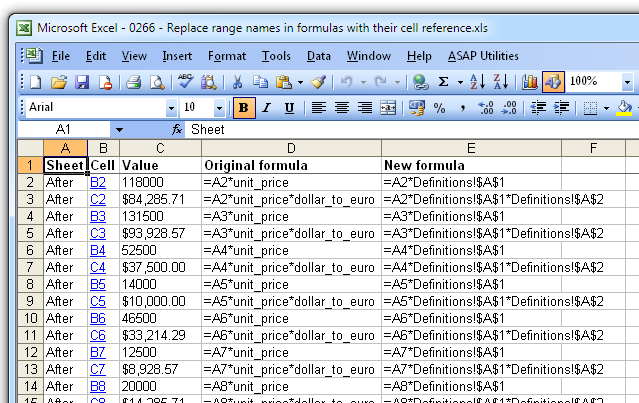
- NEW: Information » Copy the path and filename of current workbook to clipboard
This will put the path and filename of your current workbook to the clipboard.
You can then paste it into another application.
This can for example be useful if you're working on a file and want to inform a collegue and tell him/her in an email where he/she can find the file. - Web » Clean information that is copied from websites...
Now has buttons to quickly check, uncheck or inverse all options.
This utility is handy to quickly clean up data in general.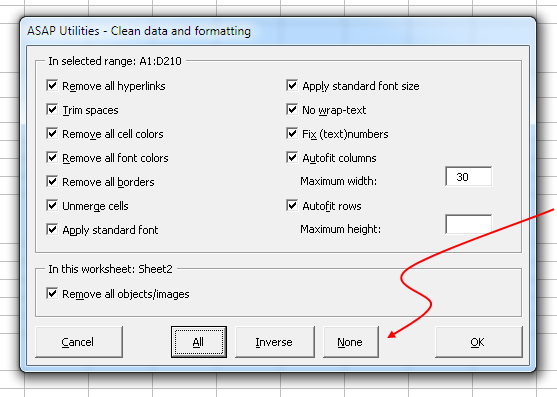
- Subscript the numbers in chemical equations
via: ASAP Utilities Options » New tools in development (English only)
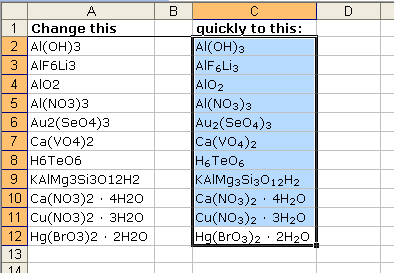
This utility will subscript the numbers in chemical notations such as Al(OH)3, AlF6Li3, AlO2, Al(NO3)3, Au2(SeO4)3, Ca(VO4)2, H6TeO6, KAlMg3Si3O12H2, Ca(NO3)2 · 4H2O, etc.
It automatically detects which numbers should be subscripted.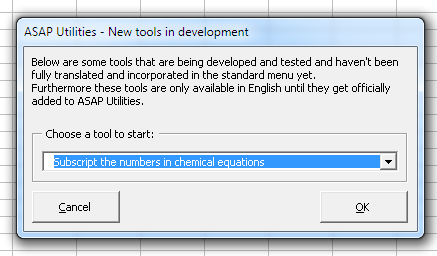
- NEW: Report the formulas used in the worksheets in your workbook
via: ASAP Utilities Options » New tools in development (English only)
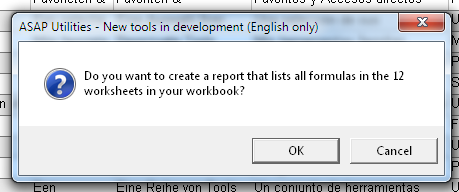
This utility creates a report that lists all the formulas that are used in the worksheets in your workbook.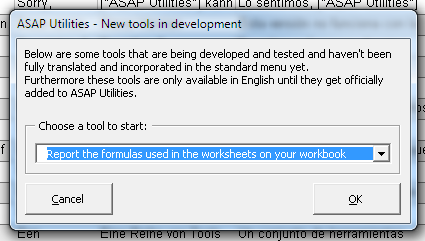
You can click on the cell in the report to jump to the cell in the reported workbook: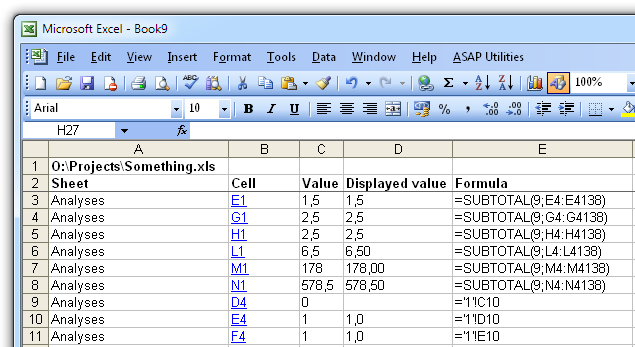
- General, Startup-questions
We removed the startup-questions (such as "Do you want to convert all text in the selected cells to UPPERCASE?") from several tools.
These tools either don't change your data or settings, or can be easily undone or canceled nowadays.
This applies to the following tools:
. Apply standard format to selected cells
. Center across selection (without merging)
. Change not recognized numbers (text?) to numbers
. Change to lowercase
. Change to UPPERcase
. Convert percentages to numbers (e.g. 5% to 5)
. Copy values to empty cells below filled cells in selection
. Count and/or color duplicates in selection...
. Decode all URL and HTML encoded text
. Delete all borders inside selection
. Delete leading and trailing spaces
. Delete leading, trailing and excessive spaces
. Fill 'between values' linear in selection (horizontal)
. Fill 'between values' linear in selection (vertical)
. Flip selected cells
. Make first character Uppercase, the rest lowercase
. Make last character subscript
. Make last character superscript
. Move minus sign from back to front (e.g. 65- to -65)
. Place a border around each page
. Print preview selection
. Random numbering of cells (without duplicates)
. Remove all conditional formatting in selection
. Reverse text in selected cells
. Select cell in selection where value changes
. Start Each Word With Uppercase
. Start first word with Uppercase
. Unmerge cells in selection
For your information, you could already turn off all the startup questions via: ASAP Utilities Options » Settings, language and contact information...
and then the checkbox "Ask for confirmation before starting certain utilities (recommended)" on the "General" tab. - A few small improvements.
Bug fixes
- System » Reload all installed add-ins (rebuilds the menu)
Didn't reload the shortcuts set for ASAP Utilities and gave an error. This bug was unfortunately introduced in 4.6.3, but it is now fixed. - Columns & Rows » Conditional row and column select, hide or delete...
Produced an error if there was a cell with an error in your selection and you had chosen the search option "like" and the "case sensitive" option unchecked.
This is now fixed. - Formulas » Copy formulas without changing their cell references...
Fixed the bug in the undo. - Objects & Comments » Comment tools...
This tool could sometimes cause an error if a sheet contained a large amount of comments. This is now fixed. - A few small bug fixes.
Get Started with ASAP Utilities 9
Start saving time in Excel with practical tools you can use right away.
-
No sign-up required.
-
-
Free 90-day trial