


Version 4.8.5 - September 26, 2012
January 6, 2012
Finished
On September 26, 2012 the new version 4.8.5 is released. Download
New features and improvements
- Select » Select cells based on content, formatting and more...
Massive speed improvement due to a new developed algorithm.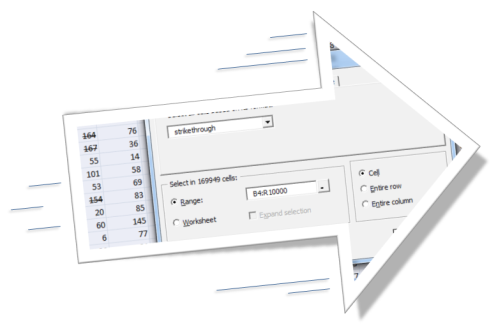
- NEW: Range » Paste values only
This will paste the copied data as values only.
You can assign your own shortcut to this via the "Favorites & Shortcuts" menu, such as for example Control+Shift+V.
This tool can speed things up when you use this often and save you a few strokes/mouse actions compared to the "Edit > Paste special > Values" via the menu in Excel when you assign a shortcut to it. .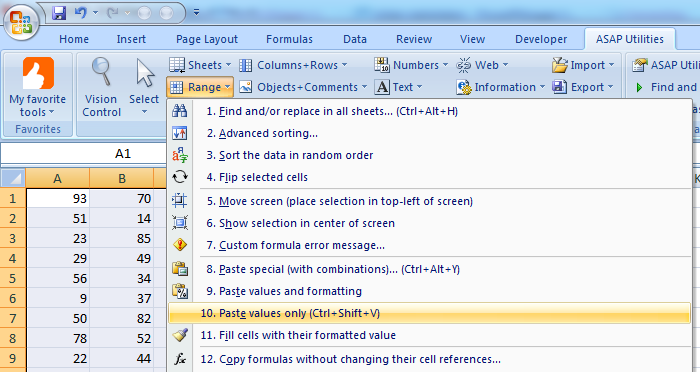
- Objects & Comments » Add cell's value or formula to comment...
This tool add's the cell's value or formula as comment.
You can choose to add new comments, replace existing comments or add the cell's value at the beginning or the end of an existing comment.
You can use to use the cell's value or formula as text for the comment.
By using "Offset" you can specify to read the value of the current cell or a cell to the left or right from it.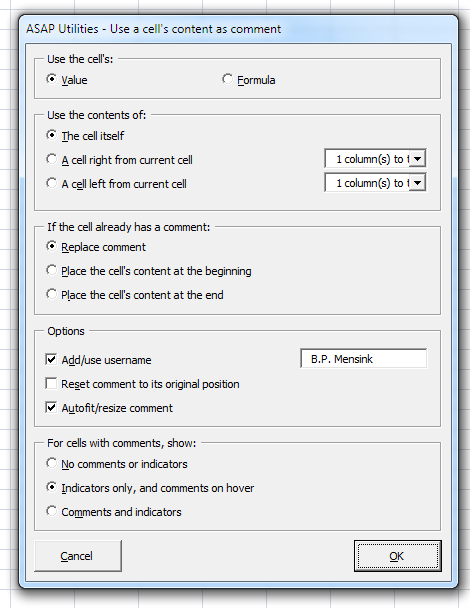
- Formulas » Correct the link to the ASAP Utilities worksheet functions
This tool can be used to correct the reference in your workbook to the ASAP Utilities worksheet functions.
This can be useful if your workbook is used on another computer where ASAP Utilities is installed in a
different folder. For example the default installation folder of ASAP Utilities differs between a 32-bit and 64-bit Windows version. - Formulas » Insert an apostrophe (') in front of each formula in the selected cells
This tool inserts an apostrophe (') in front of each formula in the selected cells, which turns them to text.
Note:
To turn the changed formulas to actual formulas again, you can use the following tool from ASAP Utilities "Numbers » Change not recognized numbers (text?) to numbers" - Formulas » Report the formulas used in the worksheets in your workbook
This tool will report with all formulas used in the worksheets on your workbook.
The report shows the following information:
- Workbook path and name
- Sheet; The name of the worksheet the formula is on
- Cell; The cell address the formula is in. You can click on the address to jump to it, it is a hyperlink.
- Value; The calculated result
- Displayed value; The displayed result
- Formula; The formula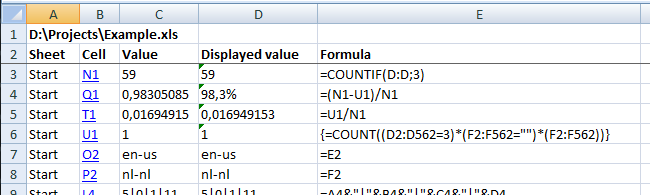
- Range » Delete all range names with an invalid cell reference (#REF!)
This tool removes all range names that have an invalid reference (#REF!).
A report with the results will be presented to you. - Web » Remove all HTML tags in the selected cells...
This tool will strip all html tags in the selected cells, such as for example <BR>, <P>, <FONT size=+0>, <SCRIPT>, etc..
You can choose to:
- Keep existing line breaks
- Add line breaks at the end of tags such as <br/>, <p/>, </h1> etc..
In addition it will also convert encoded characters such as and & to normal characters.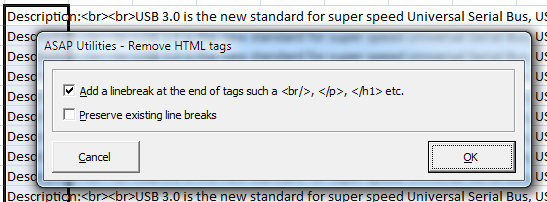
- IMPROVED: Fill » Create a list of filenames and properties in a folder...
You can now choose to include many additional file details to display, just like in Windows Explorer.
This way you can for example include the album and artist information from your music collection or information from your photos such as width and height, ISO speed ratings, F-stop, etc. etc.
The available fields depend on your Windows version. ASAP Utilities relies on Windows for the details to display.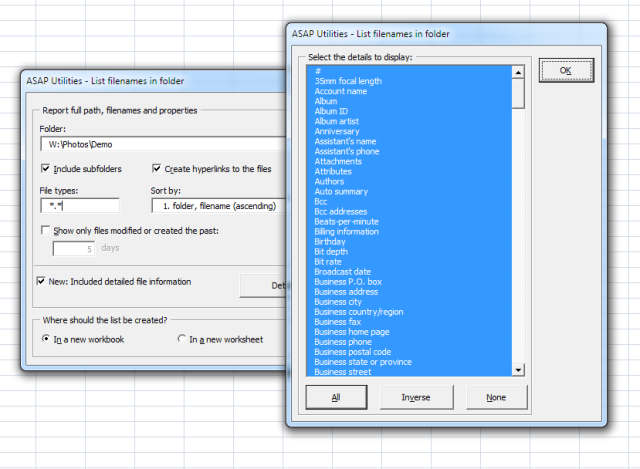
Example with detailed information from photos: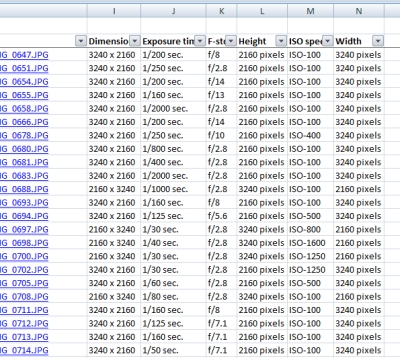
Example with detailed information from music files: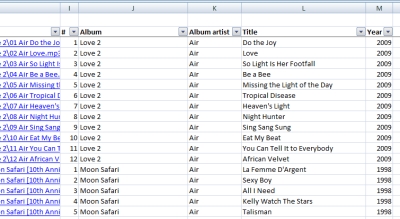
- Export » Export worksheets as separate files...
Your workbook's color palette/color-scheme is now copied too in case of an Excel export. - Export » Export selection or active sheet as new file...
Your workbook's color palette/color-scheme is now copied too in case of an Excel export. - Sheets » Change name of selected sheets to selected cell's value
The cell's displayed value is now used. For example if you have a date, 12/14/2012 displayed as Dec 14, the value "Dec 14" will be used instead of the numerical date. - Sheets » Insert multiple sheets (uses the cell values as sheet names)...
A cell's displayed value is now used. For example if you have a date, 12/14/2012 displayed as Dec 14, the value "Dec 14" will be used instead of the numerical date. - System » Save file and create backup
You can now choose to create a backup copy in either your backup folder, or in the same folder as your workbook.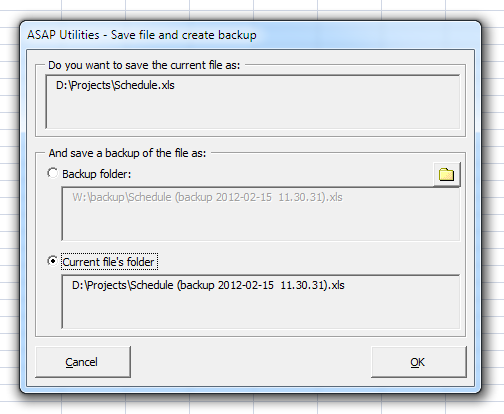
- NEW: Transform table into 3 column matrix (reverse pivot table)
via ASAP Utilities Options » New tools in development (English only)
Transform a table into a 3 column table that you can easily use as a source for for example a pivot table. - Export » Export selection or active sheet as new file...
When creating text-files, this tool now uses your current workbook settings for the decimal- and thousand separator in the output. Unless you choose specific settings on the form. Previously Excel's default VBA (US international) settings were used. - Export » Export worksheets as separate files...
When creating text-files, this tool now uses your current workbook settings for the decimal- and thousand separator in the output. Unless you choose specific settings on the form. Previously Excel's default VBA (US international) settings were used. - Numbers » Move minus sign from back to front (e.g. 65- to -65)
Added automatic detection and removal of leading or trailing spaces. - Export » Export worksheets as separate files...
Added new export formats:
. Web Page (*.htm, *.html)
. Single File Web Page (*.mht, *.mhtml) (only with Excel 2002/XP, 2003, 2007 and 2010)
. PDF (*.pdf) (only with Excel 2010 and Excel 2007 SP2 or Excel 2007 SP1 with the MS PDF plugin installed)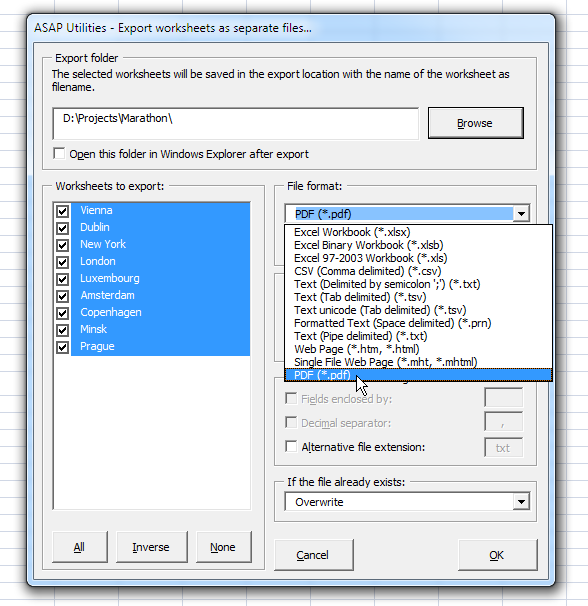
- New worksheet functions:
=ASAPFILEPROPERTIES(property_name_or_id)
Returns the value of one of the built-in document properties for the current workbook.
You can refer to document properties either by index value or by their English name.
The following list shows the available built-in document property names:
1 Title
2 Subject
3 Author
4 Keywords
5 Comments
6 Template
7 Last Author
8 Revision Number
9 Application Name
10 Last Print Date
11 Creation Date
12 Last Save Time
13 Total Editing Time *
14 Number of Pages *
15 Number of Words *
16 Number of Characters *
17 Security
18 Category
19 Format
20 Manager
21 Company
22 Number of Bytes *
23 Number of Lines *
24 Number of Paragraphs *
25 Number of Slides *
26 Number of Notes *
27 Number of Hidden Slides *
28 Number of Multimedia Clips *
29 Hyperlink Base
30 Number of Characters (with spaces) *
* Excel isn't required to define values for every built-in document property.
If Microsoft Excel doesn't define a value for one of the built-in document properties, reading the Value property for that document property results in an error.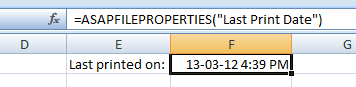
=ASAPLOADIMAGE(image_fullname, optional width_in_pixels, optional height_in_pixels)
Inserts the specified image as an object and puts it at the left-top of your cell.
To update the image, you can replace the formula with a new image name.
To remove the image you have to remove both the formula and the image. (The image isn't removed if only the formula is removed.)
Example:
=ASAPLOADIMAGE("D:productsimagesart782.gif")
Parameters:
# image_fullname = The full path and file name of an image of the type that Excel supports
# width_in_pixels = Optional. You can specify the width pixels. If omitted, the width will be proportionally based on the image's height
# height_in_pixels = Optional. You can specify the height in pixels. If omitted, the height will be the height of the cell the formula is in.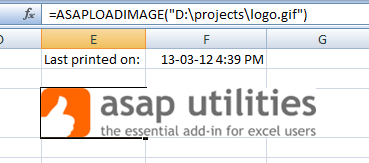
- Fill » Insert before and/or after each cell in your selection...
Added support to use the {tab} or {lf} codes to insert either a tab or line feed (alt+enter) character. - Text » Replace accented characters (á, ë, ñ etc.)...
Several characters are added.
If you've used this utility before then you may have to press the "Reset" button in order to see these new characters added.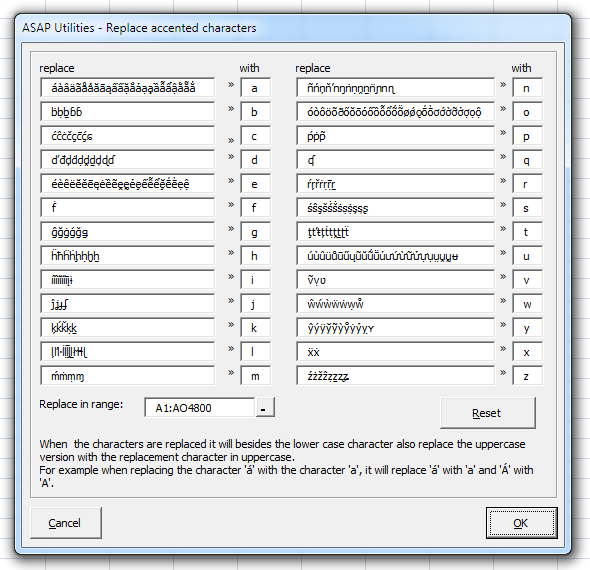
- Export » Export selection as HTML table to clipboard...
The links in =HYPERLINK() formulas are now used too.
Links entered as text or a reference to a cell is supported such as for example
=HYPERLINK("http://www.asap-utilities.com", "ASAP site") or =HYPERLINK(A1, "ASAP site") - Web » Extract hyperlinks...
The links in =HYPERLINK() formulas are now used too.
Links entered as text or a reference to a cell is supported such as for example
=HYPERLINK("http://www.asap-utilities.com", "ASAP site") or =HYPERLINK(A1, "ASAP site") - Columns & Rows » Merge column data (join cells)...
Improved speed - Undo
New performance setting:
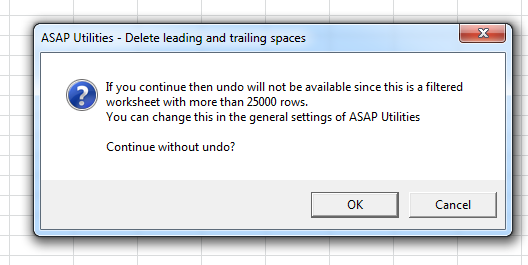
To speed things up you can now choose to disable the undo when your action involves a filtered list and more than a specified amount or rows. By default this option is turned on and the undo will only be available in a filtered list when your sheet involves less than 25000 rows.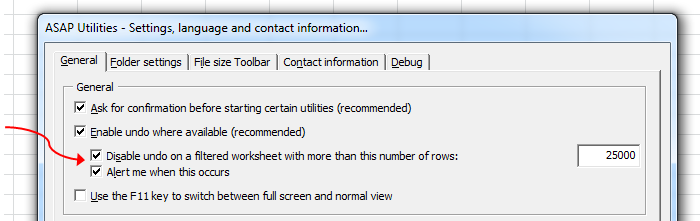
- General
A few small improvements.
Bug fixes
- Numbers » Spell/write out numbers or amounts (EN, DE, NL)...
and =ASAPSPELLNUMBER()
Fixed the bug that caused negative numbers less than -10 to be spelled out incorrect;
The text 'Hundred' was incorrectly added every time. For example -10,00 was incorrectly listed as minus Hundred Ten Dollars and No Cents.
This only affected negative numbers less than -10 and it is fixed now.
Furthermore, if a number as more than two decimals, this tool will now round it to two, instead of just using the first two numbers after the decimal character. For example 12.557 is now rounded to 12.56. Previously it was 'cut' to 12.55. - Import » Merge and/or import multiple files...
If the imported file started with one or more empty lines and you choose to start the import not on row 1, then the last data-row was incorrectly determined and not all rows were imported. The tool assumed your file always had data on row/line 1.
This is now fixed. - Objects & Comments » Comment tools...
Extract/report content of comments > Place the value of the comment cell right next
to the comment
This part of the tool didn't work on merged cells. If a merged cell with a comment existed within your selection, it "tripped" and you got the error.
This is now fixed. - Undo
Fixed the following error that could sometimes appear when running a tool on a filtered list:
"Sorry, something went wrong when preparing the undo
Error 1004: PasteSpecial method of Range class failed" - Range » Find and/or replace in all sheets...
Didn't find/recognize formulas in the non-English notation. We used Excel's Range.Find() and Range.Replace() method but that has the limitation of only using the English notation for formulas. We've fixed this by using a workaround. - Export » Export worksheets as separate files...
The "Do not export hidden cells" didn't work for text-file output. This is now fixed.
In some situations in combination with Excel 2007 and 2010 the exported Excel sheets could end up being in "manual calculation" mode. This is now fixed. - ASAP Utilities worksheet functions
If you have multiple workbooks open with one of these functions then they always return the name of the active workbook, which gives incorrect results for the open workbooks in the background. It went wrong with the following functions:
=ASAPFILENAME()
=ASAPFILEPATH()
=ASAPFULLFILENAME()
=ASAPFILEPROPERTIES()
This is now fixed.
Get Started with ASAP Utilities
Start saving time in Excel with practical tools you can use right away.
-
No sign-up required.
-
-
Free 90-day trial