


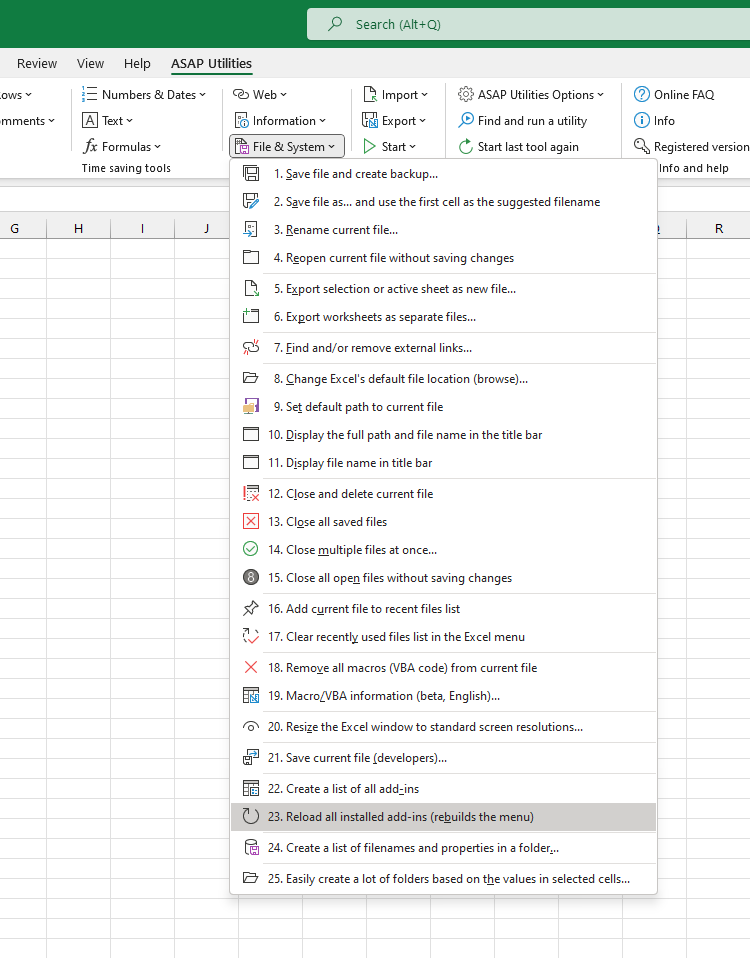
Reload Installed Excel Add-ins (Refresh Menus and Commands)
This tool reloads all installed Excel add-ins and refreshes their associated menu commands.
It performs the following steps:
- Resets the legacy worksheet and chart menu bars. Some add-ins still use these to place commands in the Ribbon's Add-Ins tab
- Reloads all active Excel add-ins
Behind the scenes, the tool turns each installed and active Excel add-in off and on. This triggers its startup routines again, such as Auto_Open or Workbook_Open, which helps restore missing menu items, reset the add-in's behavior, and reapply any shortcuts assigned by the add-in.
This is helpful when:
- The add-in menu or commands are missing
- Shortcuts assigned by add-ins are no longer working
- You want to refresh add-ins without restarting Excel
- Add-in behavior or menus didn't load correctly at startup
By default, you can launch this tool using the Control+Alt+B shortcut.
Note:
This tool only reloads Excel Add-ins (.xla, .xlam).
It does not affect COM Add-ins or Office Add-ins (also known as Web Add-ins or Office.js add-ins).
Starting this tool
Specify a Keyboard Shortcut: ASAP Utilities › My Tools & Shortcuts › Manage My Tools & Shortcuts...
Additional search terms to help you find this tool:
reload Excel add-ins, refresh Excel add-ins, restore missing add-in menu, add-in buttons not showing, run auto_open again, reload xlam add-ins, Excel AddIns refresh, Excel add-in shortcuts not working, reload Excel plugins, reload Excel plug-ins, reload Excel add-ons, fix Excel add-in load issues, troubleshoot Excel add-ins, rerun Excel add-in startup, restore add-in menu bar
Tip:Alt+P for the previous tool.
Tip: Alt+N for the next tool.
Get Started with ASAP Utilities 9
Start saving time in Excel with practical tools you can use right away.
-
No sign-up required.
-
-
Free 90-day trial