


Select, Hide, or Delete Rows or Columns Based on Custom Criteria...
This tool provides a fast and flexible way to select, hide, or delete entire rows or columns based on specific criteria, making it a powerful alternative or complement to Excel's AutoFilter.
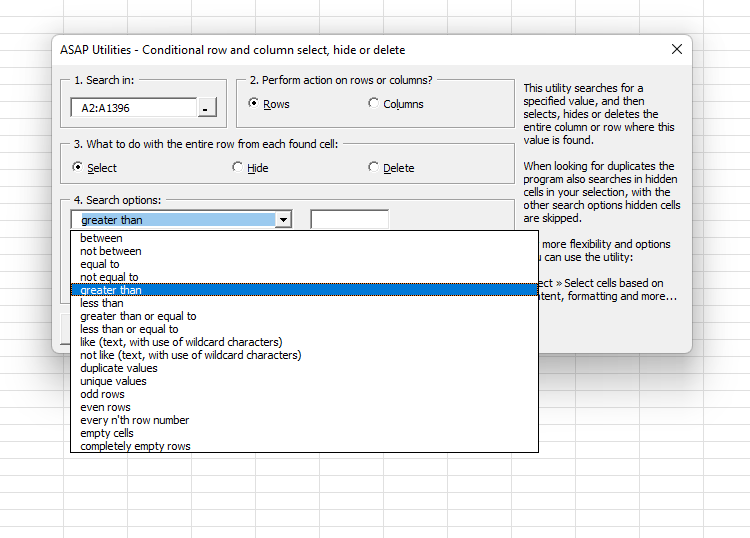
You can apply the following criteria to select, hide, or remove entire rows or columns:
- between
- not between
- equal to
- not equal to
- greater than
- less than
- greater than or equal to
- less than or equal to
- like (text, with use of wildcard characters)
- not like (text, with use of wildcard characters)
- duplicate values (you can choose to keep the first value)
- unique values
- odd rows
- even rows
- every n'th row number
- odd columns
- even columns
- every n'th column number
- empty cells
- completely empty rows
- completely empty columns
Additional options:
- You can choose to make the search case-sensitive for text, duplicate, and unique value criteria.
- Hidden cells are ignored, except when searching for duplicate or unique values.
Starting this tool
Specify a Keyboard Shortcut: ASAP Utilities › My Tools & Shortcuts › Manage My Tools & Shortcuts...
Additional search terms to help you find this tool:
Delete every second row, Double, Based on criteria, Duplicate lines,highlight , filter, select rows or column in intervals, duplication, the same value, highlight, line, select within, choose, pick, dedupe, deduplicate, undouble, blanks, delete blank rows, blank lines, only
Tip:Alt+P for the previous tool.
Tip: Alt+N for the next tool.
Get Started with ASAP Utilities 9
Start saving time in Excel with practical tools you can use right away.
-
No sign-up required.
-
-
Free 90-day trial