Fix the slow startup of Excel 2007

Recently I have been receiving a few emails about people telling me that their Excel 2007 would startup very slowly with ASAP Utilities installed. The delay also occurred without ASAP Utilities if they click on an Excel file from within the Explorer:
If I click on an xls file Excel opens with a blank window which delays…
If I then click to minimize the Excel window, it then immediately re-opens with xls file


You can test if the speed-delay is caused by ASAP Utilities by temporary turning it off (and on):
http://www.asap-utilities.com/asap-utilities-uninstall-remove.php#temporary_disable
In general, the delay can be caused by a virus scanner. I know that Norton Antivirus checks every file you open in Excel first, this also includes add-ins. The speed is slower if ASAP Utilities is loaded from a network connection.

I have Excel XP on my laptop with Norton Antivirus. ASAP Utilities is installed on my hard disk and with ASAP Utilities installed it takes Excel about 2 to 3 seconds extra to start. On my computer with Excel 2003 this delay is about the same. On my computer with Windows Vista and Excel 2007, Excel starts up in a few seconds whether I start from scratch or start Excel by double-click on a file in windows explorer.
I do find however that the Adobe PDF add-in causes an extra delay of nearly 10 seconds.

Excel 2007 Splash Screen

Fixing Excel 2007 slow startup problems

On some computer Excel 2007 starts up very slowly. So far it has only been reported to me in combination with Windows XP.
There are a few reasons that I've seen so far that cause this:
- The Adobe PDF maker add-in is slow.
- The add-in autodesk Vault is logging into the network, which causes a delay.
- Problems in the Windows Explorer settings (see below)

Martin von Gagern has written a possible solution for the problem.
http://martin.von-gagern.net/howtos/excel2007load

Martin von Gagern: At least on Windows XP the problem can be solved as described below:
1. Application Explorer
2. Menu Tools
3. Menu item Folder Options
4. Tab File Types
5. List item XLS
6. Button Advanced
7. List item Open
8. Button Edit...
In the dialog box that appears you need to make two adjustments:
Application to perform action:
- At the end of the line after /e append a space character followed by "%1" (including the quotes)
DDE Application Not Running:
- Insert new text: [rem see command line] (including the brackets)
Source: http://martin.von-gagern.net/howtos/excel2007load

http://groups.google.com/group/microsoft.public.excel.misc/browse_thread/thread/bfb35ac24358e6b7

These are the settings on my 2007 test-system that work correct:
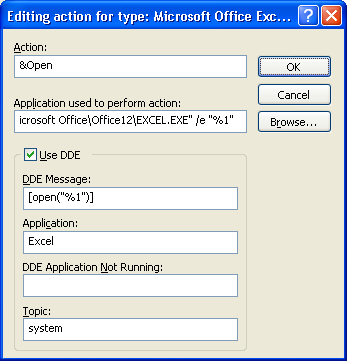
open2007_initial_wait_fixed.png

There are a lot of posts about a slow Excel 2007 in the newsgroups:
http://groups.google.com/groups?as_q=excel+2007+slow&num=100&scoring=r

Improving the performance in Excel 2007

Charles Williams has written a great article about improving the performance in Excel 2007
http://msdn2.microsoft.com/en-us/library/aa730921.aspx

29 Responses to “Fix the slow startup of Excel 2007”

  1. A user also reported a delay that was fixed after upgrading his software program Zone Alarm Internet Security:

    Thank you for responding! I think I found the problem - I upgraded my Zone Alarm Internet Security to their latest beta - I had been experiencing a very slow shutdown. Not only did the beta solve that problem, but it cured a host of other minor irritations. ASAP now works GREAT!

  2. Upgrading to the latest version of ASAP Utilities (pre-release 4.2.1) might solve the delay too if it only occurs with ASAP Utilities installed and starting Excel by double-clicking a file in Windows Explorer:

    http://www.asap-utilities.com/blog/index.php/2007/10/12/fix-excel-2007-explorer-startup-delay/

  3. I modified the line to add “%1″ and now I get several error messages before the file opens - it eventually opens. I tried to remove the “%1″ and I can’t remove it. I delete it from the end of /e but it stays there when I go back to ‘edit’. My initial problem was that I took 60 seconds to open an Excel file if I click on the file icon (before Excel has been opened). If Excel is already open the .xls file would open quickly as normal. This is for Excel 2007. How do I get back to what I had before with no error messages. When I close Excel, I get a ‘file not found’ error message for the open file.

  4. Hello Paul,

    It is strange that you cannot change it back.

    In this case the I think doing a repair of your Office installation will also correct the problem:

    Start > Settings > Control panel > Add or Remove Programs
    then select Microsoft Office, choose “Change” and then choose “Repair Office”

    Kind regards,
    Bastien

  5. Hello Paul:

    Not sure if you were able to fix your “%1″ problem. You can edit your registry settings to delete the %1.

    HKEY_CLASSES_ROOT\Excel.Sheet.8\shell\Open\command

    Edit the key and delete the %1

    Regards
    Saj

  6. Thank you. Martin von Gagern’s solution worked for me.

  7. Saj,

    Thanks for the regedit as the %1 fix had similar results as Paul. Slick and Fast…Thanks again

    Aaron

  8. “%1″ fix works great. Excel opens with no problem. However I am getting error on closing.
    The error is that windows can not find the file I just had opened. Any suggestion?

    Miro

  9. For some reason, the %1 fix didn’t work for me or on any of the 10 other computers I tried it on.

    To fix it I went into the Excel add-ins and found that it was one of the add-ins that was causing the problem. Once I took it out, it worked perfectly.

    To see the Excel add-ins:
    Go into Excel
    Click Ball > Excel Options > Add-Ins > Go >

    This will give you a list of add-ins to tick or untick.

    * Hope thats useful * !

    Thanks
    Harry Heckleton

  10. The %1 fix works great for me and without any errors. Count me lucky for ONCE. :)

    Thanks
    Joe

  11. The “%1″ fix is the solution for the slow startup of Excel 2007 but now each time you double click a file Excel lauches a new instance. Those instances are not linkable. In View/switch you will see only one workbook. If you want to open two or more Excelsheet in one instance you have to open it in the first instance.

    Is there already a real solution??

  12. Harry Heckleton, on February 6th, 2008 at 11:41 am Said:
    For some reason, the %1 fix didn’t work for me or on any of the 10 other computers I tried it on.

    To fix it I went into the Excel add-ins and found that it was one of the add-ins that was causing the problem. Once I took it out, it worked perfectly.

    To see the Excel add-ins:
    Go into Excel
    Click Ball > Excel Options > Add-Ins > Go >

    This will give you a list of add-ins to tick or untick.

    * Hope thats useful * !

    Thanks
    Harry Heckleton

    What add-in did you find that was causing your issue??

  13. For those who have problems with the solution, it may be caused by not inserting a space between /e and “%1″. Make sure the space exists, and Martin’s solution should work for you.

    Also, you may want to do this for xlsx and csv extensions as well.

  14. Nothing is working to resolve slow start up of office program when we try to open by double clicking on any office document, not only that even notepad document also open slowly after rollout of office 2007 in some desktops, office diagonestic does not show any error

  15. The “%1″ fix identified in this blog causes more problems than it fixes. See the following link:

    http://forums.microsoft.com/TechNet/ShowPost.aspx?PostID=3342733&SiteID=17

    The real problem is related to add-ins. Even if they are not active.

  16. OK I’ve found the answer. I have had this problem on multiple computers and I kept thinking that there was a better way to fix this than to disable the DDE or applying the %1 fix.

    Try this

    Enable an add-in… It has fixed the issue on over 15 computers that I have tried it with.

    Click the Microsoft button
    Excel Options
    Add-ins
    make sure the pull-down window says excel add-ins and click go

    I chose to enable the look-up wizard.

    This is the solution and it explains why everyone is not suffering from the same thing. Just give it a shot

  17. I just confirmed that Robert Wilson’s latest update worked for me. Previously when I would try to open an Excel file without Excel already being open, it would open the application but take about 60 seconds for the actual file to open.

    So I added the Lookup Wizard add-in and now the delay is gone. Seems like a much better solution than the “%1″.

  18. Robert Wilson’s quick fix worked perfectly. It used to take almost a minute for my workbooks to open when I clicked on the file instead of opening Excel first. Now it takes less than 5-7 seconds to open them.

    Thank you Robert!

  19. Thanks Robert for the suggestion - I tried your tip after trying many other things and it worked beautifully, just like you said it would.

  20. Robert

    I tried your suggestion after nothing else worked and it has solved the problem for me using Excel 2007 with Windows XP.

    I am delighted after half a day of trying other fixes.

  21. Thanks Robert! I hope someone from
    Microsoft read this!

  22. amen robert!!!
    I thought I would have to resort to downgrading to 2003.

  23. Robert you are a genius! Worked liked a charm!

  24. Robert,

    Thanks so much.
    Before reading you’re suggestion, was ready to give Office 2007 the boot and go back to 2003.
    The open now works as it should with both CSV and XLS files. I can only wonder why MS would allow
    potential customer frustration to run wild when it “could of” and “should of” been set correctly on the front end.

    Thanks again…

  25. the “lookup Wizard” fix.. worked on all the computers that were having this problem in our offices.
    Thanks !

    Sounds like a office 2007 bug to me !

  26. Thanks Robert, we have same problem before. Case close. =-)

  27. Robert Wilson, You are AWESOME !!!

  28. Robert’s solution worked for this issue (thanks Robert!), however it has created a new issue for me, where Excel only closes the active file that’s open which I click on the program close X. I then have to clikc the program close X again to close Excel. Any suggestions? And I can definitely confirm I’m clicking the program close X, not the spreadsheet close X. :)

  29. Thanks Robert, I have the same problem and could not find a fix.
    I have been looking for this fix for a couple of days :-}

Leave a Reply

*
To prove you're a person (not a spam script), type the security word shown in the picture. Click on the picture to hear an audio file of the word.
Click to hear an audio file of the anti-spam word