Problem with copying filtered data in Excel 2007 + workaround
I just got an email that says you cannot copy only the filtered data in Excel 2007. If you use the autofilter to make a selection and then you only want to copy the filtered rows, Excel 2007 copied everything, even the hidden rows. This is different from the way Excel 2000-2003 works.
You can recognize when it is going to work correctly by double, moving striped-lines:
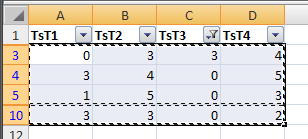
If the double-lines don't show, the hidden rows are copied too:
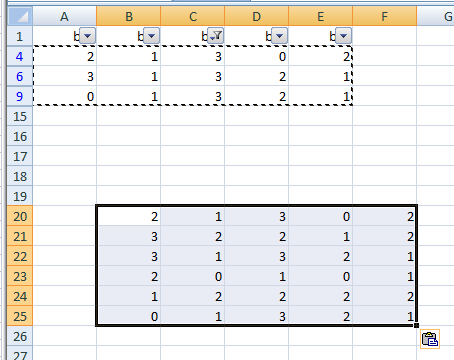
If it doesn't work, here are some workarounds:
Workaround 1
If you convert your table to a 'table' it works as you would expect. Select the cells and then in the Excel menu choose:
Insert > Table. After you've done this is works just as in the previous Excel versions.
Workaround 2
Make your selection, then press F5 (go to..) then click on the "Special..." button and choose "Visible cells only". When you now copy, only the visible result of your filter will be copied and pasted.
The ultimate workaround (and fix?)
I can reproduce the bug in a certain situation. If I have my data, select the header row and then apply the filter, the filtering works but it copies all the data. If I select the entire data-range or a single cell in it and then apply the filter it works as expected. This behavior is different from Excel 2000, 2002/XP and 2003.
Conclusion
The way it works entirely relies on which cells you have selected before you apply the filter. My advice is to select the entire range and then apply the autofilter.
Filed under: General, Excel 2007 info on October 25th, 2007 by Bastien |

Hi Bastien,
May the couple live 1000 years :)
The above bug affects when the filters are applied using the entire row / or a specified range within the data (not only the Header row). And it affect only for the First time the Filters are used after applying them in the way specified before. If we reapply the filters or reuse them for 2nd time, it will behave properly. So the simple workaround is : click on a cell anywhere within the range, apply the filter, use them and have a good night’s sleep.
Good Night
Regards
CA Kanwaljit Singh Dhunna
You are a legend. My head was melting trying to remember how to do this. Take a bow!!
genius, i applaud you. I’ve been dealing with this issue for the last couple of weeks, and it’s very irritating when something works only when it wants to. And nobody in my office believe me about this problem. I hope they update to office 2007, then they’ll come to me for rescue (and i’ll do my evil laugh of course).
thanks a lot!
There is a way to permanently turn this off in Excel 2007 so that selecting when using an autofilter behaves in the same way as Excel 2000-2003. Go to Excel Options > Advanced and then uncheck “Extend data range formats and formulas” under the Editing Options. Then you won’t need to use a workaround every time.
Thank you soooooo much for this information!
As with everything else in 2007 it has taken me forever to figure out how to work it and Microsoft offers virtually no assistance. I keep begging my IT person to reload 2003 but he said because of an Outlook bug it isn’t possible. Yeah.
Now if I could just figure out why 2007 isn’t recongnizing my VBA code that works fine in 2003.
I think I’m perhaps misunderstanding the solutions. Even when excel copies ‘only the filted data’ the other data is copied, just hidden. So if I try to calculate based on it, I end up including the hidden data. Is there a way to copy only the data for which you have filtered, without the hidden rows? I have tried all of the solutions above.
Hello Tanya,
Try it again but then copy the data below your table or to a new worksheet.
Kind regards,
Bastien Mensink
The only way that resulted with me is the
Workaround 2
Make your selection, then press F5 (go to..) then click on the “Special…” button and choose “Visible cells only”.
thks for the contributes
lino cardoso
You can tell Excel 2007 to select visible cells only by going to Home > Find & Select (under the Editing menu) > Go To Special. From there you click on the “Visible cells only” radio button and click ok. This is a pain, so there is a keyboard shortcut for this. When you have your autofilter on just hit ALT + ; (semi-colon) and all visible cells in the entire workbook will be selected. Still not exactly the same as 2003 used to work, but that’s Microsoft for you.
Workaround 3
Apply the filter selection twice.
eg for the example shown above
for column C.
apply filter for 3 then apply filter for 3 again
Your selection should act like it used to in 2003
The same concept works in macros as well
eg
Selection.AutoFilter Field:=11, Criteria1:=”s*”, Operator:=xlAnd, Criteria2:=”t*”
Thanks everybody, this has been driving us crazy!!
Courtney HAIL!
All the workarounds work for me, but the best one is as courntey said:
Go to Excel Options > Advanced and then uncheck “Extend data range formats and formulas” under the Editing Options. Then you won’t need to use a workaround every time.
Now you dont have to worry about anything ever again, everything is like 2003!!
YAY! Finally!
I’ve been looking into this problem, and playing with the various work arounds listed here. The solution for me is “The ultimate workaround (and fix?)”.
If I select the header cells where I want the filter, and then apply the auto filter, copying any filtered data also copies the hidden items.
If I select the complete range, or a single cell in that range, and now apply the auto filter, when copying filtered data I now only copy the visible items.
This appears to be the case whether or not the “Extend data range formats and formulas” is selected, and seeing as this can be a useful function then I will leave it ticked for now.
The reason I often select the row where I want the filters to appear is that I sometimes have data in the row above it, and Excel does not always want to use the same row as me! It looks like in these cases I will have to format as a table.
Some things just don’t need changing!
Sean.
even I unchecked “Extend data range formats and formulas”, it does not work on my excel 2007. Reapply works and visible cells workaround work as well. I’m missing my excel 2003 …
Hi Focus,
I try to figure out how resolve the problem with filters in excel 2007 (ver. 12.0.6300.5000) SP1 MSO (12.0.6213.1000).
I filtered some list by some value, the list obsvously reduce from orignal line numbers, now when I try to copy a value to the interval, means only these filtered cell should be update with the new value, but does not work like should.
Excell 2007 applies the new value to all cell (not listed on filter) between the range of firt occurer of criteria filter and the last
Lets supose the list has type of car and collors of the cars, so I filterd “ferraris” and see how many ferraris has in my filtered list and the collors of theses cars. Now I can change de color (value of cell) of all ferraris, and when I do that, excel applies not only on ferraris, but in porches, bmw, jaguars, etc.
If you know some trick ou underground solution, pls don’t hesitate to contat me.
Best Regards,
Felipe Penteado
Yes I have used all the solutions above as well,
I thought the Go to Excel Options > Advanced and then uncheck “Extend data range formats and formulas” would be perfect BUT IT DOES NOT WORK
Selecting visible cells DOES NOT WORK
The ONLY solution that worked was how you turn on filters in the first place
Example:
turn on the filters by clicking on a single cell in the row that the filters are to appear (top row usually)
(do not highlight whole row) and then turn on the auto filters (I always use keyboard shortcut Alt-d-f-f)
Filter as required
Cut/paste
Then it worked as it did on 2003 which i think is a variation on how others achieved it above though maybe by accident.
So it definitely is a bug if how you apply the filter determines what data is copied
I am trying to write a formula based on the visible cells. Thus if I have 10 years worth of data, but someone has filtered out the month of Nov 2008, I would like to show a sum of all the values in November. Is there a way to create a dynamic range that refers to only the visible cells?
Hello Marcel,
If the list is filtered you can use Excel’s worksheet function =SUBTOTAL(), please have a look in Excel’s help on this function.
Kind regards,
Bastien
thanks special of f5 is working perfectly