


Fill Blank or Empty Cells with a Specific Value...
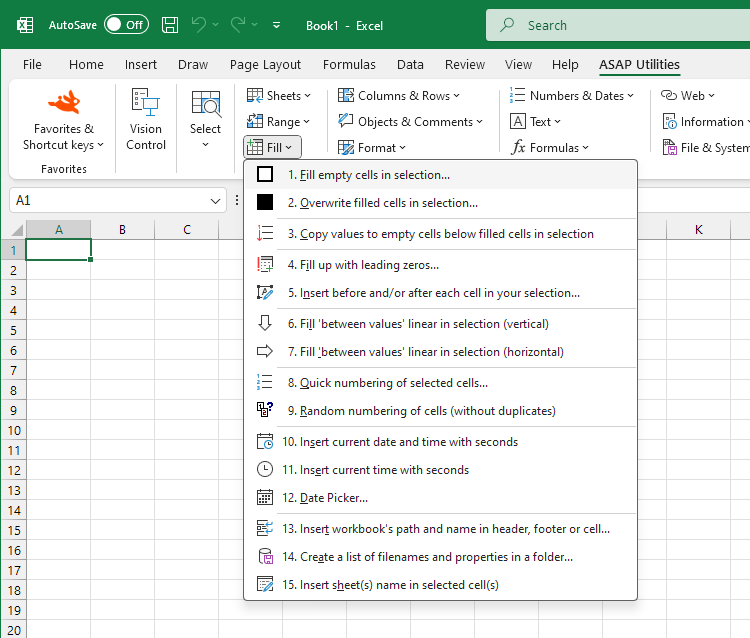
This tool fills all blank or empty cells in your selection with a given value.
It also works on cells that seem empty but aren't detected by Excel's Go To > Special > Blanks or the ISBLANK() function. These are cells that contain a zero-length string, a term Microsoft uses for values that look blank but actually contain invisible content, such as a single apostrophe or the result of a formula like "" that was pasted into the cell as a value.
It is helpful when cleaning up spreadsheets with missing values, such as:
- Filling blanks with 0 in financial data
- Replacing empty cells with "N/A", "Not Available", or "-"
- Inserting placeholder text like "To be updated"
- Standardizing tables before exporting, printing, or sharing
It can save time when working with large datasets, especially after importing, pasting, or sorting.
Note: If you select only one cell, you'll be asked if you want to fill all empty cells in the used area of your worksheet.
Starting this tool
Specify a Keyboard Shortcut: ASAP Utilities › My Tools & Shortcuts › Manage My Tools & Shortcuts...
Additional keywords to help you find this tool:
Fill blank cells, Replace empty cells, Fill missing values, Zero-length string, Excel cells look empty but aren't, Fill blanks with 0, Fill empty cells with text, ISBLANK not working, Fill blanks after paste, Replace invisible blank cells, Excel not detecting blank cells, Go to special blanks not working, Bulk fill empty cells
Tip:Alt+P for the previous tool.
Tip: Alt+N for the next tool.

Save Time in Excel. The Easy Way.
ASAP Utilities helps you save time and do what Excel alone can't.
You can get started right away. No training needed.
Most users start with a few tools. Many end up using ASAP Utilities daily.
Used by teams in 28,500+ organizations.
Get Started with ASAP Utilities
Start saving time in Excel with practical tools you can use right away.
-
No sign-up required.
-
-
Free 90-day trial