


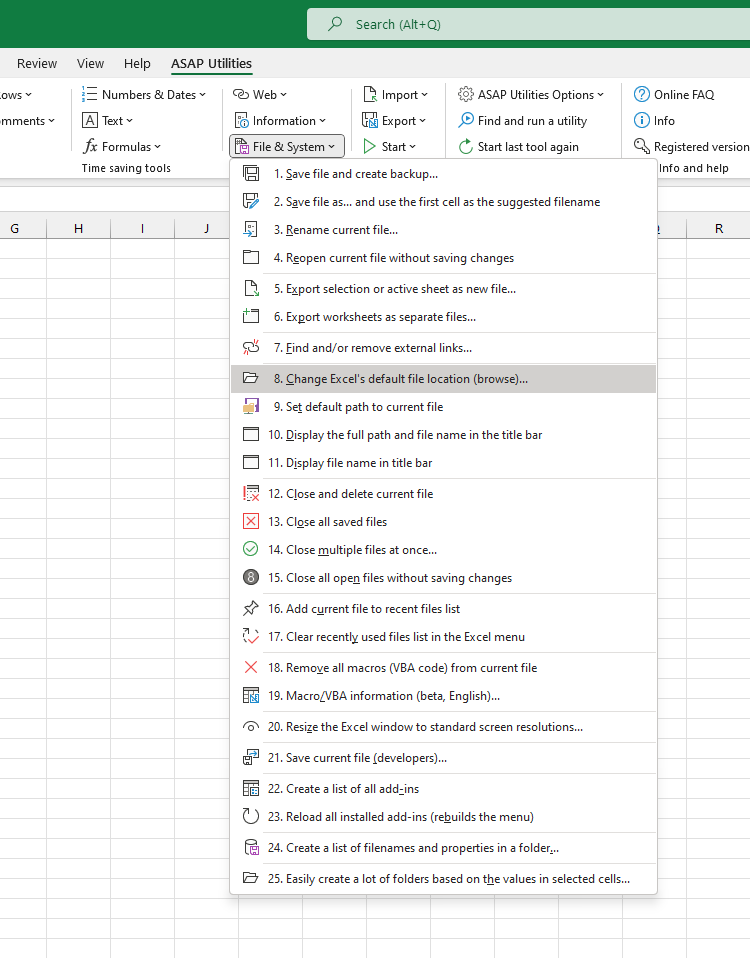
Change Excel's Default Local File Location (Easier with Browse)...
This tool lets you easily change Excel's default working folder for opening and saving files.
In Excel, you can set this manually by going to File > Options > Save > Default local file location.
However, Excel requires you to type the full folder path manually.
This tool makes it easier by letting you browse and select the folder directly.
It's useful when:
- You want Excel to open or save files from a specific folder by default
- You want to avoid typing long or complex folder paths
- You regularly switch between different working folders
How it works:
- Browse and select a folder using a folder picker
- The selected folder becomes Excel's new default local file location for opening and saving files
- This setting applies to all workbooks you open or save in Excel
Starting this tool
Specify a Keyboard Shortcut: ASAP Utilities › My Tools & Shortcuts › Manage My Tools & Shortcuts...
Additional keywords to help you find this tool:
change default file location, set default folder, Excel working folder, open files default folder, save files default folder, Excel file path setting, default save location, Excel browse folder, Excel options save location, set folder for opening files, set folder for saving files, choose default folder, Excel file storage location, folder picker Excel, change save location easily, avoid typing file path, Excel settings default folder, working directory Excel, browse for folder Excel, default local file location
Tip:Alt+P for the previous tool.
Tip: Alt+N for the next tool.

Save Time in Excel. The Easy Way.
ASAP Utilities helps you save time and do what Excel alone can't.
You can get started right away. No training needed.
Most users start with a few tools. Many end up using ASAP Utilities daily.
Used by teams in 28,500+ organizations.
Get Started with ASAP Utilities
Start saving time in Excel with practical tools you can use right away.
-
No sign-up required.
-
-
Free 90-day trial