


Count Characters in Selected Cell...
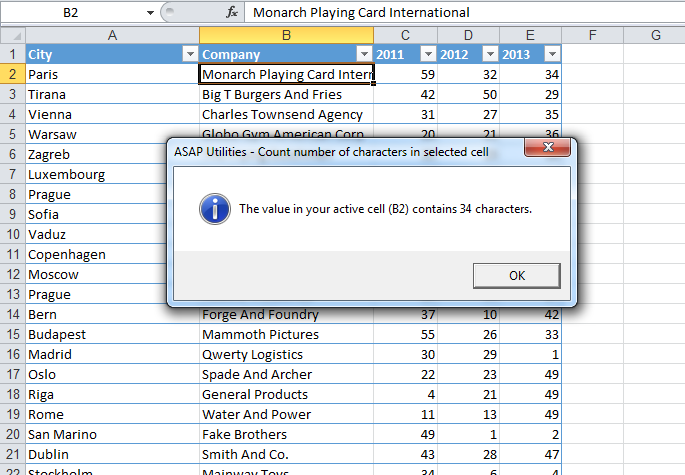
This tool shows you the number of characters in the currently selected cell.
Knowing this is helpful when you need to:
- Check if the text fits within a character limit
- Prepare data for import/export into other systems
- Analyze or validate text length in cells
For example, if the cell contains the value "Microsoft Excel", the result will be 15 characters.
Compared to using Excel's =LEN() formula, this tool:
- Works instantly without inserting a formula
- Doesn't change or clutter your worksheet
- Works even on protected sheets where formulas can't be entered
Tip:
If you need to check multiple cells at once, using Excel's =LEN() formula is more efficient.
Starting this tool
Specify a Keyboard Shortcut: ASAP Utilities › My Tools & Shortcuts › Manage My Tools & Shortcuts...
Additional keywords to help you find this tool:
count characters, character count of cell, Excel count text length, how many characters in cell, Excel cell length, LEN function alternative, Excel string length, Excel text character counter, count characters without formula, character count protected sheet, cell content length, Excel quick character count
Tip:Alt+P for the previous tool.
Tip: Alt+N for the next tool.

Save Time in Excel. The Easy Way.
ASAP Utilities helps you save time and do what Excel alone can't.
You can get started right away. No training needed.
Most users start with a few tools. Many end up using ASAP Utilities daily.
Used by teams in 28,500+ organizations.
Get Started with ASAP Utilities
Start saving time in Excel with practical tools you can use right away.
-
No sign-up required.
-
-
Free 90-day trial