


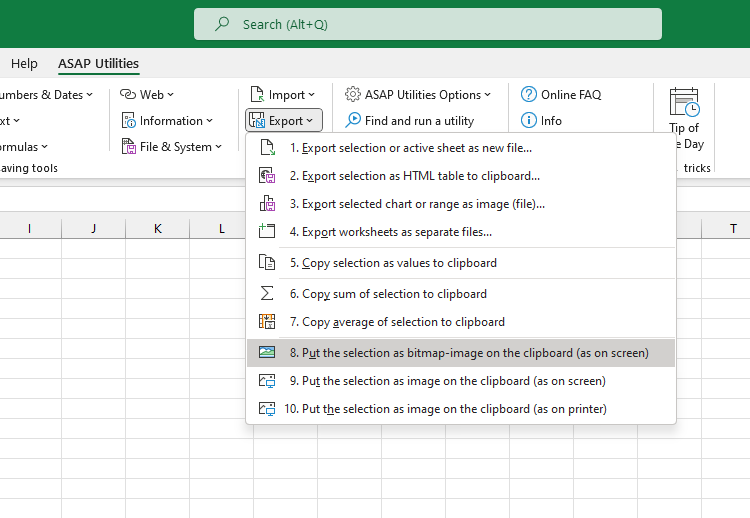
Copy Selection as Bitmap Picture (As Shown on Screen)
This tool copies your current selection as a bitmap image, exactly as it appears on your screen, and places it on the clipboard.
Use this when you want to:
- Quickly paste the selection into another app as a static image
- Share a visual snapshot of your data (including colors, borders, and formatting)
- Create screen-accurate visuals for documents, emails, or presentations
The image is created in bitmap format.
It saves a few clicks compared to Excel's built-in method (Home > Copy > Copy as Picture > As shown on screen > Bitmap), and you can assign your own shortcut for even faster access.
Note:
The "Copy Selection as Picture (As Shown on Screen)" tool generally produces better image quality because it uses a vector-based format. However, not all programs support that format. Some email clients, chat apps, or older programs may only support bitmap images for pasting. Use this bitmap version for maximum compatibility.
Tips:
- To hide gridlines from your picture, go to View > Show, and uncheck Gridlines.
- If you use this frequently, add it to your 'My Tools & Shortcuts' menu and assign a shortcut for quick access.
Starting this tool
Specify a Keyboard Shortcut: ASAP Utilities › My Tools & Shortcuts › Manage My Tools & Shortcuts...
Additional keywords to help you find this tool:
copy Excel content as image, Excel screenshot tool, paste Excel into email, Excel to bitmap, convert Excel range to picture, Excel copy visual snapshot, export Excel layout as image, bitmap from Excel cells, static image from Excel selection, copy Excel table as image, copy Excel chart as bitmap, share Excel view in presentation, image from Excel spreadsheet
Tip:Alt+P for the previous tool.
Tip: Alt+N for the next tool.

Save Time in Excel. The Easy Way.
ASAP Utilities helps you save time and do what Excel alone can't.
You can get started right away. No training needed.
Most users start with a few tools. Many end up using ASAP Utilities daily.
Used by teams in 28,500+ organizations.
Get Started with ASAP Utilities
Start saving time in Excel with practical tools you can use right away.
-
No sign-up required.
-
-
Free 90-day trial