


Set Temporary Default File Location to Current Folder
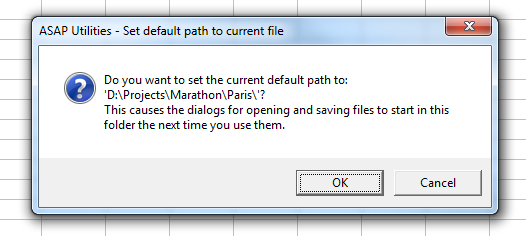
This tool temporarily sets Excel's default folder to the location of your current workbook.
As a result, when you use Excel's classic Open (Control+F12) or Save (Alt+F2 or F12) dialogs, they will start in this folder, making it quicker to open or save related files without browsing through folders.
It's useful when:
- Working in project-specific folders and subfolders
- Opening related files from the same folder when multiple workbooks are open.
Important to know:
- This setting is temporary. Excel will use this folder until you open or save a file from a different location, after which Excel updates its working folder automatically.
- This works with Excel's classic Open/Save dialogs (not the modern Backstage view).
- It does not change Excel's permanent default file location setting (File > Options > Save > Default local file location)
By default, you can launch this tool using the Control+Alt+E shortcut.
Tip:
Regardless of this setting, Alt+F2 or F12 always uses the classic Save As dialog, and Control+F12 always uses the classic File Open dialog.
If you prefer the classic Windows-style Open and Save dialogs also for the other shortcuts, you can use the following setting in Excel:
1. Go to File > Options > Save
2. Enable "Don't show the Backstage when opening or saving files with keyboard shortcuts."
Starting this tool
Specify a Keyboard Shortcut: ASAP Utilities › My Tools & Shortcuts › Manage My Tools & Shortcuts...
Additional keywords to help you find this tool:
set current folder, set working folder, change working directory, temporary default folder, open save folder location, save in current folder, open from current folder, default file path, default file location setting, start folder, excel working directory, set open save folder, open dialog folder, save dialog folder, folder picker, quickly open files from current folder, classic file dialogs, avoid browsing folders, file save location, working folder shortcut
Tip:Alt+P for the previous tool.
Tip: Alt+N for the next tool.

Save Time in Excel. The Easy Way.
ASAP Utilities helps you save time and do what Excel alone can't.
You can get started right away. No training needed.
Most users start with a few tools. Many end up using ASAP Utilities daily.
Used by teams in 28,500+ organizations.
Get Started with ASAP Utilities
Start saving time in Excel with practical tools you can use right away.
-
No sign-up required.
-
-
Free 90-day trial