


Set Cell Size in Centimeters, Inches, or Pixels...
This tool lets you set the cell size in your selected range by setting the column width and row height in centimeters, inches, or pixels.
It's useful when using Excel for layout or design tasks such as:
- Creating flowcharts or dashboards
- Drawing floor plans or technical diagrams
- Designing a garden layout or seating plan
- Creating square cells for pixel-based grids or modeling
- Aligning shapes and objects precisely in engineering visuals, financial templates, or planning sheets
Tip:
Hold the Alt key while dragging shapes, images, or charts in Excel to snap them exactly to the grid based on the cell size you've set. This helps with consistent alignment and layout precision.
Note:
Due to limitations in Excel, the actual column width and row height may differ slightly (up to a tenth of a centimeter or inch).
Pixel dimensions depend on your Windows display's DPI (scaling) settings.
Starting this tool
Specify a Keyboard Shortcut: ASAP Utilities › My Tools & Shortcuts › Manage My Tools & Shortcuts...
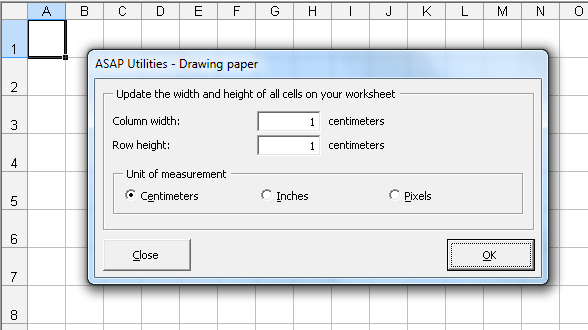
Example screenshot: 2 (Here's the English version.)
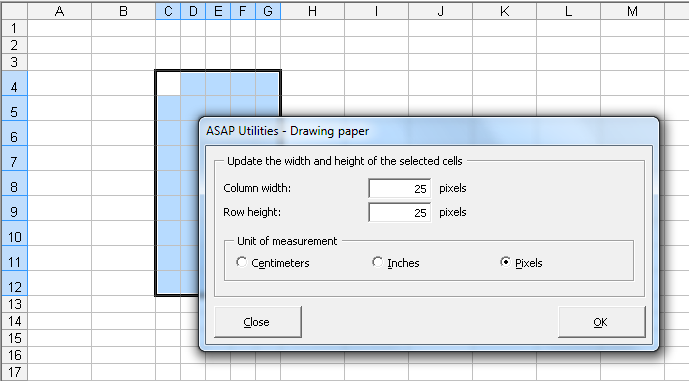
Additional keywords to help you find this tool:
scale, ruler, centimetre, square cells Excel, graph paper Excel, sketch in Excel, Excel grid layout, draw to scale, use Excel as a design tool, gridpaper, layout grid Excel, snap to grid Excel, align shapes Excel, floor plan Excel
Tip:Alt+P for the previous tool.
Tip: Alt+N for the next tool.

Save Time in Excel. The Easy Way.
ASAP Utilities helps you save time and do what Excel alone can't.
You can get started right away. No training needed.
Most users start with a few tools. Many end up using ASAP Utilities daily.
Used by teams in 28,500+ organizations.
Get Started with ASAP Utilities
Start saving time in Excel with practical tools you can use right away.
-
No sign-up required.
-
-
Free 90-day trial