


Deselect Cells...
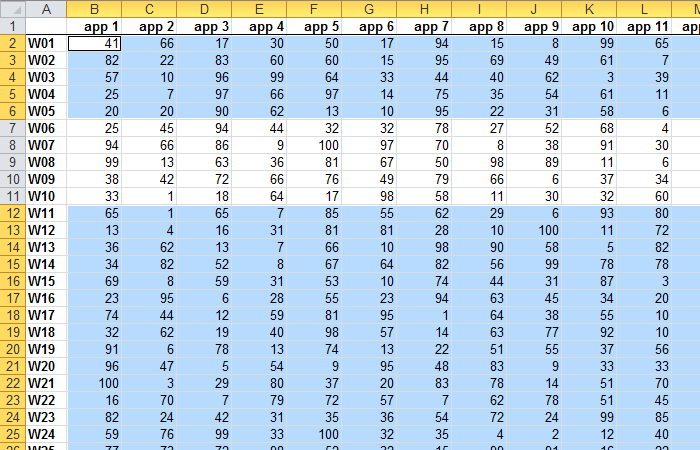
Easily deselect individual cells or ranges from your selection. If you accidentally select extra cells, this tool lets you quickly refine your selection without starting over.
In most Windows applications, you can deselect items by holding the Ctrl key. Still, Excel has not supported this for many years. ASAP Utilities introduced this feature in 1999, long before Microsoft added similar functionality to Excel in 2018/2019.
By default, you can launch this tool using the Control+Alt+D shortcut.
Starting this tool
Click › Select › 4. Deselect Cells...
Specify a Keyboard Shortcut: ASAP Utilities › My Tools & Shortcuts › Manage My Tools & Shortcuts...
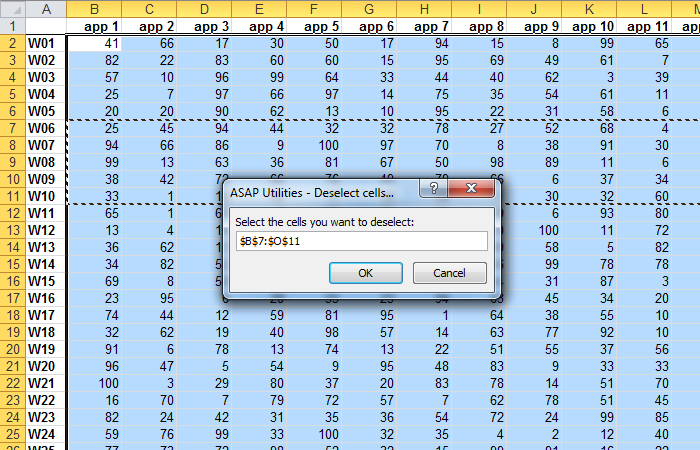
Example screenshot: 2 After (Here's the English version.)
Additional keywords to help you find this tool:
unselect cells in Excel, remove selected cells , undo cell selection Excel, Excel deselect tool, how to deselect cells in Excel, remove cell from selection, deselect individual cell, undo selection without starting over, Excel ctrl click deselect, unselect Excel range, deselecting, How do I remove a cell from a selection in Excel?, How to deselect one cell in Excel without clearing selection
Tip:Alt+P for the previous tool.
Tip: Alt+N for the next tool.

Save Time in Excel. The Easy Way.
ASAP Utilities helps you save time and do what Excel alone can't.
You can get started right away. No training needed.
Most users start with a few tools. Many end up using ASAP Utilities daily.
Used by teams in 28,500+ organizations.
Get Started with ASAP Utilities
Start saving time in Excel with practical tools you can use right away.
-
No sign-up required.
-
-
Free 90-day trial