


Convert Numbers Stored as Text to Real Numbers
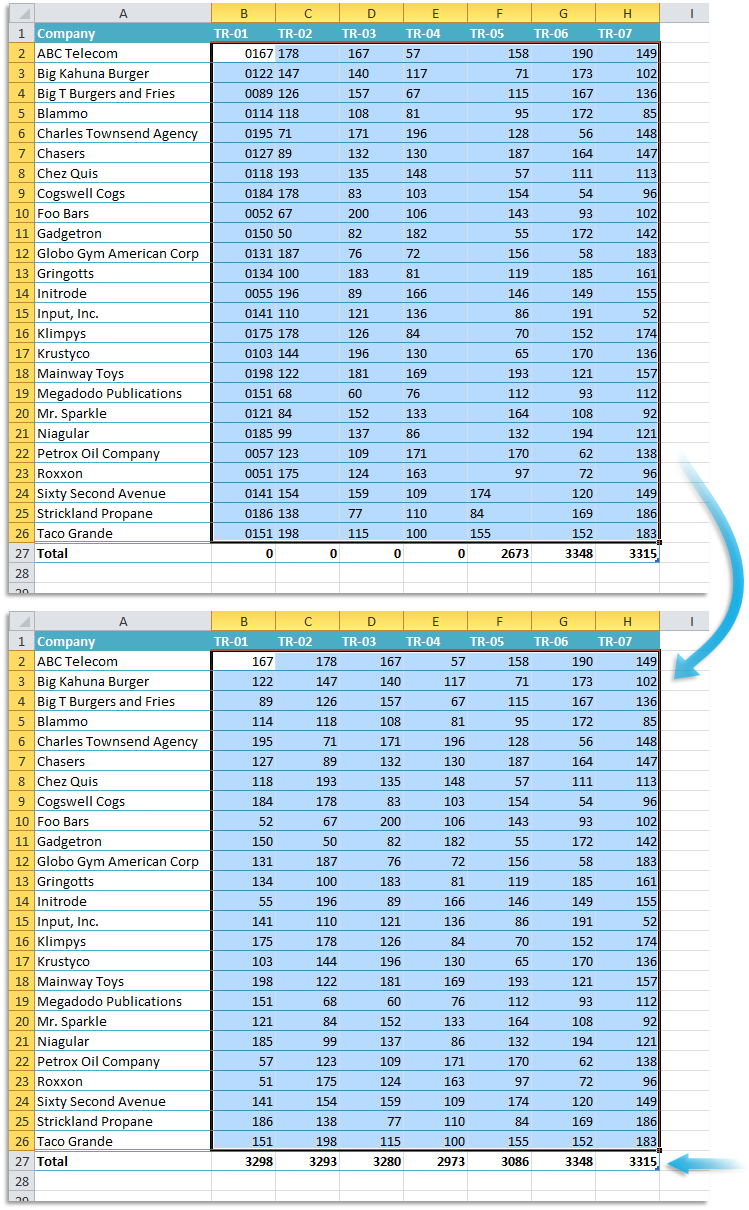
Quickly fix numbers that Excel mistakenly treats as text in your selected cells and ensure they work correctly in formulas, sorting, and calculations.
This tool goes beyond Excel's built-in "Convert to Number" feature by addressing multiple issues at once.
How this tool fixes your data:
- Clears leading and trailing spaces around numbers.
- Fixes numbers with an apostrophe ('123) that prevents them from behaving like real numbers.
- Removes leading zeros, cleans up numbers with unnecessary zeros (000123 → 123).
- Recognizes fractions stored as text and converts text-based fractions (1/4, 1/2) into proper numeric values.
- Changes cells with numbers or fractions and the number format "Text" to "General" or "Fraction".
- Preserves long numbers like credit cards. Unlike Excel, it does not round or change long numbers such as credit card details.
- Handles non-breaking spaces (char 160 / ) that cause Excel to misinterpret numbers.
- Fixes "empty" cells that aren't truly empty. Clears cells that contain only spaces, ensuring Excel treats them as blank.
- Skips formulas and text, leaving existing formulas and text entries untouched.
Benefits compared to Excel's built-in "Convert to Number":
- Works instantly without requiring manual error checking.
- Fixes all your selected cells in one go.
- Detects and corrects issues that Excel might miss.
By default, you can launch this tool using the Control+Alt+Shift+N shortcut.
Note:
This tool does not modify decimal- and thousand separators if they differ from your regional settings. If needed, use Excel's Find and Replace (Ctrl+H) to adjust thousand separators and decimal points before running this tool.
Starting this tool
Specify a Keyboard Shortcut: ASAP Utilities › My Tools & Shortcuts › Manage My Tools & Shortcuts...
Additional keywords to help you find this tool:
Number not recognized, Convert text to number in Excel, Number stored as text, Fix numbers, Excel formula not working due to text, Text to number tool, Remove apostrophe from number, Remove leading zeros, Clean up numbers, Excel not recognizing numbers, The number in this cell is formatted as text, Fix number sorting problem, Convert fractions stored as text, Fix blank cells in Excel, Remove spaces from numbers, Excel non-breaking space issue, Excel "Convert to Number" not working
Tip:Alt+P for the previous tool.
Tip: Alt+N for the next tool.

Save Time in Excel. The Easy Way.
ASAP Utilities helps you save time and do what Excel alone can't.
You can get started right away. No training needed.
Most users start with a few tools. Many end up using ASAP Utilities daily.
Used by teams in 28,500+ organizations.
Get Started with ASAP Utilities
Start saving time in Excel with practical tools you can use right away.
-
No sign-up required.
-
-
Free 90-day trial