


Remove All Letters (A-Z)
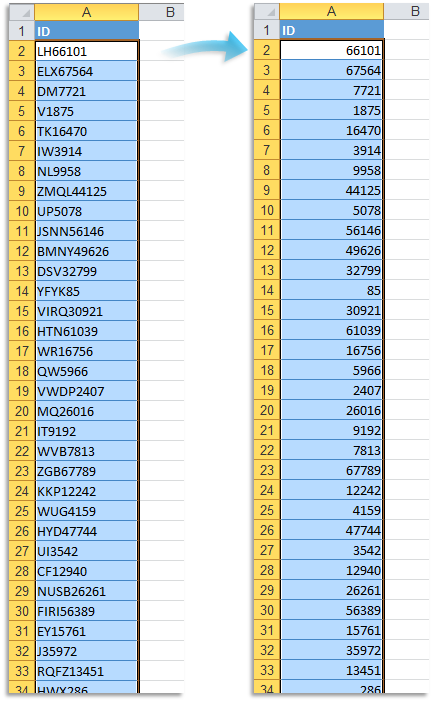
This tool removes all standard alphabet letters (A to Z) from the values in your selected cells.
It removes both uppercase and lowercase letters but does not remove letters with accents (such as ë, é, ö, etc.).
For example:
- "75008 Paris" becomes "75008"
- "Room 5" becomes "5"
- "Invoice_A1234" becomes "_1234"
- "X-100-Y" becomes "-100-"
You can choose to preserve leading zeros.
For example, "0003B" becomes "0003" if preservation is enabled, or just "3" if it is not.
Cells that contain formulas or numeric values, such as numbers and dates, are left unchanged.
This is especially useful when cleaning up postal codes, order numbers, tracking IDs, or any alphanumeric data where you only want to keep the numeric and symbol content.
Note:
If you want to remove only certain letters or characters, you can use our "Remove or Replace Unwanted Characters..." tool.
If needed, you can use our "Remove Leading and Trailing Spaces" tool to clean up any leftover spaces.
Starting this tool
Click › Text › 17. Remove All Letters (A-Z)
Specify a Keyboard Shortcut: ASAP Utilities › My Tools & Shortcuts › Manage My Tools & Shortcuts...
Additional keywords to help you find this tool:
Remove letters from cell, Delete alphabet characters, Strip text keep numbers, Remove A-Z from cell contents, Remove all letters keep numbers, Remove alphabet only, Delete text characters, Clean alphanumeric values, Remove text from alphanumeric codes, Excel remove all A to Z letters, Remove text from ZIP codes, Strip letters keep symbols, Remove uppercase and lowercase letters, Remove letters from tracking numbers, Delete only alphabet characters
Tip:Alt+P for the previous tool.
Tip: Alt+N for the next tool.

Save Time in Excel. The Easy Way.
ASAP Utilities helps you save time and do what Excel alone can't.
You can get started right away. No training needed.
Most users start with a few tools. Many end up using ASAP Utilities daily.
Used by teams in 28,500+ organizations.
Get Started with ASAP Utilities
Start saving time in Excel with practical tools you can use right away.
-
No sign-up required.
-
-
Free 90-day trial