


Apply Subscript Formatting to Last Character
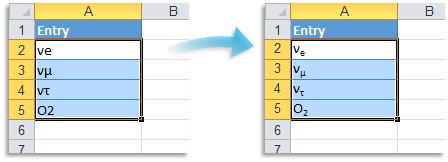
This tool converts the last character in each selected cell with text to subscript formatting.
Only the last character is changed to subscript. All other formatting in the cell remains unchanged. Cells that contain formulas, numbers, or dates are skipped.
It is useful for formatting variable names, technical labels, or references where a subscripted suffix is needed for clarity or visual consistency.
Examples where the last character is formatted as subscript:
- "x1" becomes "x₁"
- "y2" becomes "y₂"
- "A5" becomes "A₅"
- "Level3" becomes "Level₃"
- "Note4" becomes "Note₄"
Starting this tool
Specify a Keyboard Shortcut: ASAP Utilities › My Tools & Shortcuts › Manage My Tools & Shortcuts...
Additional keywords to help you find this tool:
Format last character as subscript, Excel subscript last character, Add subscript suffix, Label formatting subscript, Convert last character to subscript, Formatting for math variables, Technical label formatting, Text formatting last digit
Tip:Alt+P for the previous tool.
Tip: Alt+N for the next tool.

Save Time in Excel. The Easy Way.
ASAP Utilities helps you save time and do what Excel alone can't.
You can get started right away. No training needed.
Most users start with a few tools. Many end up using ASAP Utilities daily.
Used by teams in 28,500+ organizations.
Get Started with ASAP Utilities
Start saving time in Excel with practical tools you can use right away.
-
No sign-up required.
-
-
Free 90-day trial