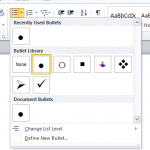
 Unlike Word, Excel doesn't have a similar option to insert a bulleted list.
However, you can easily create a similar list in Excel by using a so called "custom number format".
That might sound a bit difficult but it really isn't.
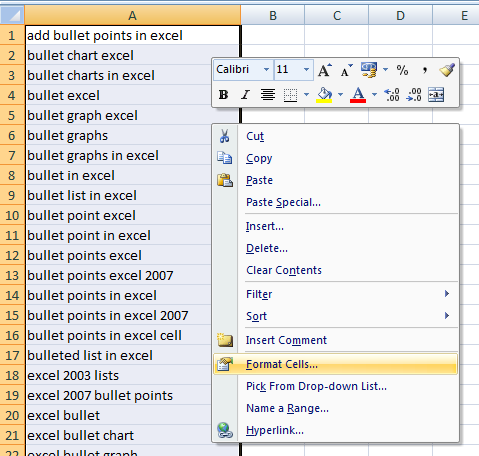
- Just select the list and right-click on any cell in your selection:
Then choose "Format Cells..."
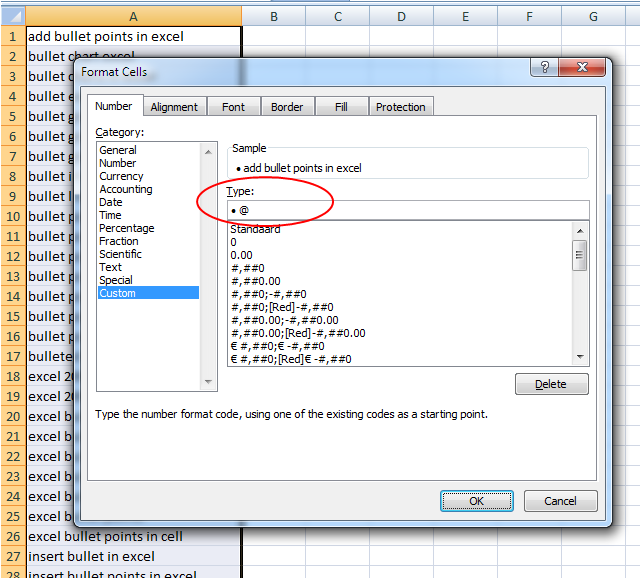
- Now choose "Custom" in the number tab.
In the Type box, enter the symbol or character that you want, followed by a space and the at sign (@)
To insert the bullet points you can use Alt+0149 (type 0149 on the numeric keypad)
or copy it from here: • @
This is an example:
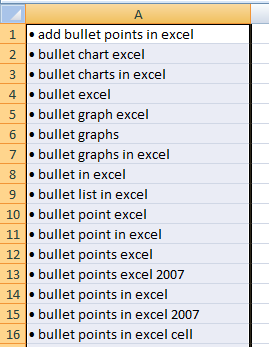
- Any text that you type in cells that are formatted with this new custom format will have the bullet applied to them:
Alternative, edit all cells at once
If you don't want to use the customer number formatting but really insert the bullet or any other character into the cells, then you can use the following tool to quickly do this on all cells at once:
ASAP Utilities » Fill » Insert before and/or after each cell in your selection...
Download example workbook
Example workbook: Example bulleted list.xls
More information and resources
http://support.microsoft.com/kb/323567
http://blogs.office.com/b/microsoft-excel/archive/2010/10/19/create-a-bulleted-list-in-a-cell.aspx