


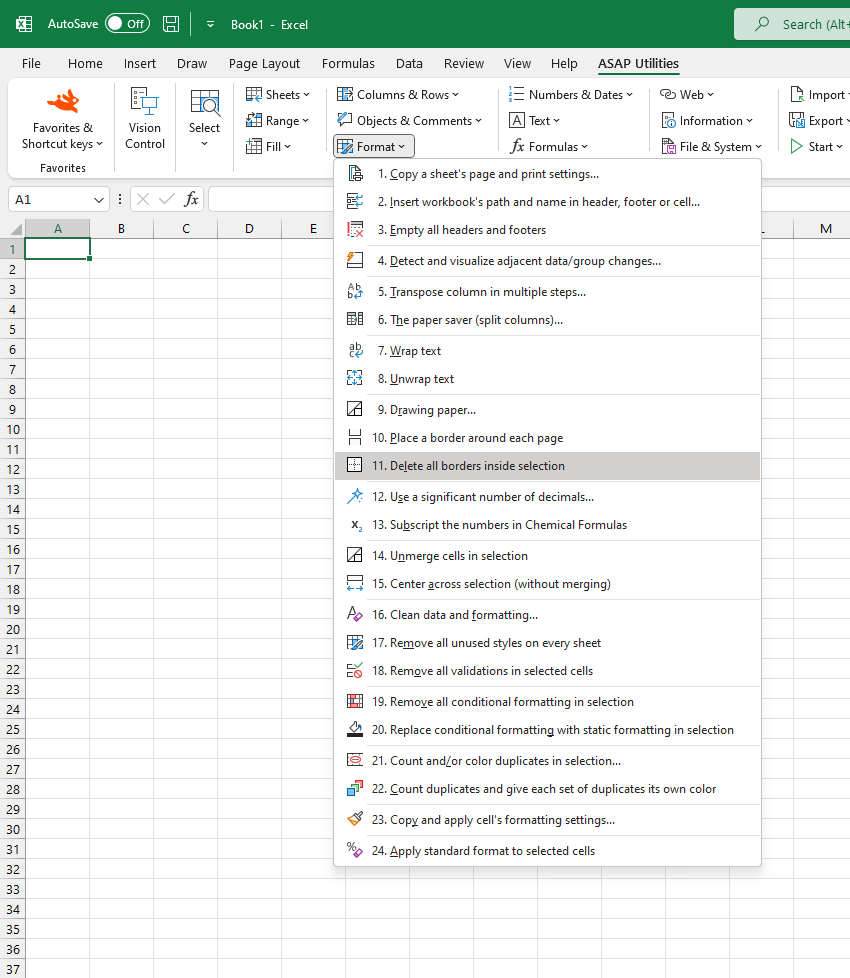
Remove All Inside Borders in Selection
This tool removes all borders between the cells in your selected range.
Only the outer borders (the box around your selection) will remain if they exist.
It helps you clean up formatting while keeping the outer box in place. This is especially useful when you want to remove gridlines inside a table, form, or report without losing the overall structure.
You can use it to clean up pasted tables with too many borders, reset the layout before applying a new style, or prepare a clean version for printing or sharing.
It also helps make summary sections or input areas look more professional by simplifying the visual design.
Note: This tool does not remove borders that were applied through conditional formatting or Excel Table Styles.
Starting this tool
Specify a Keyboard Shortcut: ASAP Utilities › My Tools & Shortcuts › Manage My Tools & Shortcuts...
Additional keywords to help you find this tool:
Remove inside borders in Excel, Delete inner cell borders, Clear borders between cells in selection, Remove borders but keep outer box, Strip table borders, Remove gridlines between cells, Tool to remove inner borders, Clean up formatting borders, Delete inner lines from range, Remove only inside borders, Remove extra borders from pasted table, Fix messy cell borders, Remove border lines but keep table outline, Remove borders within selection
Tip:Alt+P for the previous tool.
Tip: Alt+N for the next tool.

Save Time in Excel. The Easy Way.
ASAP Utilities helps you save time and do what Excel alone can't.
You can get started right away. No training needed.
Most users start with a few tools. Many end up using ASAP Utilities daily.
Used by teams in 28,500+ organizations.
Get Started with ASAP Utilities
Start saving time in Excel with practical tools you can use right away.
-
No sign-up required.
-
-
Free 90-day trial