


Rename Current File...
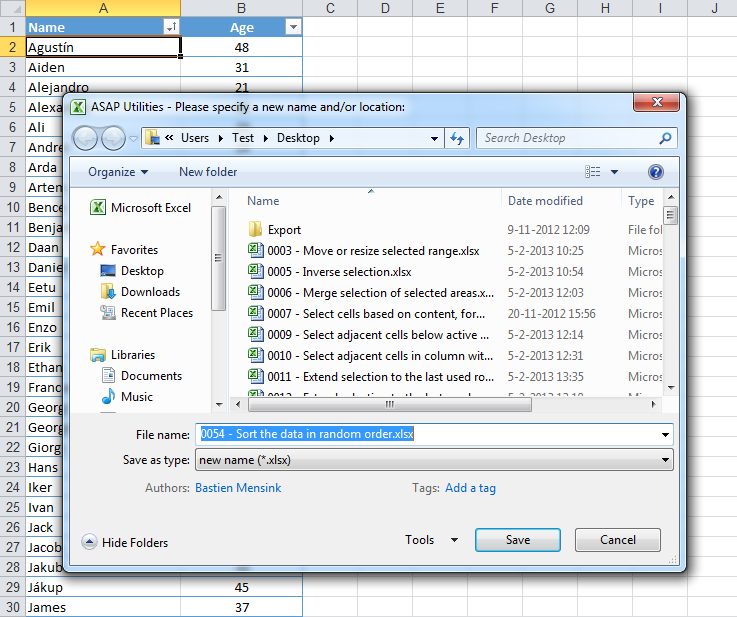
This tool lets you rename your current Excel file without having to close it first.
Normally in Excel, renaming a file means closing it and then renaming it in File Explorer. This tool saves you that extra step by letting you rename the open file directly from within Excel.
It's useful when you want to:
- Quickly update a file name after making changes
- Add a version number or date to the filename
- Rename a file before sharing, saving a backup, or archiving
After renaming, the file stays open with the new name, so you can continue working immediately.
Note:
This tool only works with files that have already been saved.
Starting this tool
Click › File & System › 3. Rename Current File...
Specify a Keyboard Shortcut: ASAP Utilities › My Tools & Shortcuts › Manage My Tools & Shortcuts...
Additional keywords to help you find this tool:
rename Excel file, change file name, save file with new name, update filename, add version number to file, rename workbook, rename spreadsheet, rename open file, rename without closing, Excel save as new name, quick rename file, rename file in Excel, rename and keep working, rename active file, rename current workbook, rename saved file, save Excel file with version, rename before sharing, rename file without explorer, rename file directly in Excel
Tip:Alt+P for the previous tool.
Tip: Alt+N for the next tool.

Save Time in Excel. The Easy Way.
ASAP Utilities helps you save time and do what Excel alone can't.
You can get started right away. No training needed.
Most users start with a few tools. Many end up using ASAP Utilities daily.
Used by teams in 28,500+ organizations.
Get Started with ASAP Utilities
Start saving time in Excel with practical tools you can use right away.
-
No sign-up required.
-
-
Free 90-day trial