


Display Screen Resolution and Working Area
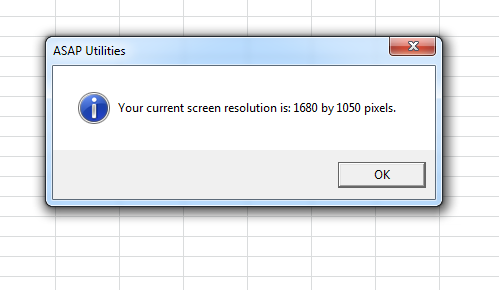
This tool shows the screen resolution and working area for each monitor connected to your system.
For your primary monitor, it displays:
- The full-screen resolution (e.g., 3840×2160)
- The Windows display scaling setting (e.g., 150%)
- The effective working area available to Excel (after scaling and subtracting occupied space like the Windows Taskbar)
Example:
If your screen has a physical resolution of 3840×2160 and Windows scaling is set to 200%, the effective working resolution will be 1920×1080, which is what Excel can actually use.
For additional monitors, it shows only the working area.
(Windows only reports the actual resolution and scaling for the primary screen.)
This tool helps you:
- Understand how much screen space Excel can use on each monitor
- Troubleshoot layout issues when parts of your workbook are not visible
- Communicate screen settings to IT support or colleagues
- Optimize your setup for working with dashboards, templates, or large models
Note:
- The working resolution reflects the usable screen space after scaling and subtracting occupied space like the Windows Taskbar
- If display scaling is applied (for example, 200%), the reported resolution will be smaller than your screen's native resolution.
- The higher your working resolution, the more information Excel can display at once, without the need to scroll.
- If you change display settings, restart Excel to ensure accurate results.
Tip:
To increase your visible working area in Excel, you can:
- Lower your Windows display scaling (if above 100%)
- Increase your screen resolution (if your monitor supports it)
- Add an external monitor or replace your current monitor with one that has a higher resolution and offers more screen space
Starting this tool
Specify a Keyboard Shortcut: ASAP Utilities › My Tools & Shortcuts › Manage My Tools & Shortcuts...
Additional keywords to help you find this tool:
display resolution, working area, Excel screen size, monitor resolution, display scaling, Windows scaling, screen space, usable resolution, resolution detection, monitor info, find screen resolution, scaling percentage, DPI settings, display settings, external monitor resolution
Tip:Alt+P for the previous tool.
Tip: Alt+N for the next tool.

Save Time in Excel. The Easy Way.
ASAP Utilities helps you save time and do what Excel alone can't.
You can get started right away. No training needed.
Most users start with a few tools. Many end up using ASAP Utilities daily.
Used by teams in 28,500+ organizations.
Get Started with ASAP Utilities
Start saving time in Excel with practical tools you can use right away.
-
No sign-up required.
-
-
Free 90-day trial