


Open Windows Character Map (Special Characters)
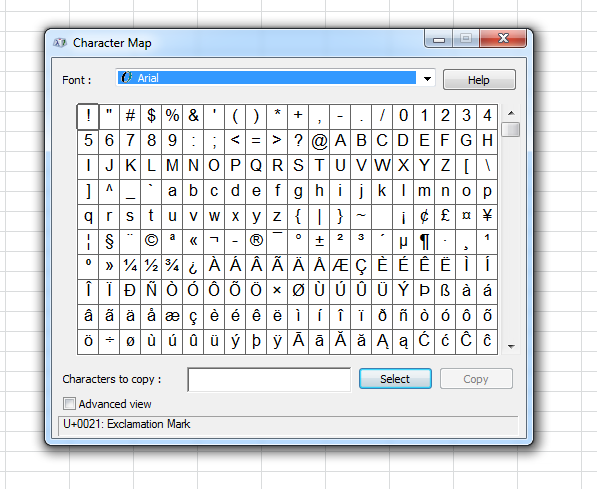
This tool opens the Windows Character Map, a built-in utility that lets you browse and copy special characters from any installed font.
You can use this to:
- Browse and copy characters from system fonts like Wingdings, Webdings, or Symbol
- Search by character name (e.g., "degree", "bullet", "section")
- Find and copy Unicode characters using their code
- Use special symbols in applications outside Excel (e.g., email, websites, or design tools)
You can copy one or multiple characters to the clipboard, then paste them wherever needed.
Tip:
For quickly inserting common symbols (like ©, €, °, →) directly into a cell, Excel's Insert > Symbol feature may be easier. It shows recently used symbols and lets you insert with a double-click.
Also useful:
If you're using Windows 10 or later, you can press Windows key + . (period) to open the emoji and symbol picker. It includes emojis, math symbols, currency symbols, and more.
Note:
If you use a character from a different font (e.g., Wingdings), make sure to apply the same font in the Excel cell so the symbol displays correctly.
Starting this tool
Specify a Keyboard Shortcut: ASAP Utilities › My Tools & Shortcuts › Manage My Tools & Shortcuts...
Additional keywords to help you find this tool:
insert special characters, Excel character map, open character map, Windows character map, insert symbols in Excel, Excel symbol picker, copy special characters, Unicode symbols, Wingdings characters, Webdings symbols, special font characters, Excel emoji shortcut, Windows emoji picker, copy from character map
Tip:Alt+P for the previous tool.
Tip: Alt+N for the next tool.

Save Time in Excel. The Easy Way.
ASAP Utilities helps you save time and do what Excel alone can't.
You can get started right away. No training needed.
Most users start with a few tools. Many end up using ASAP Utilities daily.
Used by teams in 28,500+ organizations.
Get Started with ASAP Utilities
Start saving time in Excel with practical tools you can use right away.
-
No sign-up required.
-
-
Free 90-day trial