


Fix Broken Links to ASAP Utilities Worksheet Functions
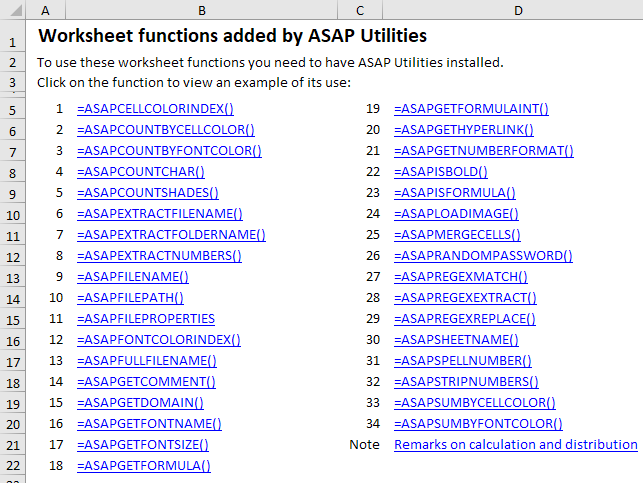
This tool updates the references in your workbook's cell formulas that use the ASAP Utilities worksheet functions.
It is helpful when a workbook is opened on another computer where ASAP Utilities is installed in a different folder.
This can happen due to differences in Windows architecture (32-bit vs 64-bit) or how the add-in was installed (locally or on a network).
It also helps if you upgraded from the older .xla version of ASAP Utilities (used with Excel 2000 to 2007) to the current .xlam version, which works with Excel 2010 and later.
If formulas with ASAP Utilities functions show #NAME? errors, this tool can fix them by correcting the broken links to the add-in.
Starting this tool
Specify a Keyboard Shortcut: ASAP Utilities › My Tools & Shortcuts › Manage My Tools & Shortcuts...
Additional keywords to help you find this tool:
broken formula link, name error excel, fix #NAME? error, update worksheet function reference, fix asap utilities link, missing add-in function, update add-in path, asap utilities formula error, xla to xlam upgrade, fix formula links asap utilities, worksheet function not found, fix broken cell references, missing custom function excel, network install formula error
Tip:Alt+P for the previous tool.
Tip: Alt+N for the next tool.

Save Time in Excel. The Easy Way.
ASAP Utilities helps you save time and do what Excel alone can't.
You can get started right away. No training needed.
Most users start with a few tools. Many end up using ASAP Utilities daily.
Used by teams in 28,500+ organizations.
Get Started with ASAP Utilities
Start saving time in Excel with practical tools you can use right away.
-
No sign-up required.
-
-
Free 90-day trial