


Delete and Reset Empty Ending Rows and Columns on Selected Sheets
Fix incorrect last-cell detection and remove unused empty rows and columns at the bottom and right of your data range across multiple sheets.
This tool is useful when our "Reset Excel's Last Used Cell" tool cannot fully reset the last cell, often due to excessive empty rows or columns still being recognized as part of the used range.
If Control+End takes you far beyond your actual data, Excel still considers those empty cells as used, which can cause:
- Large file sizes
- Unexpected extra pages when printing
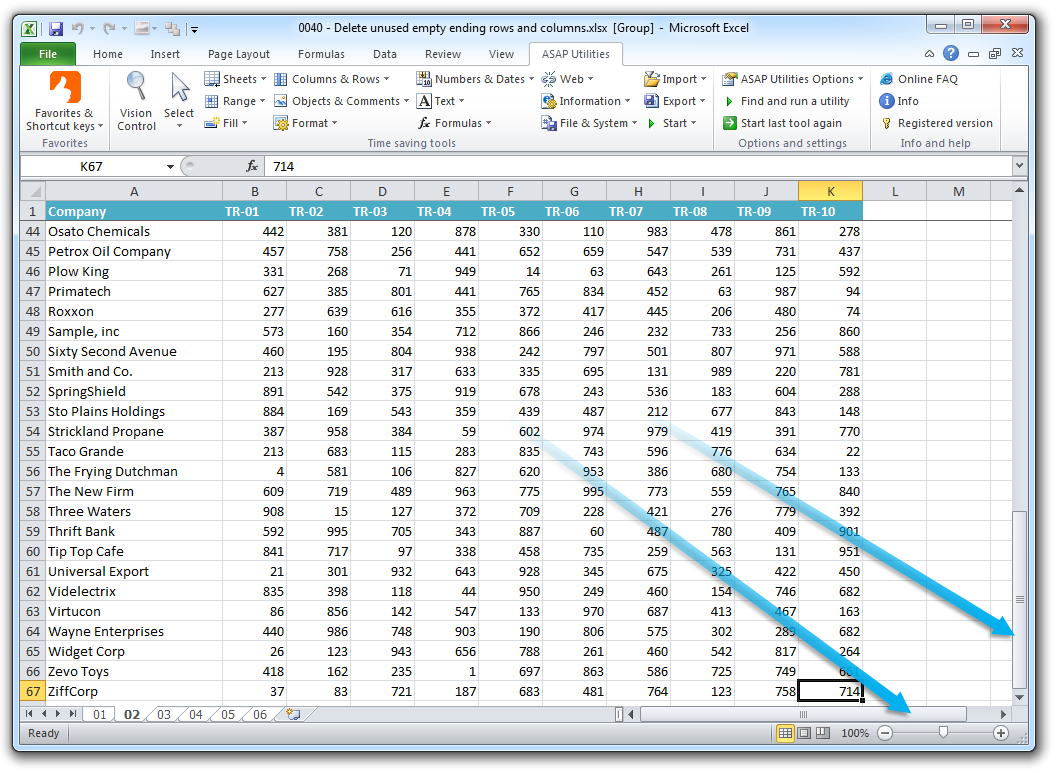
- Very small scrollbars, even when little data is present
- "Out of Memory" errors or sluggish performance
This tool:
- Deletes truly empty (no data or comments) ending rows and columns on all selected sheets.
- Resets Excel's last used cell detection to improve performance.
- Reduces file size and prevents unnecessary printing.
Microsoft describes this issue in the support article 244435:
Fix Excel's Last Cell Issue - Microsoft Support
https://support.microsoft.com/en-us/topic/244435
Tip: Press Control+End to check if Excel selects a blank cell far beyond your actual data. If it does, this tool can fix that.
Starting this tool
Specify a Keyboard Shortcut: ASAP Utilities › My Tools & Shortcuts › Manage My Tools & Shortcuts...
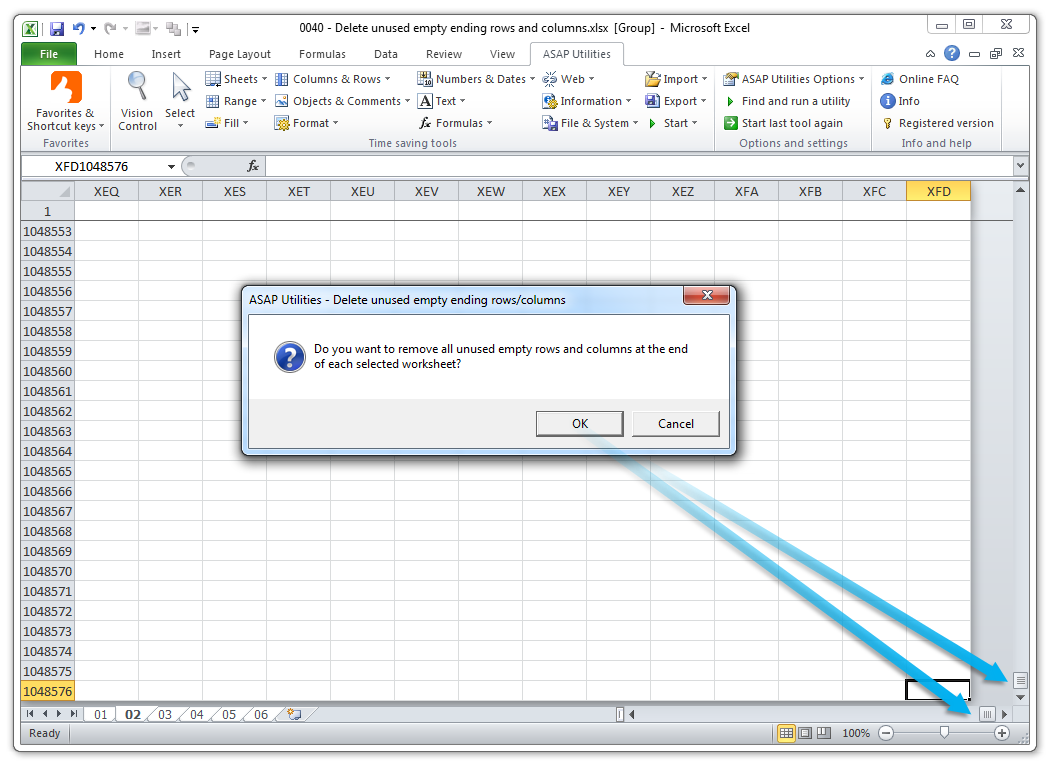
Example screenshot: 2 After (Here's the English version.)
Additional keywords to help you find this tool:
Fix last used cell in Excel, Reset last used cell, Delete excess empty rows and columns, Clear excess rows, Clear excess columns, Reduce Excel file size, Fix small scrollbars in Excel, Remove unused space, Reset worksheet scroll area, Ctrl+End goes too far, Fix scrolling issues, Printing issues extra pages, Prevent extra blank pages in Excel, Clean up Excel workbook, Optimize Excel performance, Remove formatting bloat, File size reduction, Too many rows, Too many columns, Save paper
Tip:Alt+P for the previous tool.
Tip: Alt+N for the next tool.

Save Time in Excel. The Easy Way.
ASAP Utilities helps you save time and do what Excel alone can't.
You can get started right away. No training needed.
Most users start with a few tools. Many end up using ASAP Utilities daily.
Used by teams in 28,500+ organizations.
Get Started with ASAP Utilities
Start saving time in Excel with practical tools you can use right away.
-
No sign-up required.
-
-
Free 90-day trial