


Begin hier
Ontdek hoe u ASAP Utilities in Excel gebruikt
ASAP Utilities voegt meer dan 300 praktische tools toe aan Excel. U hoeft ze niet allemaal te leren kennen. Begin met de tools die nuttig zijn voor uw werk en ontdek er meer wanneer u die nodig hebt.
Vind ASAP Utilities in Excel
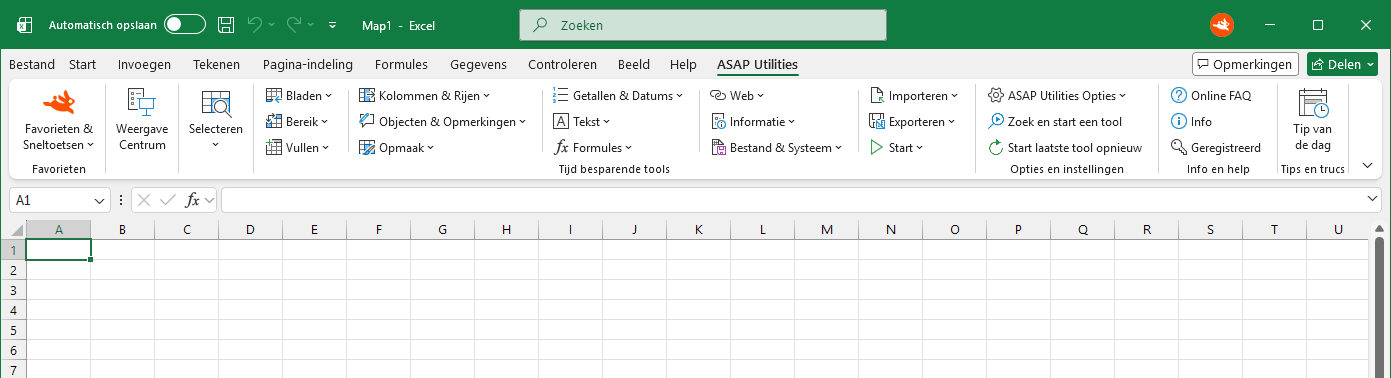
Na de installatie verschijnt ASAP Utilities als een eigen tabblad op het lint van Excel.
De tools zijn gegroepeerd in categorieën zoals Selecteren, Bladen, Bereik, Getallen & Datums, Tekst en Formules, zodat u snel het type tool kunt vinden dat u nodig hebt.
U hoeft niet alle tools te leren kennen. De meeste gebruikers beginnen met een paar tools voor hun dagelijkse werk en ontdekken er na verloop van tijd meer.
Kies een tool voor uw taak
-
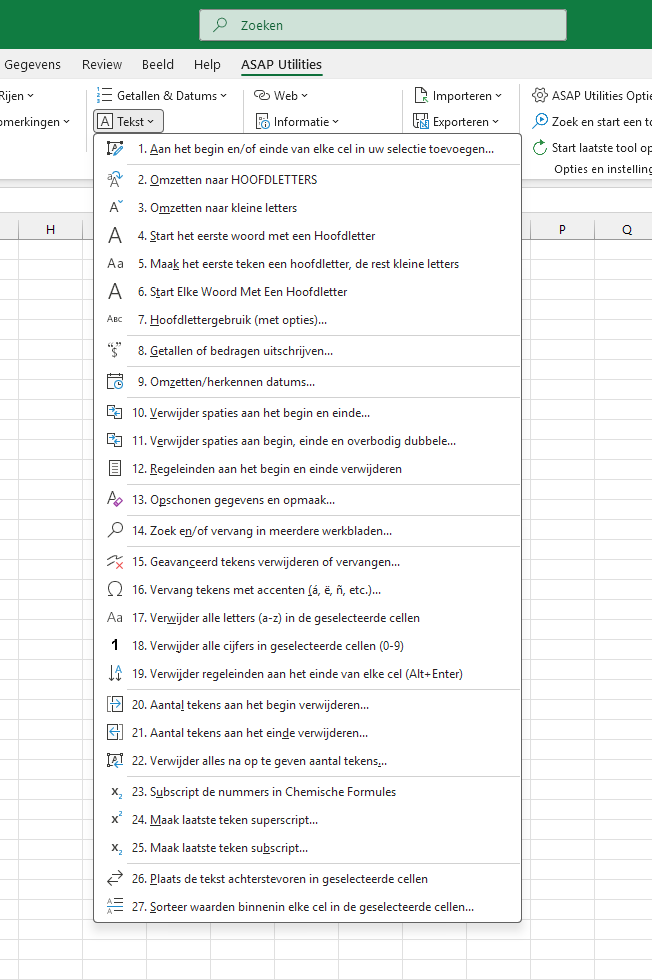
Elke tool is ontworpen voor een specifieke taak. Kies een tool rechtstreeks op het lint van ASAP Utilities of vanuit een van de menu's.
-
Het menu Tekst bevat bijvoorbeeld tools om hoofdletters en kleine letters te wijzigen, extra spaties te verwijderen, datums in tekstvorm om te zetten, tekst aan cellen toe te voegen en meer.
-
Tools hebben duidelijke, beschrijvende namen, zodat u snel kunt vinden wat u nodig hebt.
Weet u niet waar u moet beginnen?
U hoeft niet alle tools tegelijk te ontdekken. Begin met enkele van onze populairste tools voor dagelijkse taken in Excel.
Houd uw favoriete tools binnen handbereik
-
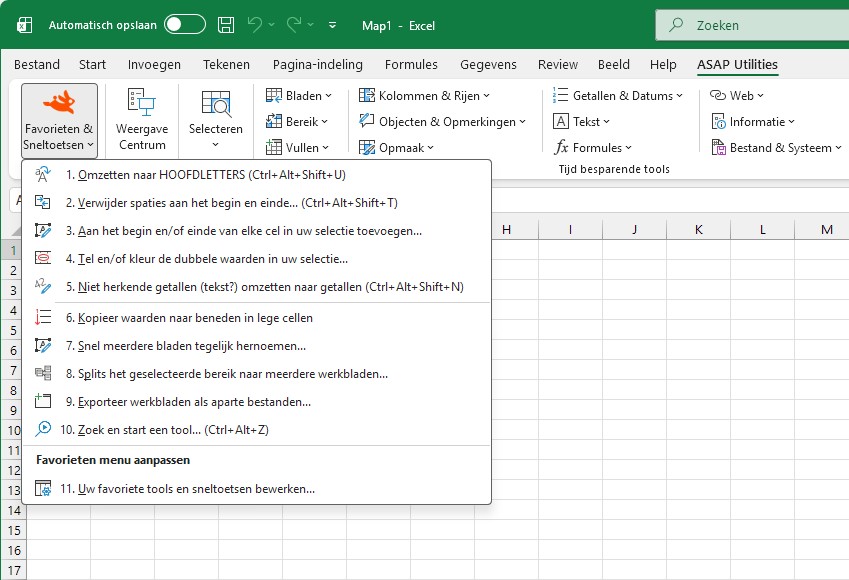
Voeg de tools die u het meest gebruikt toe aan Favorieten & Sneltoetsen voor snelle toegang vanaf het lint van ASAP Utilities.
-
U kunt ook sneltoetsen aan uw favoriete tools toewijzen, zodat u veelgebruikte opdrachten nog sneller kunt uitvoeren.
-
Klik met de rechtermuisknop op een tool om deze toe te voegen aan de werkbalk Snelle toegang van Excel.
U kunt aan de slag
Begin met een paar tools en ontdek er meer wanneer u die nodig hebt.
U kunt altijd de complete toolcatalogus bekijken om alle beschikbare tools te zien.