


Settings, Language, and Contact Information...
This lets you change ASAP Utilities' main settings.
You can adjust general behavior, language, folder paths, and menu visibility. It also provides access to support and debugging information.
If you change the language, that setting is applied immediately, and you see the interface in the new language. The other settings are saved when you press the OK button.
General Settings
Customize how ASAP Utilities behaves in Excel:
-
Ask for confirmation before starting certain tools
Recommended for extra clarity, especially for tools without undo, such as "Delete All Empty Rows" or "Unhide All Sheets at Once". -
Enable undo where available
Recommended so you can undo changes if needed. You can turn this off to improve performance when working with large or filtered datasets. -
Use the F11 key to switch between full screen and normal view
Excel does not have a shortcut for full screen mode, but most browsers use F11 for this. With this setting, F11 works the same way in Excel.
This replaces Excel's default use of F11 to insert a chart sheet, but you can still do that with Alt+F1. -
Show a date picker popup when double-clicking a date cell
Lets you quickly select a date from a calendar. -
Enable mouse wheel scrolling for dialog boxes
By default, Excel's dialogs created with VBA do not support mouse wheel scrolling. This option enables scrolling as most users expect, using a custom solution developed specifically for this need.
It was added by user request and works well in most cases.
Please note: in some older builds of Excel, this may cause a crash with "Unexpected error (35010)". If you experience this, we recommend updating Excel to the latest version or turning off this option. -
Show the ASAP Utilities menu in the Add-ins tab (classic menu)
Adds the ASAP Utilities menu to Excel's Add-ins tab. Helpful if you prefer a classic menu layout instead of the ribbon. -
Help improve ASAP Utilities
Share anonymous usage data to help us improve ASAP Utilities. No personal data or content from your workbooks is collected.
The following information may be included: Windows version and language, Excel version and language, ASAP Utilities version and language, the IDs of your 10 most-used tools, and an anonymized version of your IP address.
Based on this feedback, ASAP Utilities is currently available in 10 languages. -
Language used in menus and dialogs
Select your preferred language. The change is applied immediately.
You can choose from:- English
- Deutsch (German)
- Español (Spanish)
- Français (French)
- Italiano (Italian)
- Nederlands (Dutch)
- Português do Brasil (Portuguese (Brazil))
- Русский (Russian)
- 中文(简体) (Chinese (Simplified))
- 日本語 (Japanese)
Folder Settings
Control where your settings and backups are saved:
-
Installed folder
Shows where ASAP Utilities is installed on your computer. -
Folder to store your 'My Tools & Shortcuts' settings
Choose a custom location for your personal Tools & Shortcuts settings (.ini file). Useful when working on multiple computers with a shared folder, so your custom tools and shortcuts stay in sync.
If the folder has no settings file, one with the default tools and shortcuts is created automatically. -
Default path to save a backup
Set the location where backups are saved when using the "Save File and Create Backup Copy with Timestamp..." tool.
Contact Information
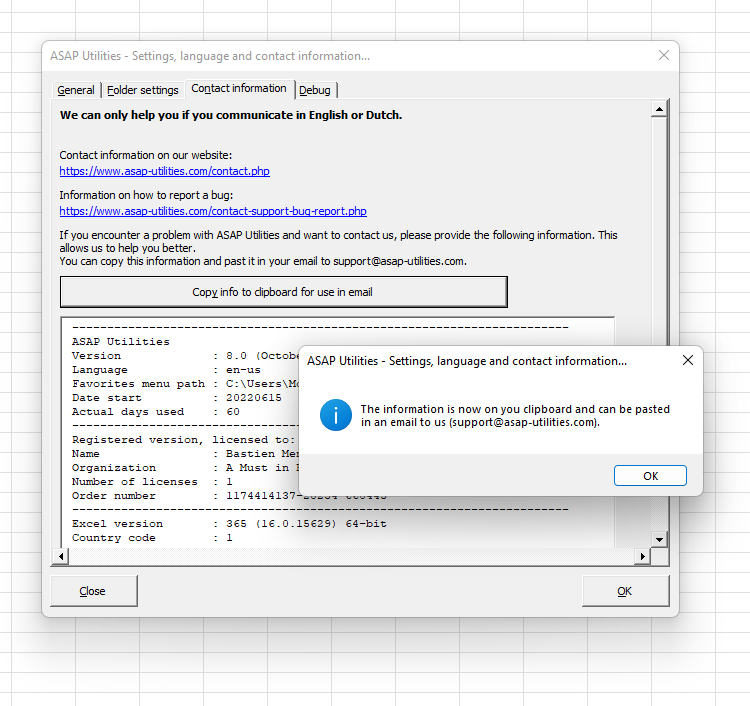
This section helps when contacting support.
Click "Copy info to clipboard for use in email" to copy key details about your setup.
This includes your Windows, Excel, and ASAP Utilities versions, language settings, license info (for priority support), and install path.
You can then easily paste this into your message when contacting our support team.
Debug Settings
Only use this option when support requests it.
It turns on logging to record internal steps. It helps pinpoint where something goes wrong during troubleshooting.
Starting this tool
Specify a Keyboard Shortcut: ASAP Utilities › My Tools & Shortcuts › Manage My Tools & Shortcuts...
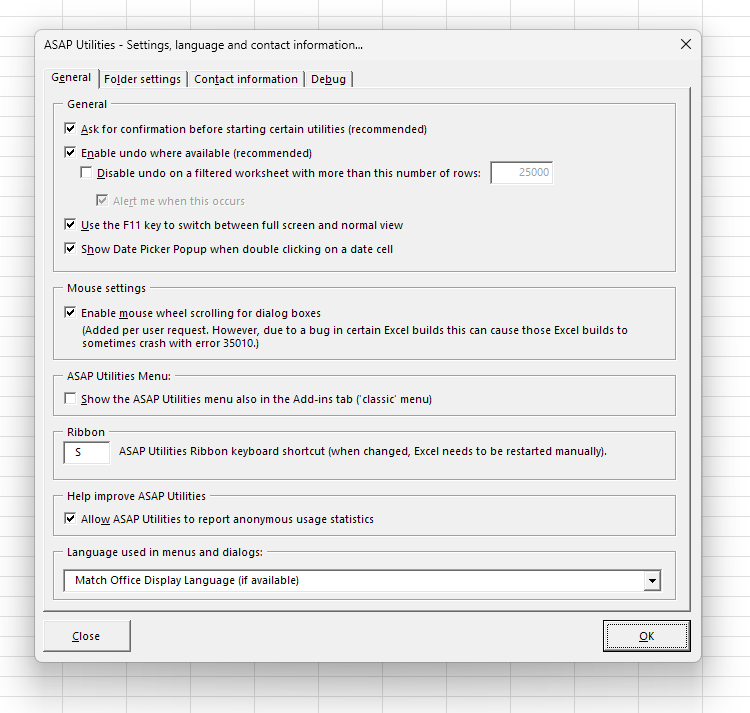
Example screenshot: 2 (Here's the English version.)
Additional keywords to help you find this tool:
configure ASAP Utilities, change ASAP Utilities language, customize ASAP Utilities, ASAP Utilities preferences, enable undo in ASAP Utilities, F11 full screen shortcut Excel, mouse wheel scroll VBA dialog, set backup folder Excel, support info ASAP Utilities, debug log ASAP Utilities, troubleshoot ASAP Utilities
Tip:Alt+P for the previous tool.
Tip: Alt+N for the next tool.

Save Time in Excel. The Easy Way.
ASAP Utilities helps you save time and do what Excel alone can't.
You can get started right away. No training needed.
Most users start with a few tools. Many end up using ASAP Utilities daily.
Used by teams in 28,500+ organizations.
Get Started with ASAP Utilities
Start saving time in Excel with practical tools you can use right away.
-
No sign-up required.
-
-
Free 90-day trial