


Split Selected Range into Worksheets Based on Column Value or Row Count...
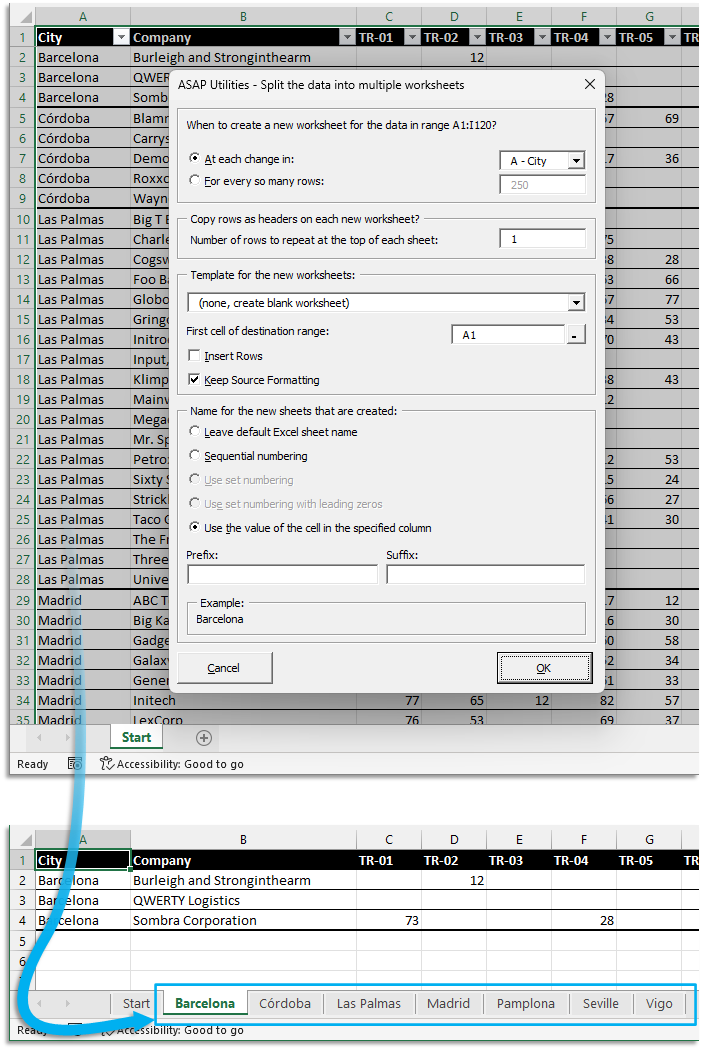
This tool splits your selected range into multiple worksheets based on column values or row limits. It creates new sheets and leaves your original data unchanged.
You can split the data by:
-
Changes in a specific column (e.g., City, Department, Category)
- A new worksheet is created each time the value in the selected column changes.
- Tip: Sort the column first so that identical values are grouped together.
-
A fixed number of rows per sheet (e.g., every 50 or 10,000 rows)
- Useful for limiting sheet size or breaking up large datasets.
Additional options:
- When splitting by value, ignore hidden rows.
- Repeat header rows at the top of each new worksheet.
- Use a custom worksheet from your workbook as a template.
- Choose the cell where the pasted data should begin in each new sheet.
- When using a template, you can choose to insert rows and shift content down instead of overwriting with paste.
- Keep the cell formatting from your original sheet instead of copying only the values.
Sheet naming options:
- Use Excel's default sheet names (Sheet1, Sheet2, etc.).
- Name sheets using values from the selected column (when splitting by value), with optional prefix or suffix.
- When splitting by row count, use sequential numbering or include the row range in the sheet names. For example: "1 (1-50)", "2 (51-100)", etc.
Examples of use:
- Create a separate sheet for each company, region, or product category.
- Split a report into smaller worksheets for printing or sharing.
- Prepare files for Excel 97-2003 (.xls format), which supports up to 65,536 rows per sheet.
- Create legacy-compatible files for older systems that cannot handle large datasets in a single worksheet.
Your original worksheet remains unchanged.
Note:
To save the new worksheets as separate files, use:
Sheets » Export Worksheets as Separate Files (Excel, PDF, TXT, CSV, etc.)...
Starting this tool
Specify a Keyboard Shortcut: ASAP Utilities › My Tools & Shortcuts › Manage My Tools & Shortcuts...
Additional keywords to help you find this tool:
split data into sheets, split worksheet by column value, split table into tabs, separate data into worksheets, split Excel data into multiple sheets, Excel group by column to sheets, divide range into worksheets, split large dataset, split by row count, split sheet by value, split table into groups, worksheet per category, Excel sheet splitter, create sheets per value
Tip:Alt+P for the previous tool.
Tip: Alt+N for the next tool.

Save Time in Excel. The Easy Way.
ASAP Utilities helps you save time and do what Excel alone can't.
You can get started right away. No training needed.
Most users start with a few tools. Many end up using ASAP Utilities daily.
Used by teams in 28,500+ organizations.
Get Started with ASAP Utilities
Start saving time in Excel with practical tools you can use right away.
-
No sign-up required.
-
-
Free 90-day trial