


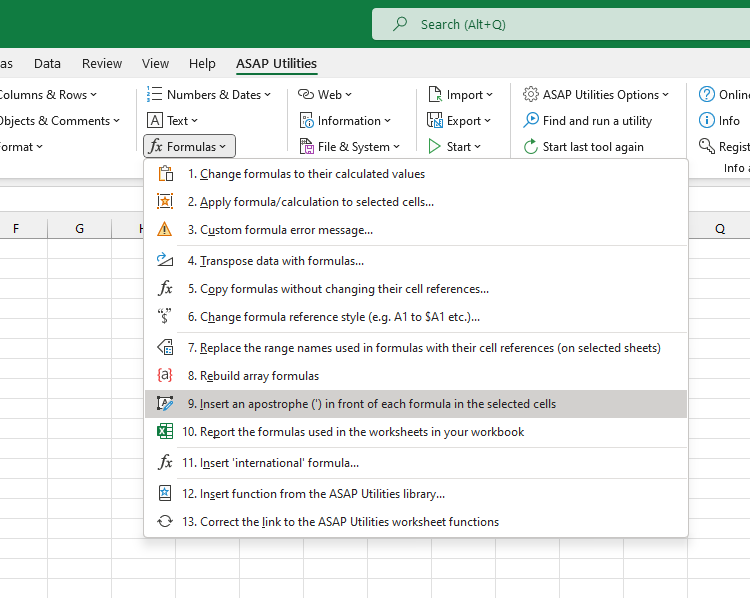
Convert Formulas in Selected Cells to Text by Inserting an Apostrophe
This tool inserts an apostrophe (') in front of each formula in your selected cells, turning them into plain text so they no longer calculate.
It's helpful when you want to:
- Share or print specific formulas without showing results
- Temporarily disable formulas during testing
- Create training files or documentation with visible formulas
Examples:
- =A1+B1 becomes '=A1+B1
- =SUM(A1:A10) becomes '=SUM(A1:A10)
- =IF(B2>100, "High", "Low") becomes '=IF(B2>100, "High", "Low")
This prevents Excel from calculating the result and keeps the formula visible in the cell.
Note:
To convert them back into working formulas without manually removing the apostrophes, use this tool in ASAP Utilities:
Numbers & Dates » Convert Numbers Stored as Text to Real Numbers
Tips:
- To temporarily show all formulas on a worksheet (without converting them), press Ctrl+` or go to Formulas > Show Formulas in Excel. This view affects the entire sheet and can be toggled off the same way.
-
To extract a formula as text from a specific cell, use these worksheet functions from ASAP Utilities:
- =ASAPGETFORMULA(A1) - shows the formula using your Excel language settings
- =ASAPGETFORMULAINT(A1) - shows the formula in international English notation
Starting this tool
Specify a Keyboard Shortcut: ASAP Utilities › My Tools & Shortcuts › Manage My Tools & Shortcuts...
Additional keywords to help you find this tool:
formulas to text, make formula visible, prevent formula from running, formula as plain text, stop formula execution, Excel formula text, convert formula to string, show formula in cell, lock formula display, display formula instead of result, Excel apostrophe trick, disable formula calculation, Excel quote before formula, escape formula Excel
Tip:Alt+P for the previous tool.
Tip: Alt+N for the next tool.

Save Time in Excel. The Easy Way.
ASAP Utilities helps you save time and do what Excel alone can't.
You can get started right away. No training needed.
Most users start with a few tools. Many end up using ASAP Utilities daily.
Used by teams in 28,500+ organizations.
Get Started with ASAP Utilities
Start saving time in Excel with practical tools you can use right away.
-
No sign-up required.
-
-
Free 90-day trial