


Reapply CSE (Ctrl+Shift+Enter) Array Formulas
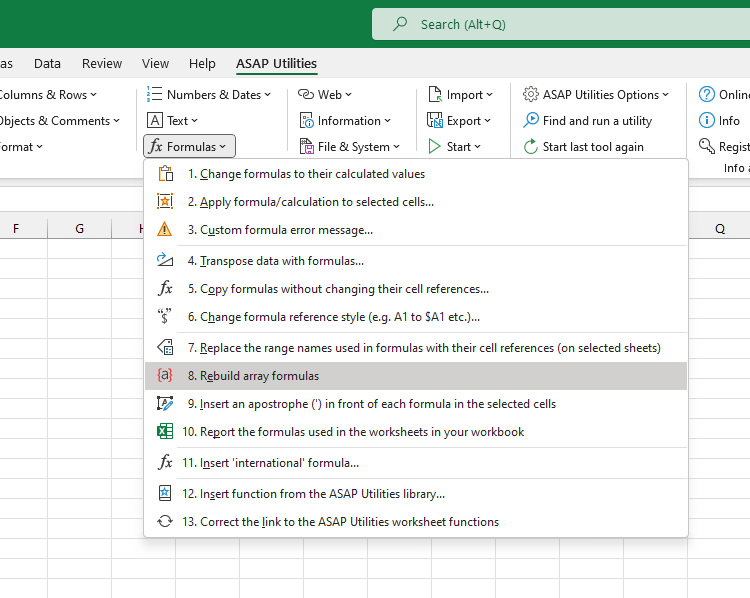
This tool re-enters all formulas in your selected cells as CSE (Control+Shift+Enter) array formulas.
In Excel versions before dynamic arrays (Excel 2010-2016 and most of 2019), array formulas had to be confirmed by pressing Control+Shift+Enter. These are known as CSE array formulas.
If entered correctly, Excel displays the formula in curly braces, like:
{=A1:A3*B1:B3}
If you forget to press Control+Shift+Enter, Excel may treat the formula as a regular one, which can lead to errors or incorrect results.
Starting with Excel 365 in 2018, Excel introduced dynamic array formulas. These no longer require Control+Shift+Enter and automatically spill results into adjacent cells.
However, Excel still supports traditional CSE formulas for compatibility with older files.
Manually reapplying CSE to many formulas can be time-consuming.
This tool automates the process by re-entering all formulas in your selection using Control+Shift+Enter.
Note: The tool does not detect which formulas need to be array formulas. It simply re-enters all formulas in your selection as CSE formulas.
Starting this tool
Specify a Keyboard Shortcut: ASAP Utilities › My Tools & Shortcuts › Manage My Tools & Shortcuts...
Additional keywords to help you find this tool:
Reenter array formula, Fix array formulas, Convert formula to array formula, Add curly braces to Excel formula, Automate Ctrl+Shift+Enter in Excel, Convert regular formula to array formula, Batch apply Ctrl+Shift+Enter, Reapply CSE array formulas, Array formula not calculating, Dynamic vs legacy array formula, Rebuild array formulas, Convert formulas to CSE format
Tip:Alt+P for the previous tool.
Tip: Alt+N for the next tool.

Save Time in Excel. The Easy Way.
ASAP Utilities helps you save time and do what Excel alone can't.
You can get started right away. No training needed.
Most users start with a few tools. Many end up using ASAP Utilities daily.
Used by teams in 28,500+ organizations.
Get Started with ASAP Utilities
Start saving time in Excel with practical tools you can use right away.
-
No sign-up required.
-
-
Free 90-day trial